Playdecko is for collectors aged 13 and over, and selling opens at 18. Children under 13 don't get an account of their own: a parent or carer adds them to their own account and sets Playdecko up on the child's iPad or phone, where the child gets a simple binder with no prices, chat or market. Teenagers aged 13 to 17 have their own account and can link it to a parent or carer, who can then sell or trade cards for them. This guide covers both.
Add a child under 13
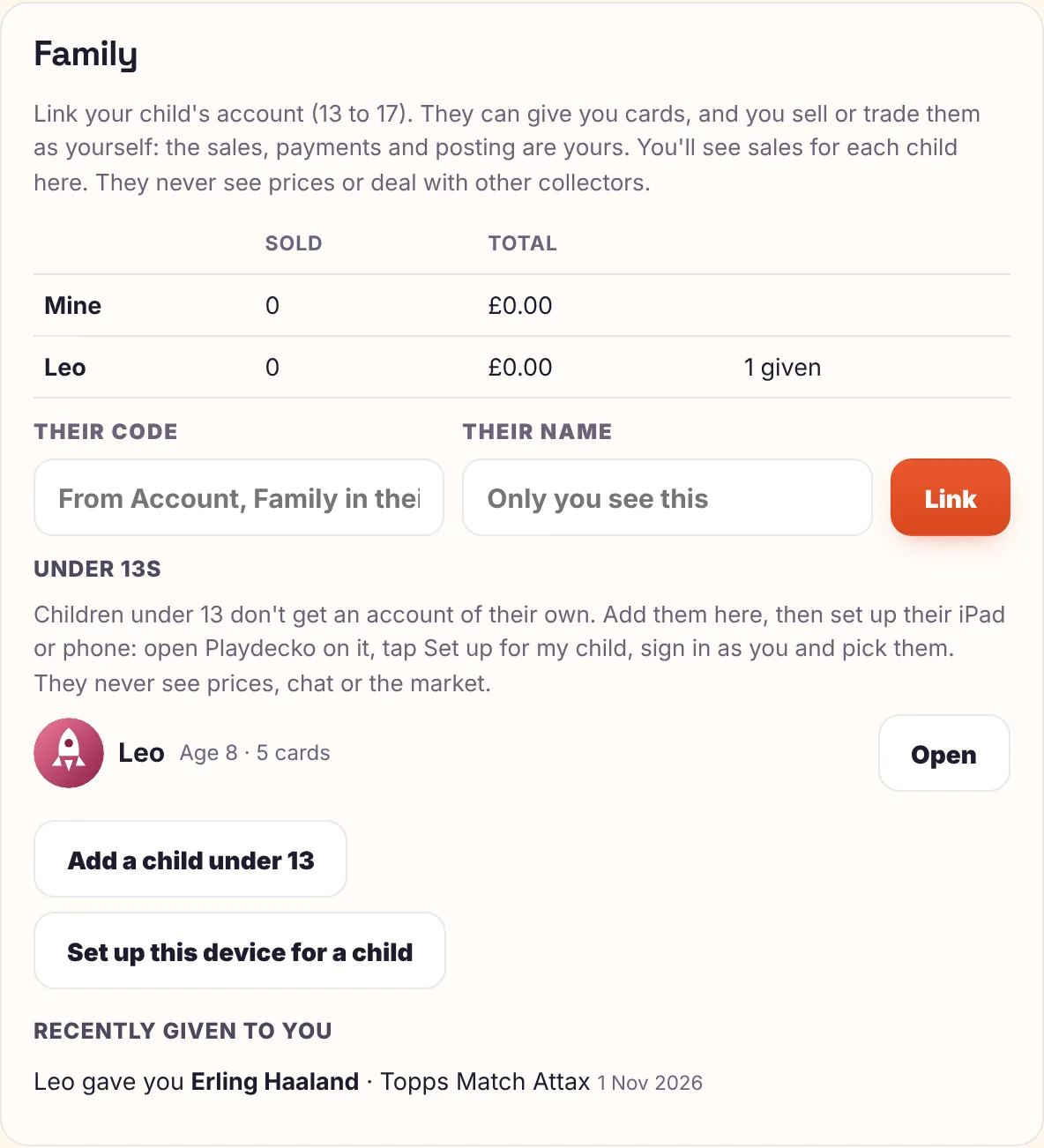
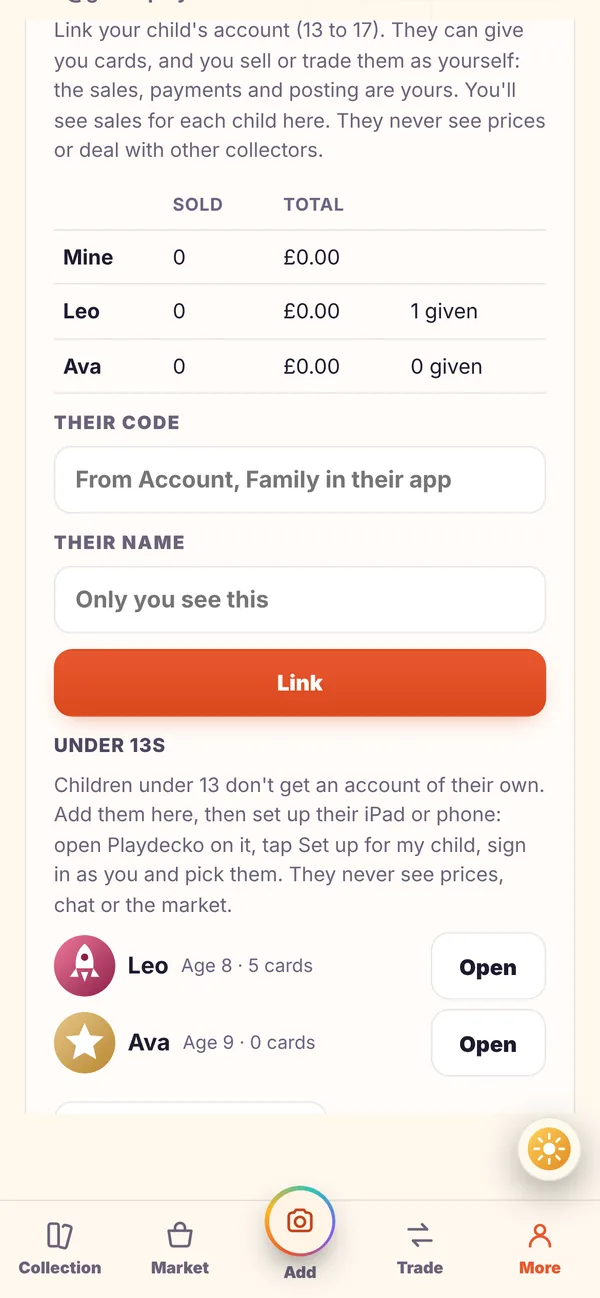
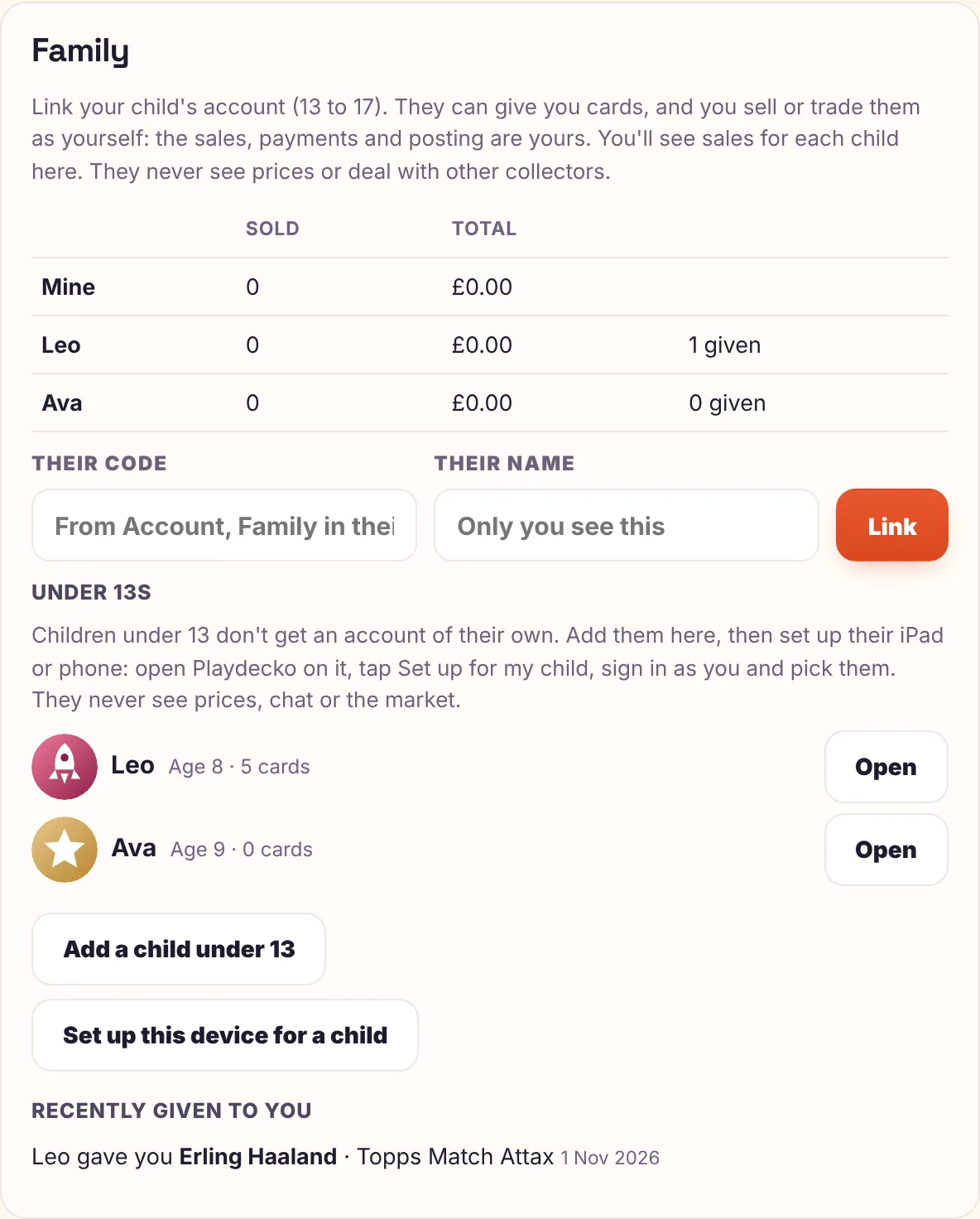
On your own phone or computer, open Account and scroll to Family. Your children, and any cards they've given you, are listed here.
The Family panel on the Account page
The same panel on a phone
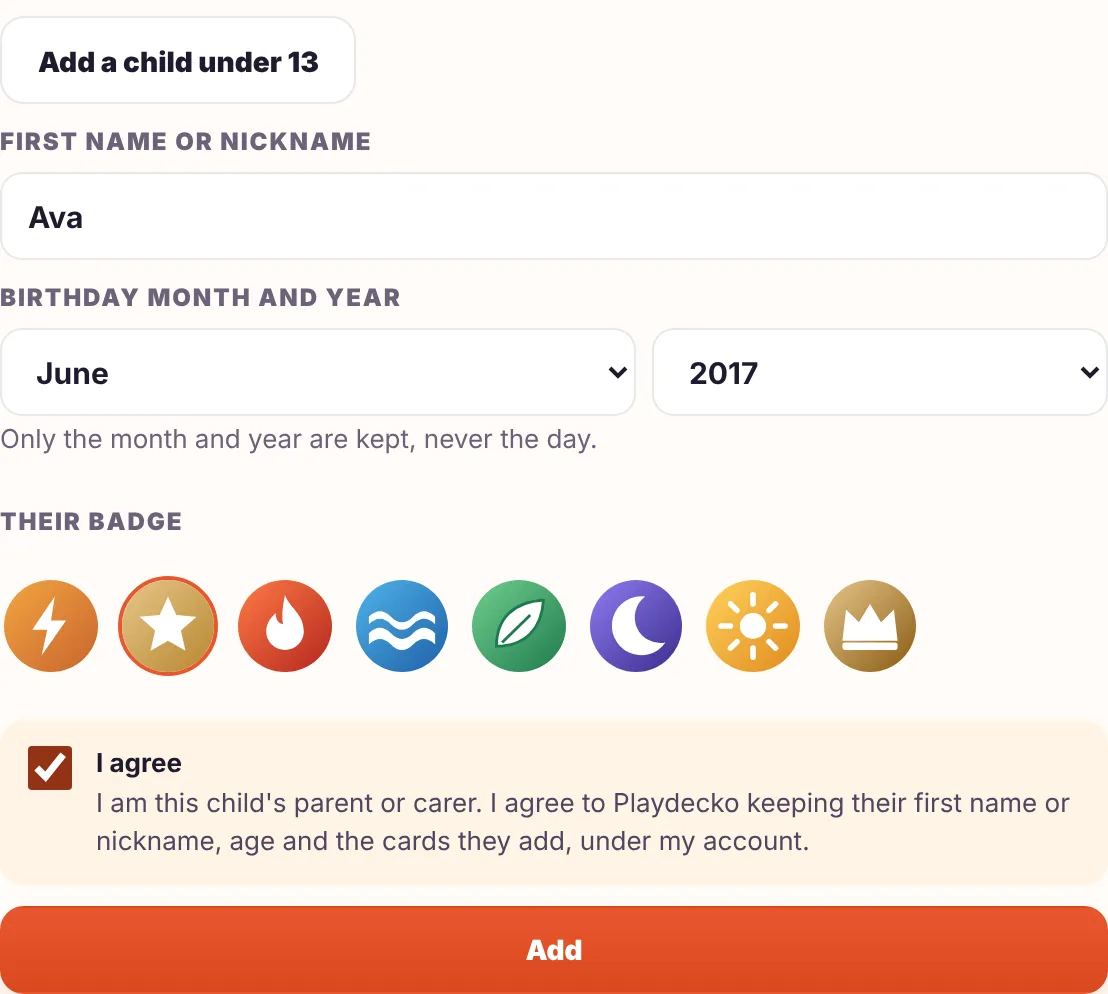
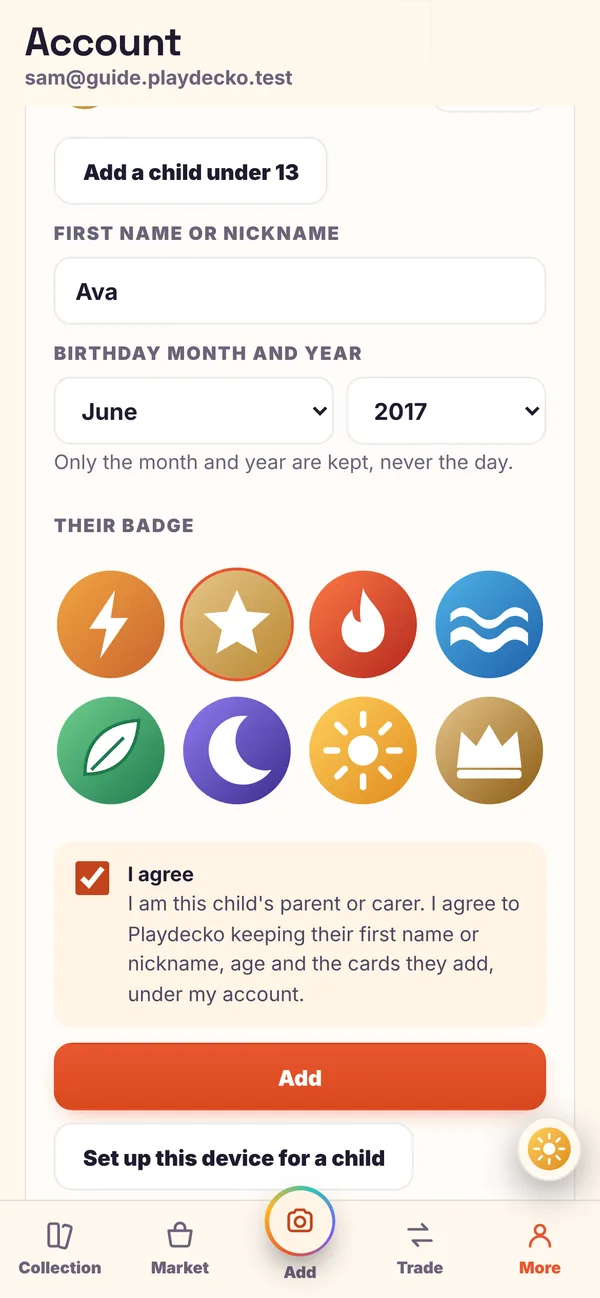
2. Tap Add a child under 13. Type their first name or a nickname, pick their birthday month and year, choose a badge, and tick I agree to confirm you're their parent or carer. Only the month and year are kept, never the day. The badge is their picture in the app; children can't upload photos.
Adding a child: name, birthday month, badge and consent
Adding a child on a phone
3. Tap Add. Your child now appears under Under 13s with their age and card count.
Ava added under Under 13s
Under 13s binders are for children aged 5 to 12. You can have up to 6 children on your account, counting linked teenagers.
Set up your child's device
Do this on the child's own iPad, tablet or phone.
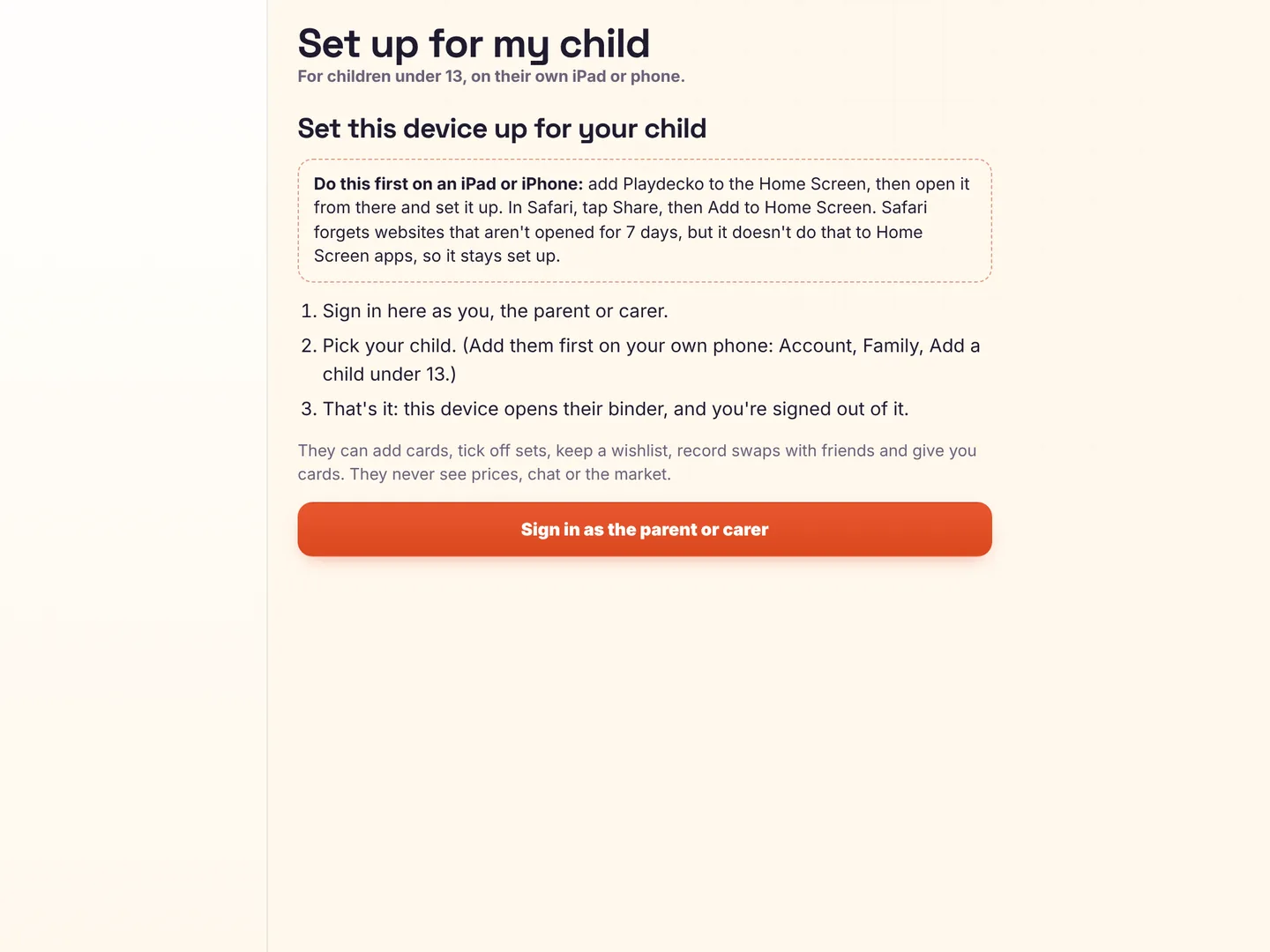
On an iPad or iPhone, first add Playdecko to the Home Screen (in Safari: Share, then Add to Home Screen) and open it from there. Safari forgets websites that aren't opened for 7 days, but not Home Screen apps, so the device stays set up.
Open Set up for my child (on your Account page it's Set up this device for a child) and tap Sign in as the parent or carer.
Setting the device up: the first screen
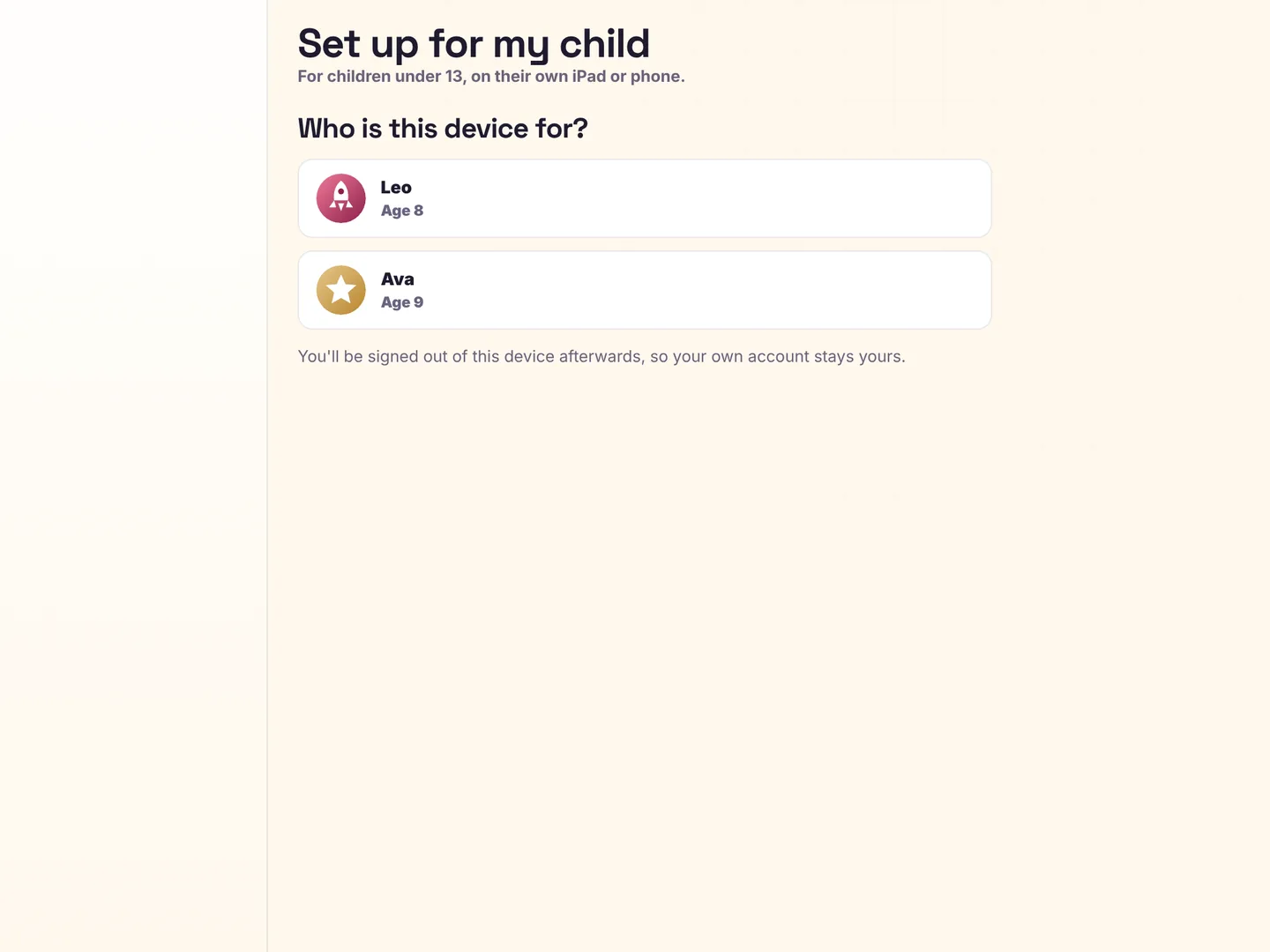
3. Sign in as yourself, then pick the child this device is for. You're signed out straight afterwards, so your own account doesn't stay on their device.
Who is this device for?
A child can be set up on up to 5 devices.
What your child sees
Kid mode has its own look and five tabs: My cards, Add, Wishlist, Swaps and Me. Prices and values are always hidden.
My cards
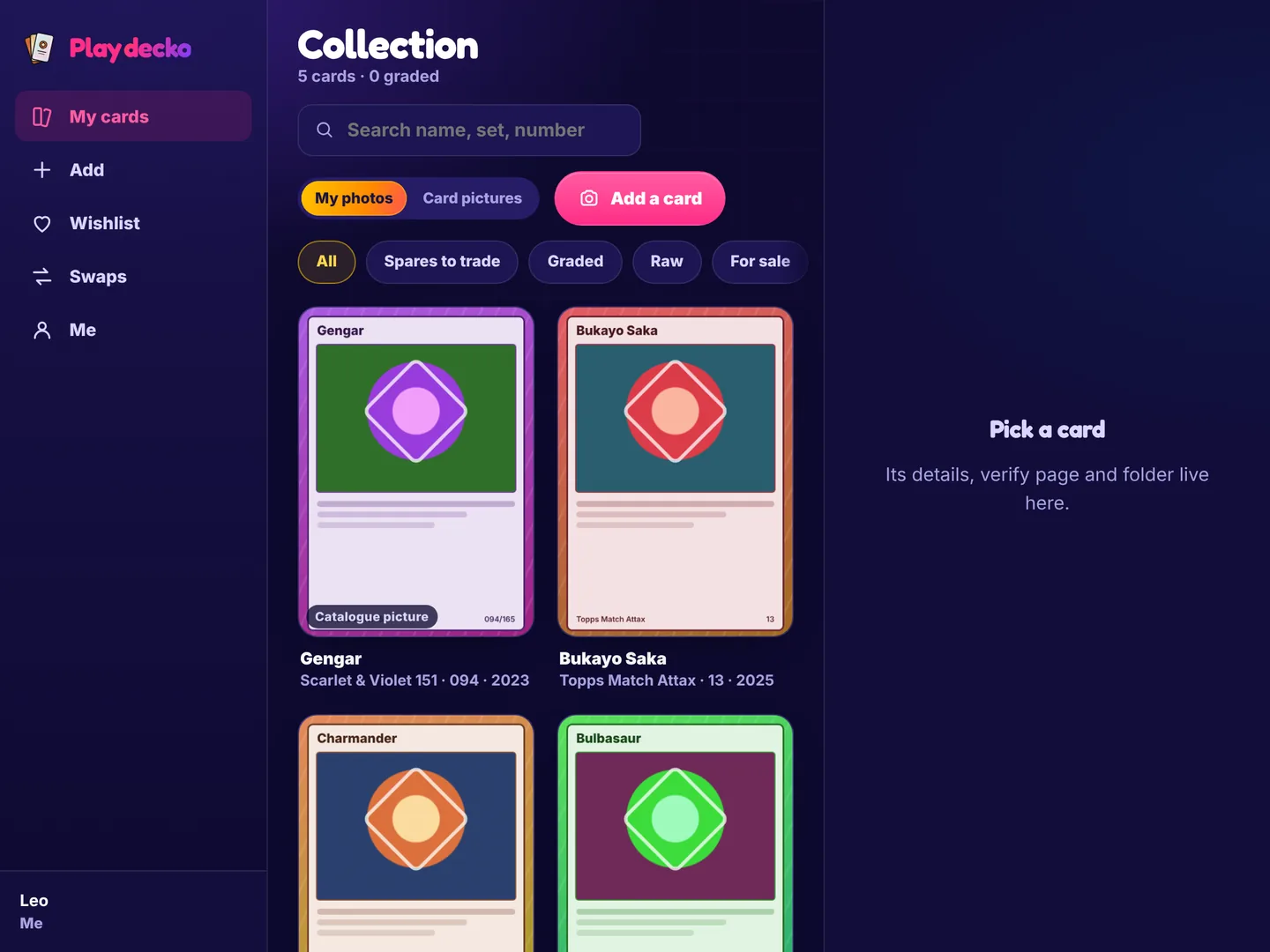
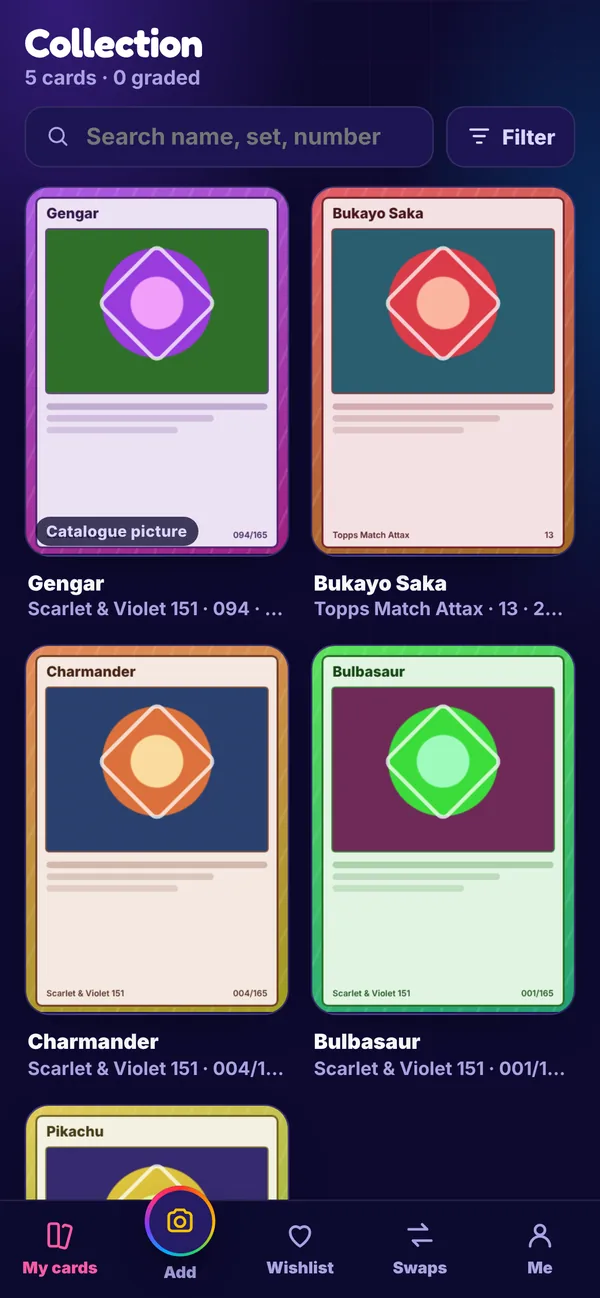
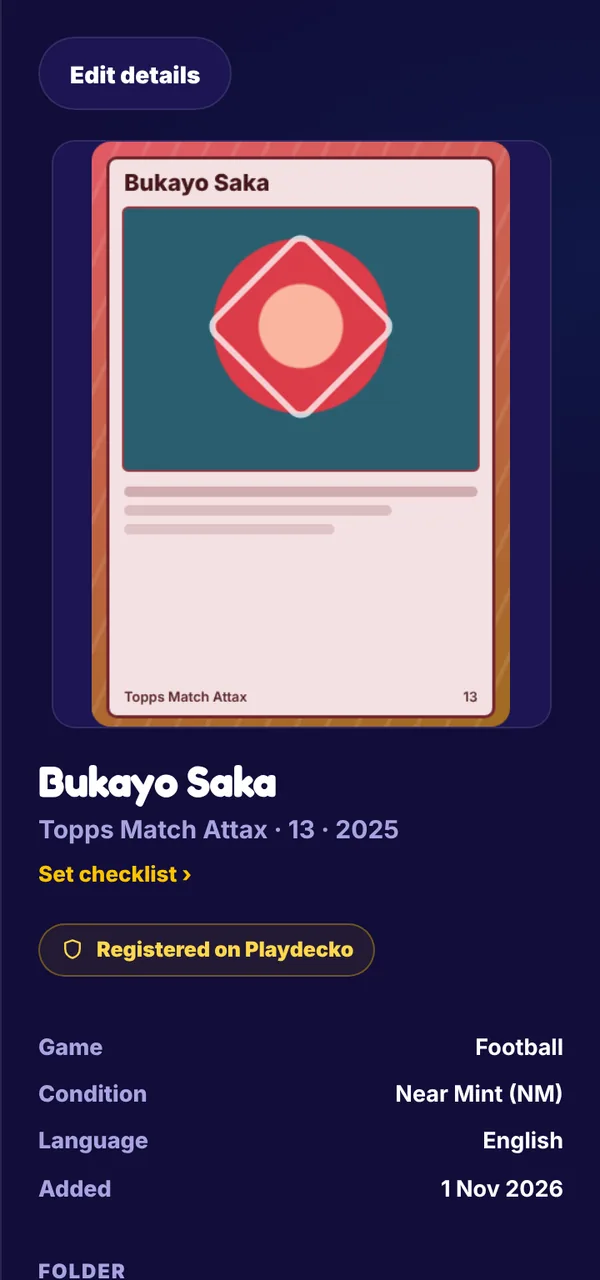
Their binder, sorted for them by game and set. Tapping a card shows its details, set checklist and photos.
Leo's binder on a tabletLeo's binder on a phoneA card in kid mode
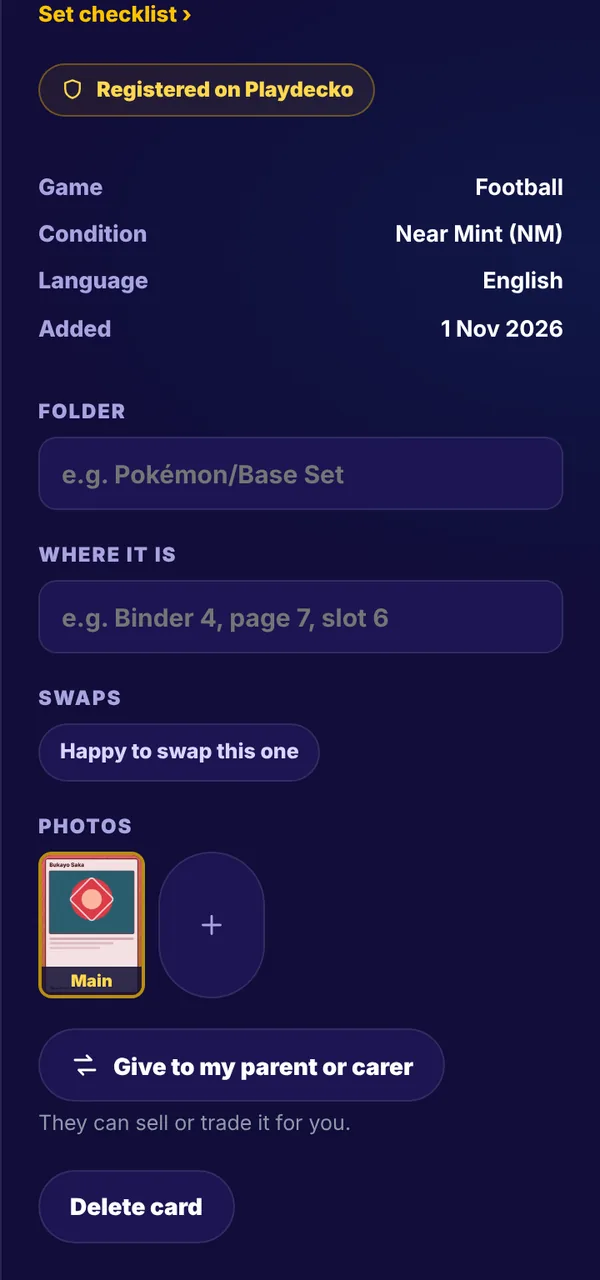
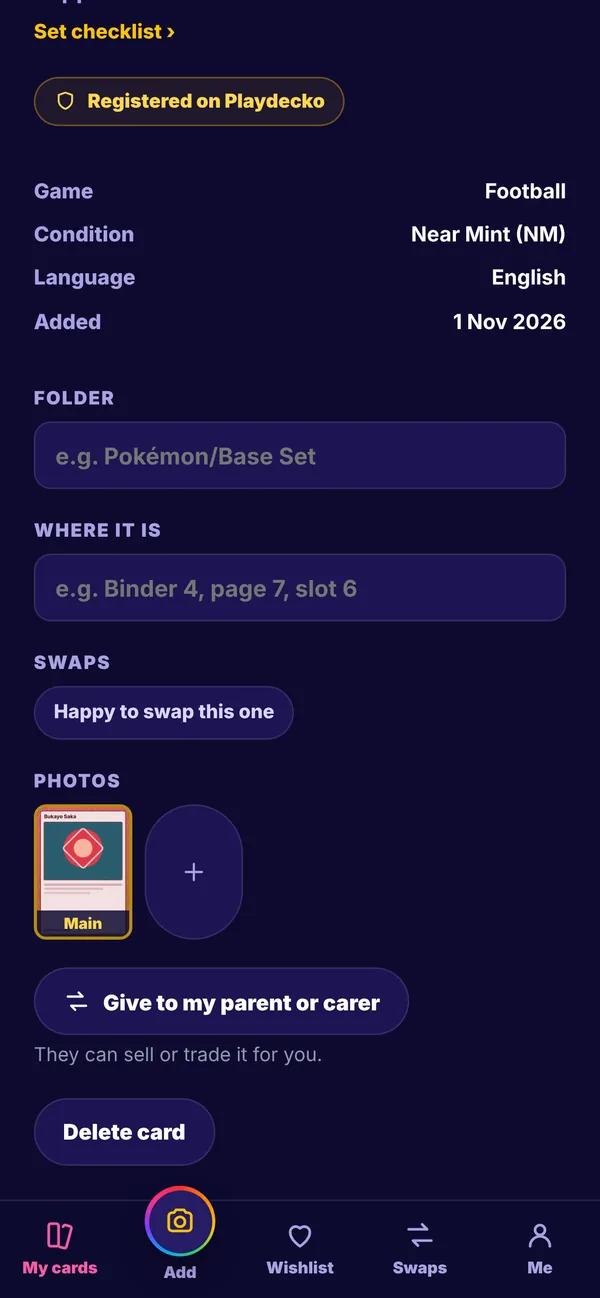
At the bottom of a card is Give to my parent or carer. The card moves to your account, so you can sell or trade it for them.
Give to my parent or carerGive to my parent or carer on a phone
Add a card
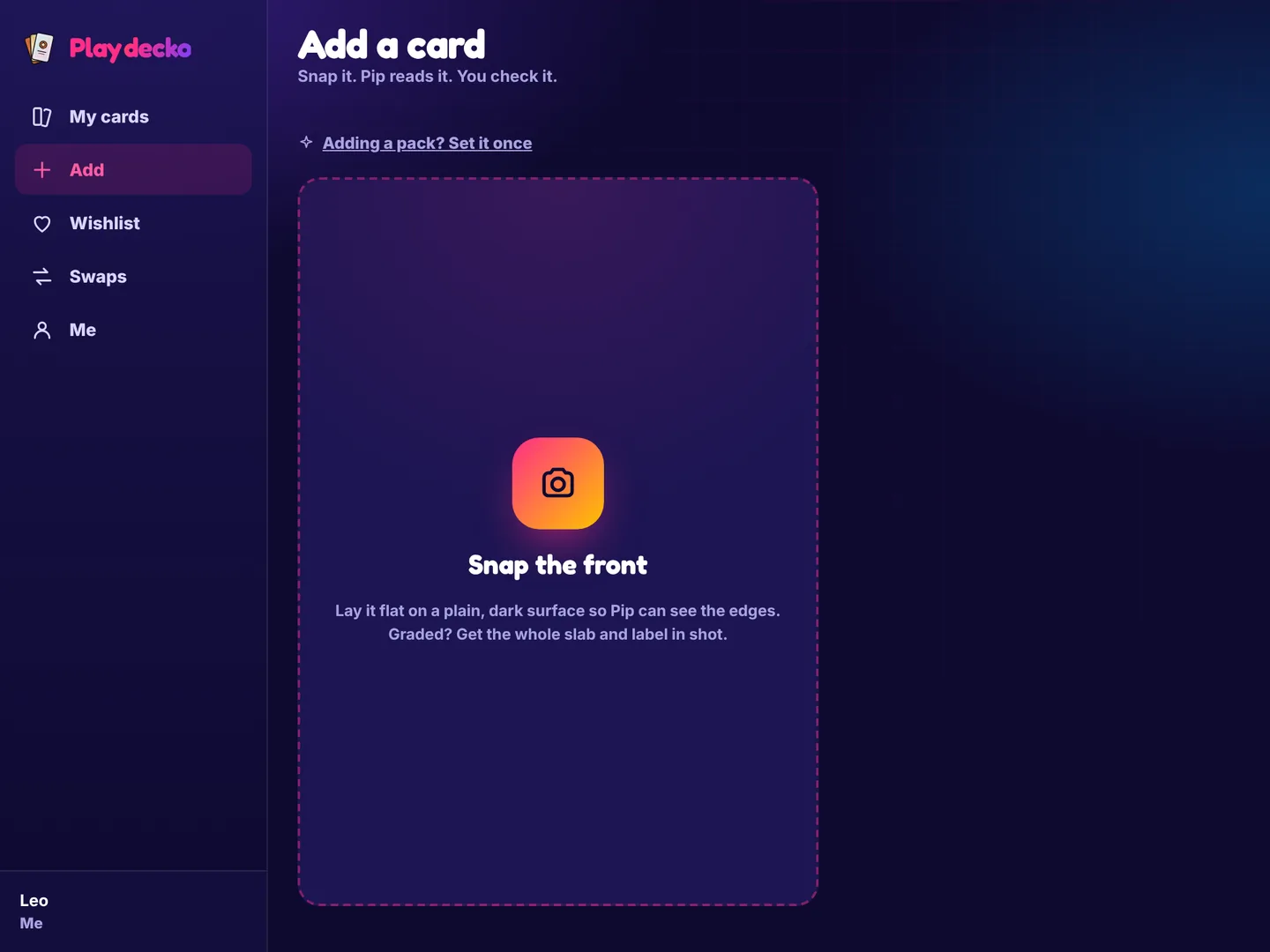
Tap Add, then Snap the front. Lay the card flat on a plain, dark surface so Pip can see the edges.
Add a card in kid mode
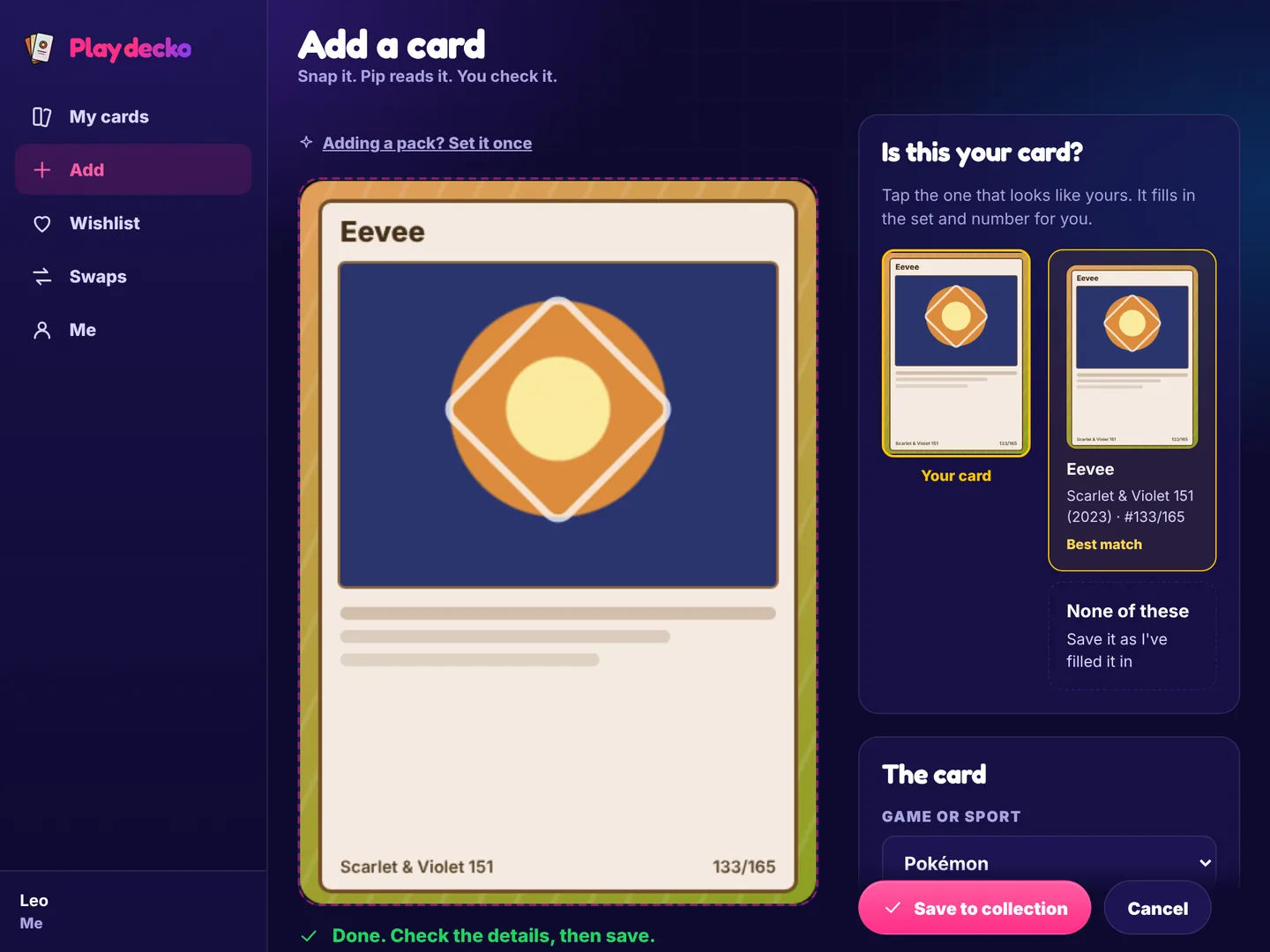
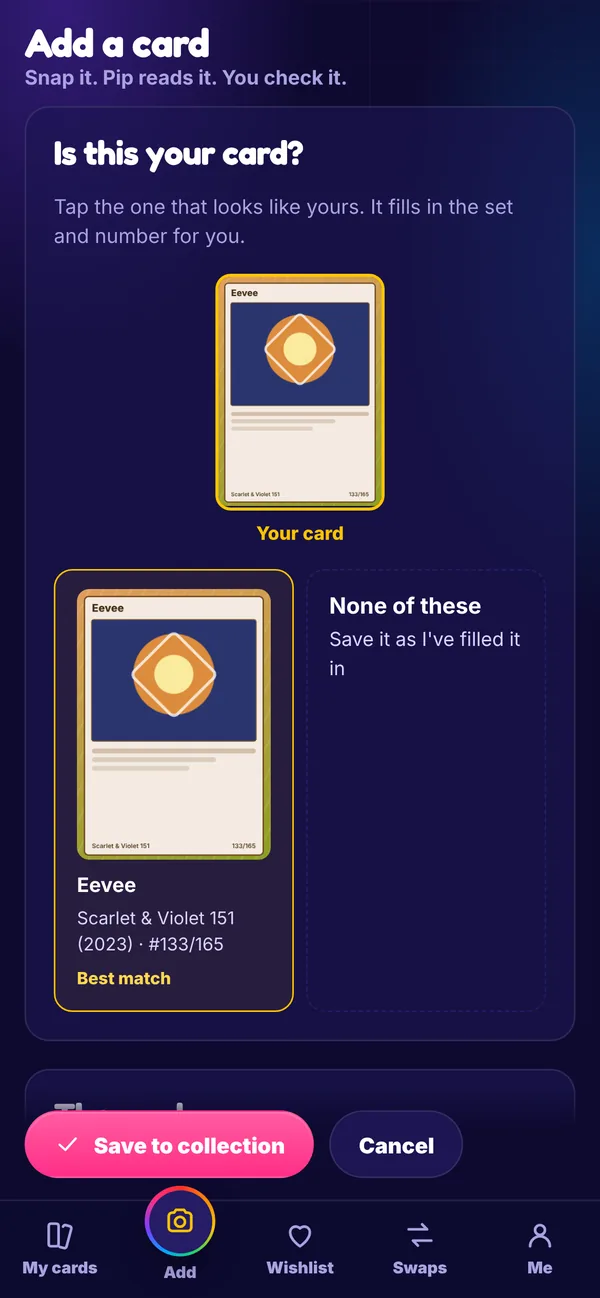
2. Pip reads the card and shows the closest matches from the card catalogue. Tap the one that looks like theirs, check the details, then tap Save to collection.
Pip's reading and the catalogue matchThe same on a phone
Wishlist
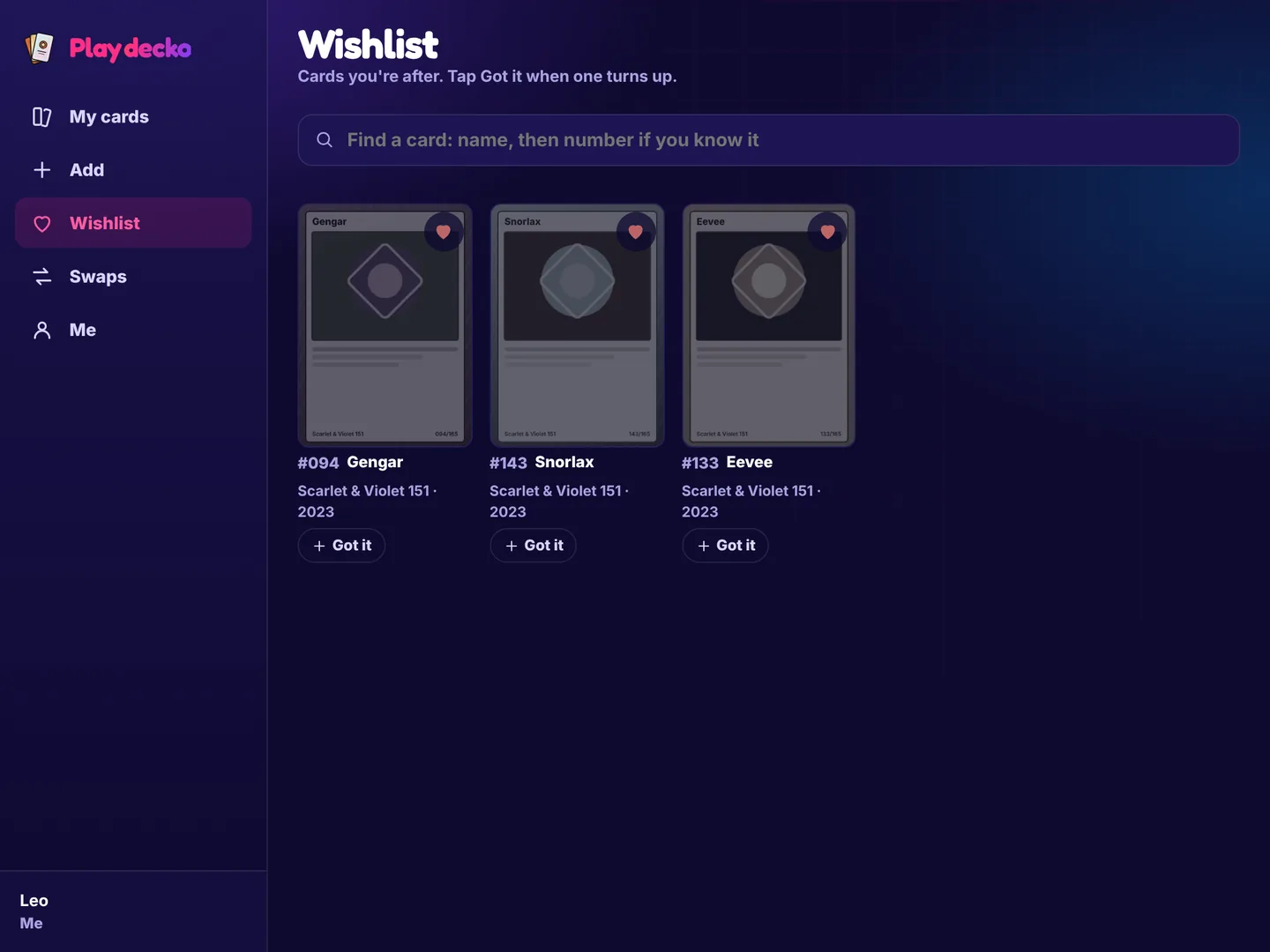
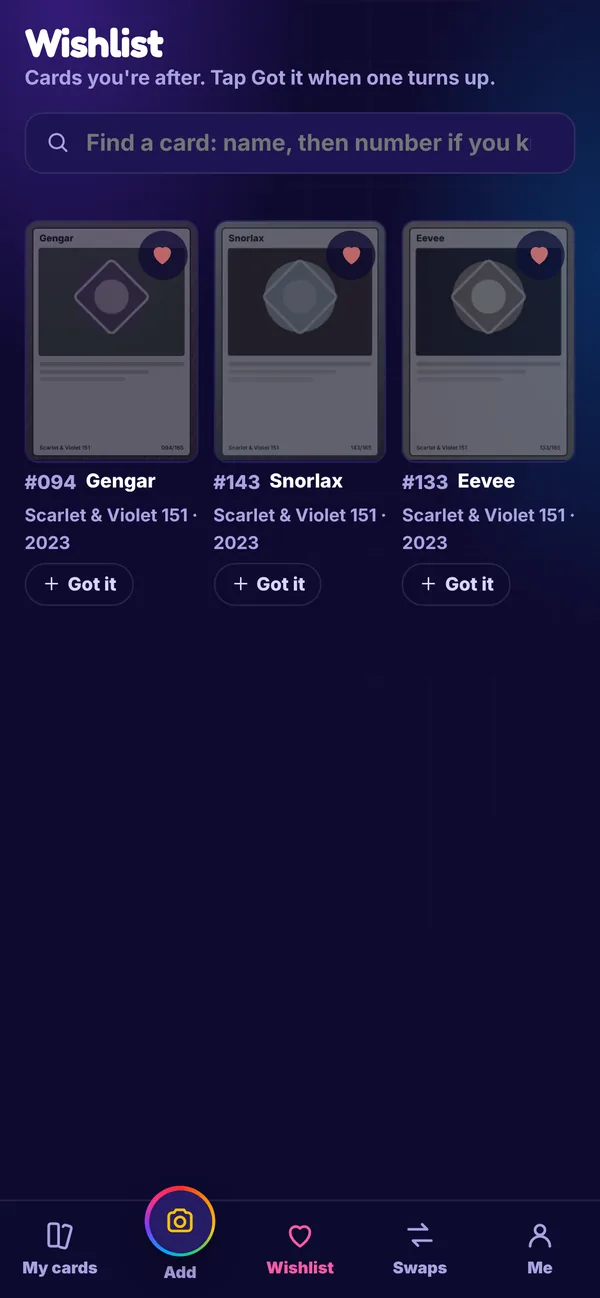
Cards they're after. They find a card by name and number, or tap the heart on a missing card in a set checklist, and tap Got it when one turns up.
Wishlist on a tabletWishlist on a phone
Swaps with friends
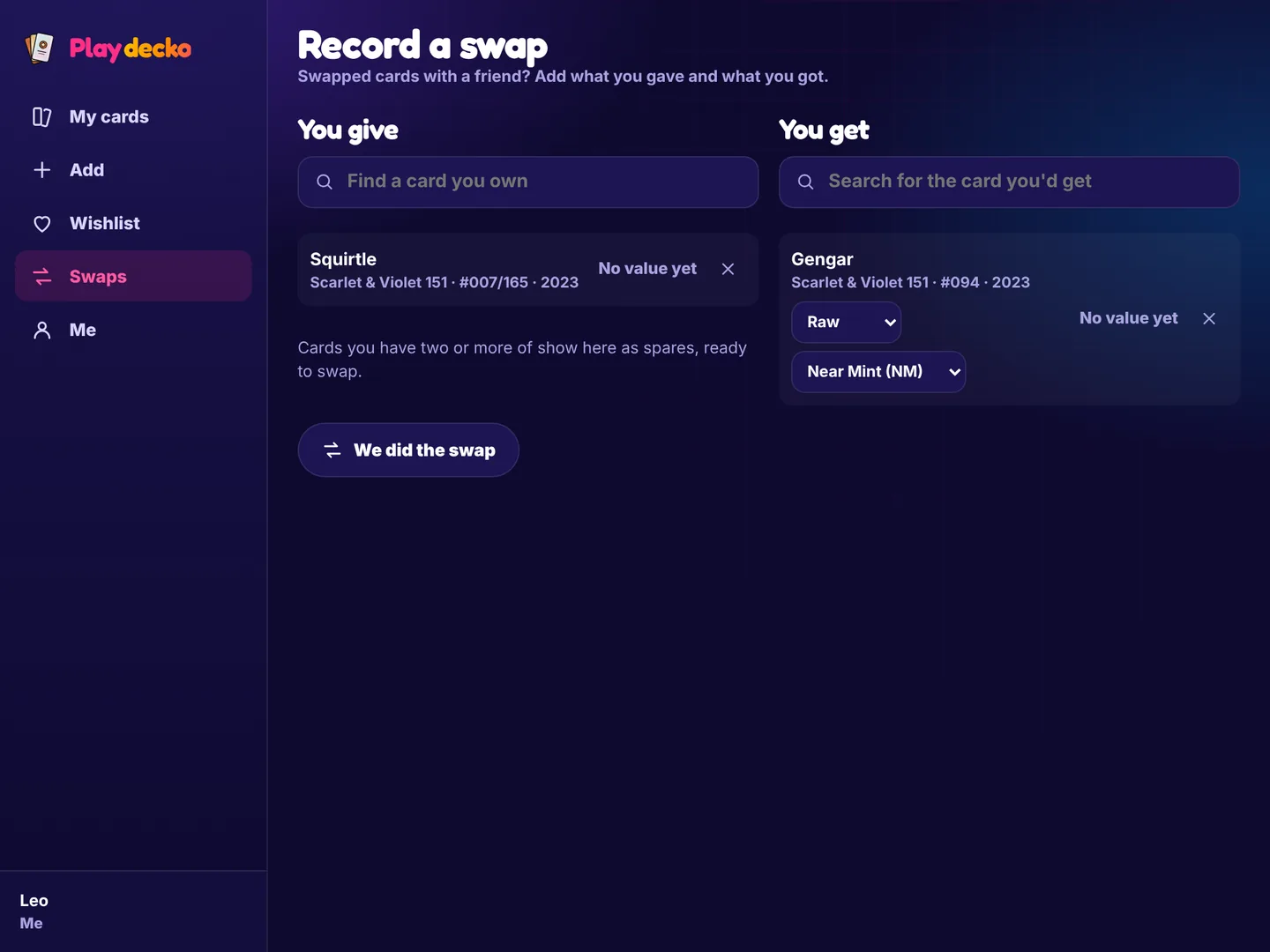
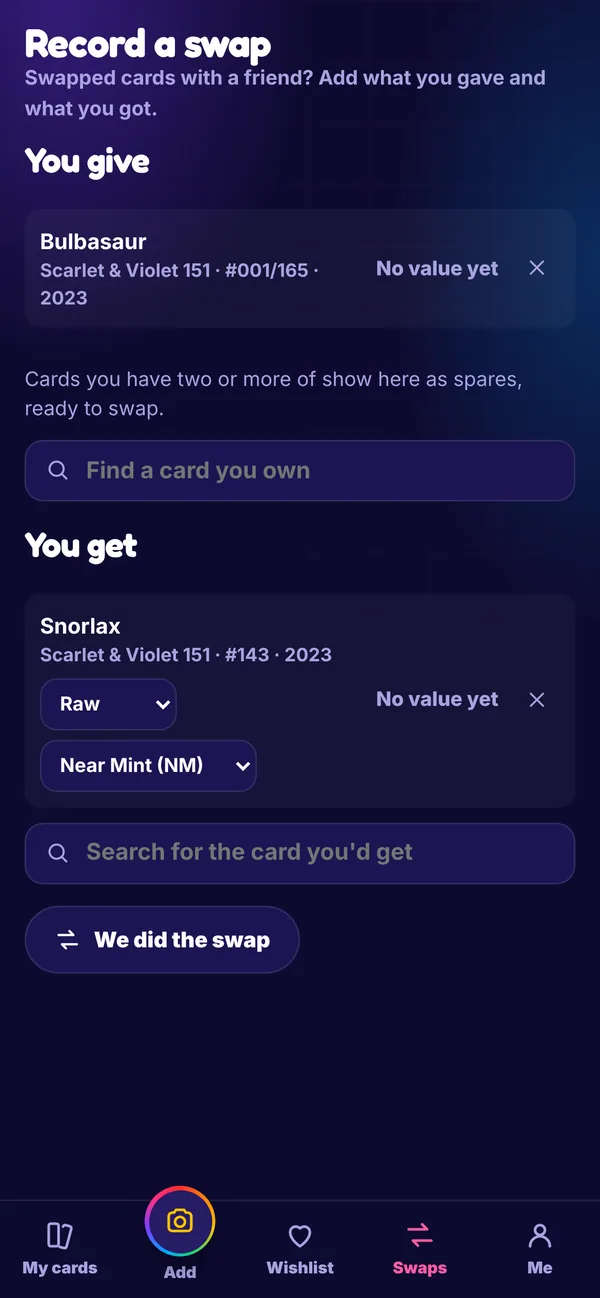
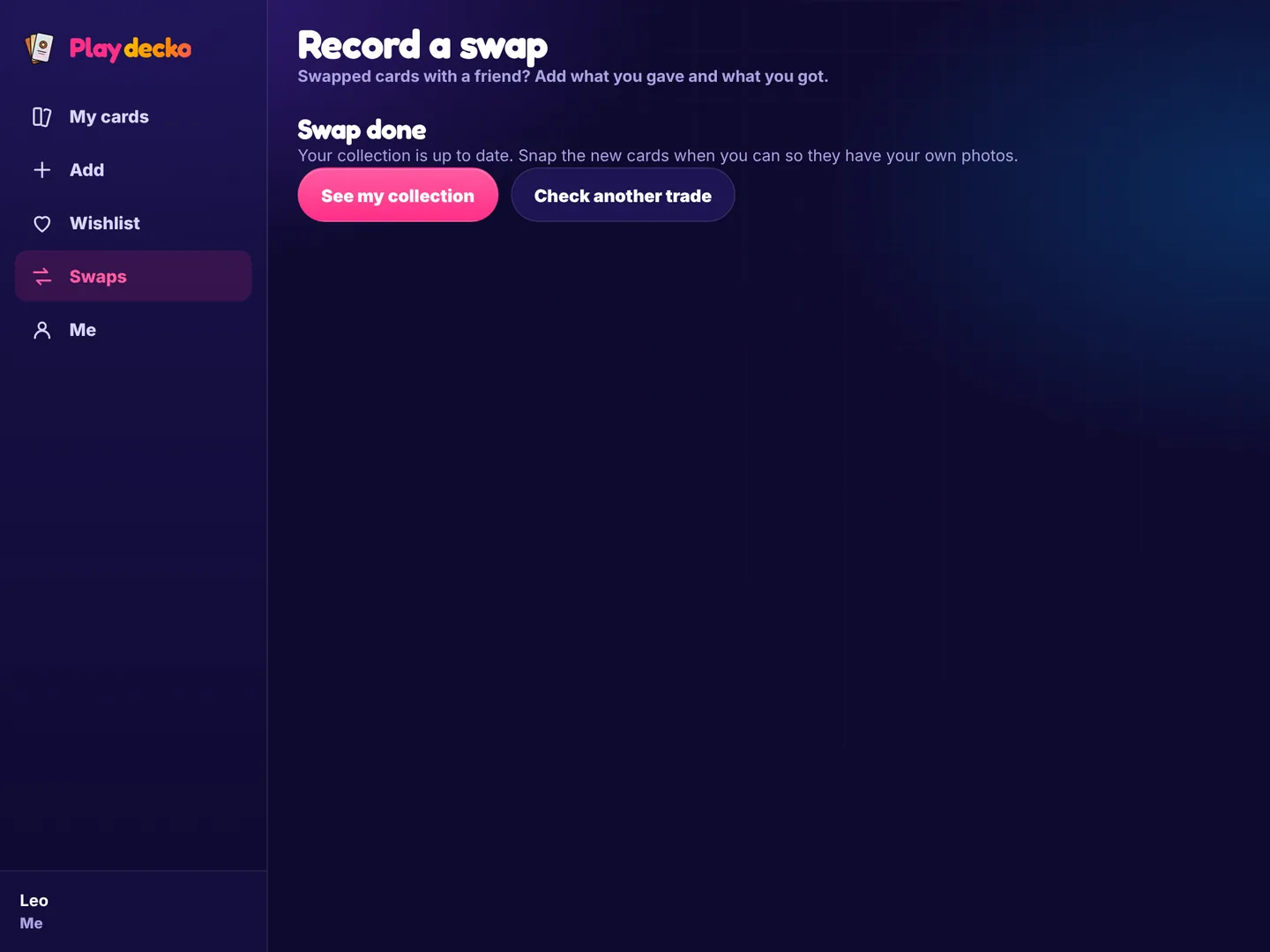
After swapping cards with a friend, they add what they gave and what they got, then tap We did the swap. Their binder updates and the swap is noted for you to see.
Recording a swapRecording a swap on a phoneSwap done
Me
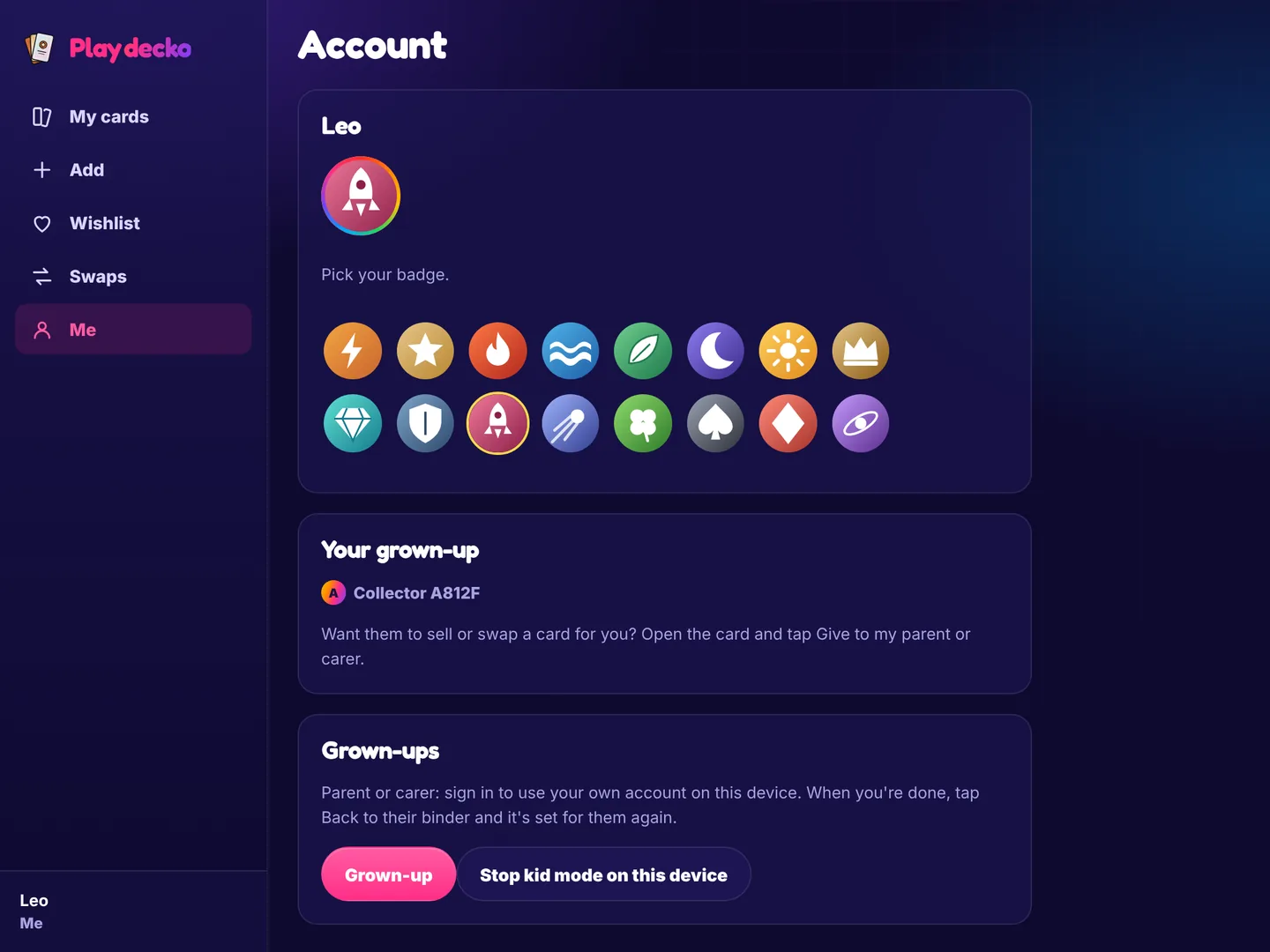
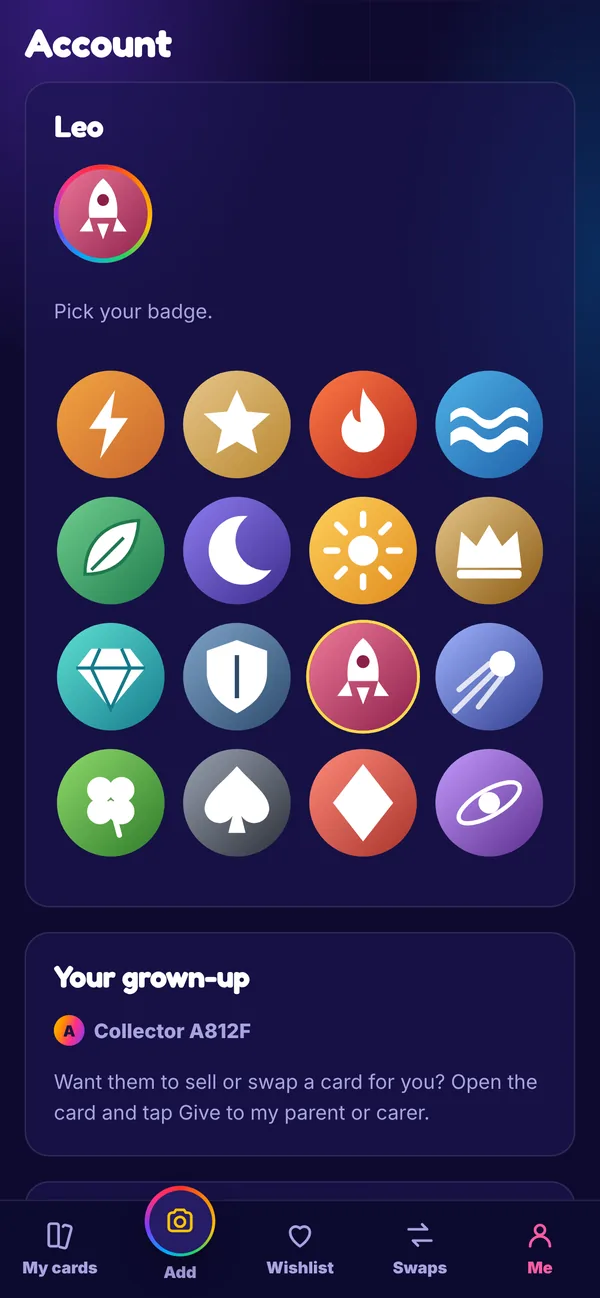
Their name and badge (they can change the badge), who their grown-up is, and the grown-up buttons.
Me in kid modeMe on a phone
Using your own account on your child's device
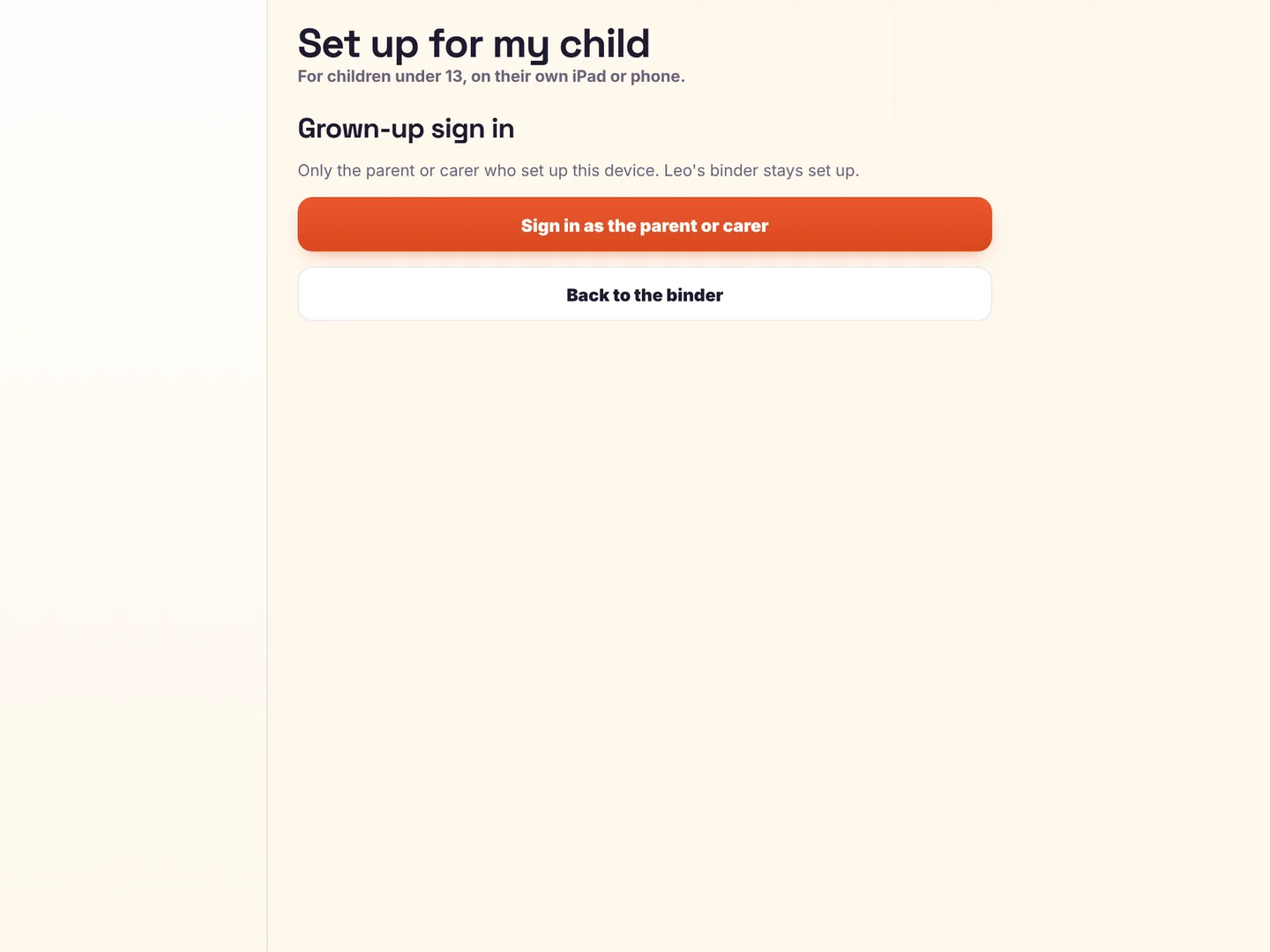
On their device, open Me and tap Grown-up, then Sign in as the parent or carer. Only the parent or carer who set the device up can do this; their binder stays set up.
Grown-up sign in
2. While you're signed in, a banner reminds you it's their device. Tap Back to Leo's binder (or sign out) to hand it back.
The grown-up banner
Switching kid mode off
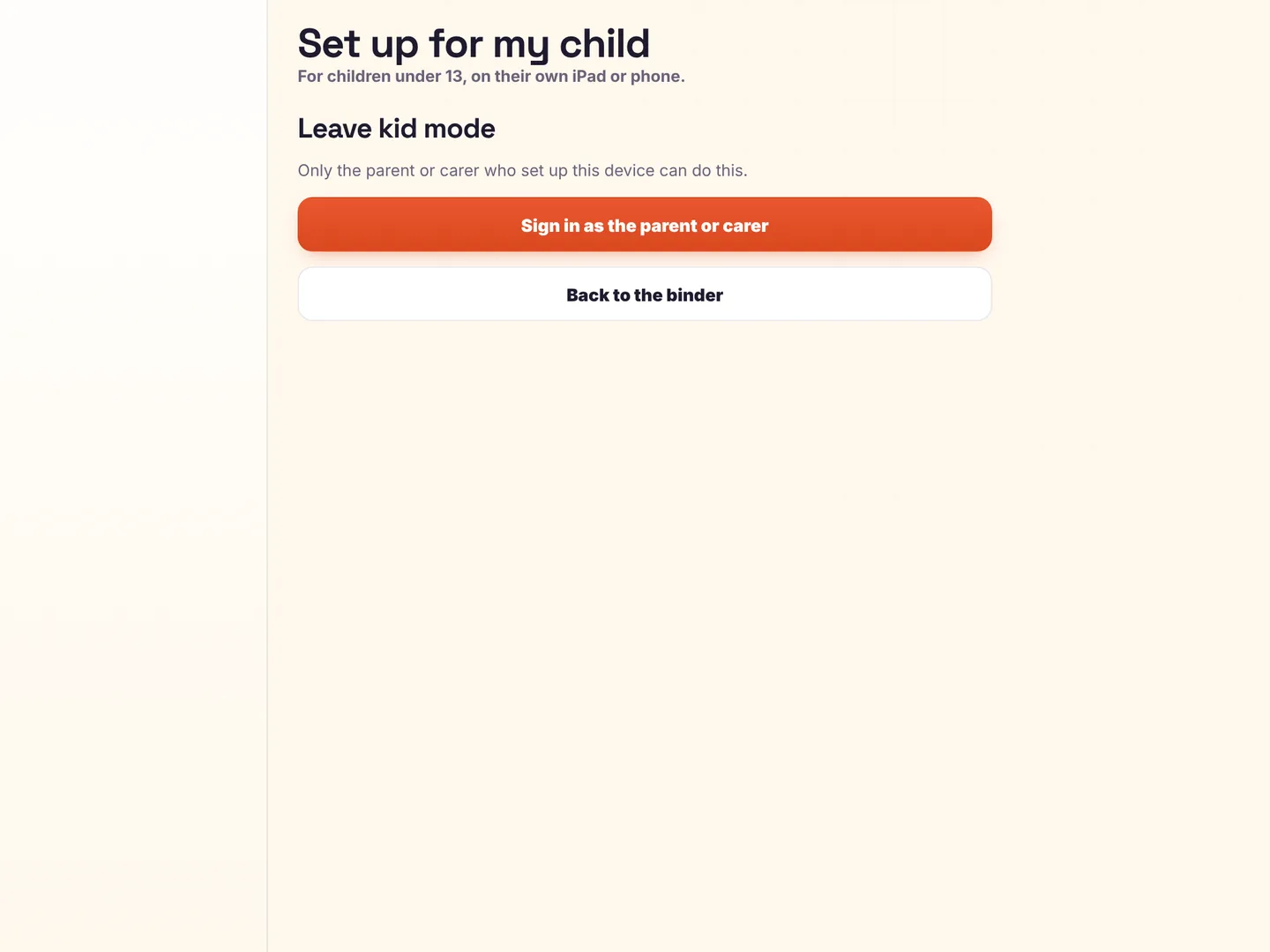
On their device, open Me and tap Stop kid mode on this device, then sign in as the parent or carer who set it up. The device goes back to the normal start screen.
Leave kid mode
Look after your child's binder
From Account, Family, tap Open next to your child.
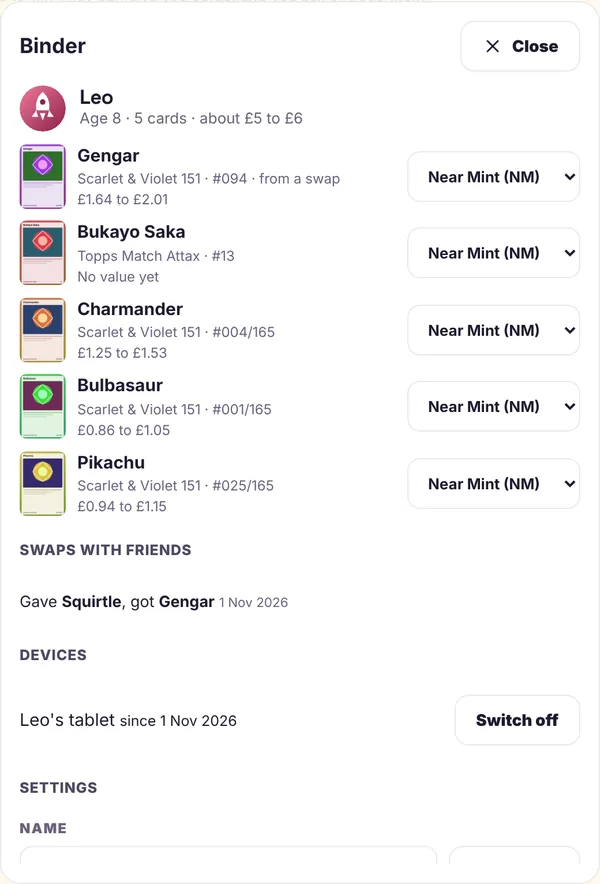
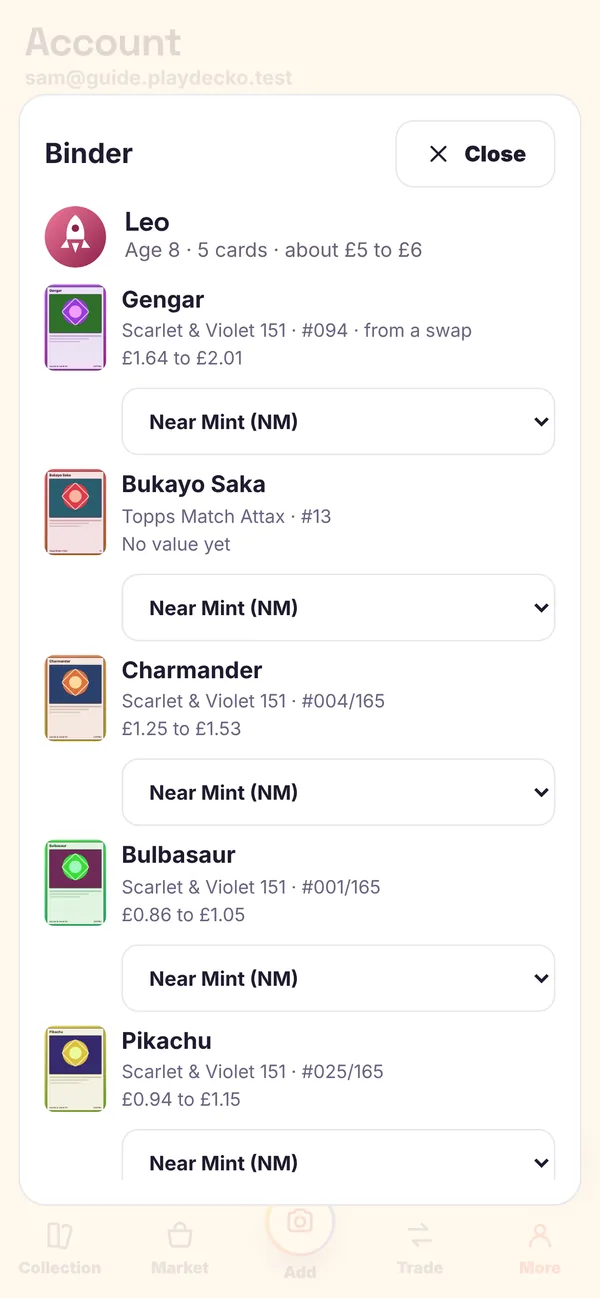
You see every card they've added and a rough total, and you can set each card's condition. Cards with a market price show a value range; cards without one (here, a football card) say No value yet. Your child never sees these values.
A child's binder as the parent sees it
The binder on a phone
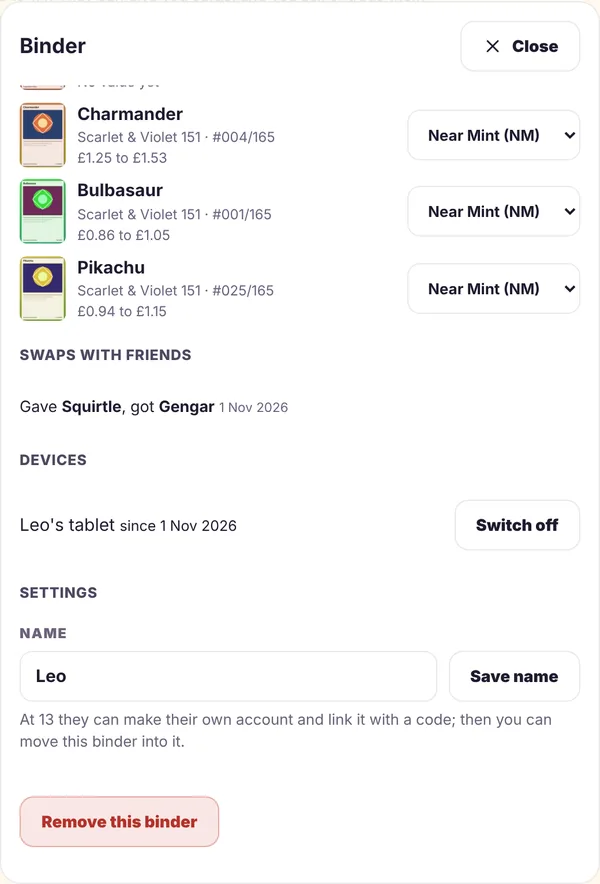
2. Further down are the swaps they've recorded, the devices they're set up on (tap Switch off to stop one), their name, and Remove this binder.
Swaps, devices and settings
When they turn 13 you get an email. They can then make their own account and link it to you with a code (below), and you can move this binder into it with Move binder.
Teenagers (13 to 17)
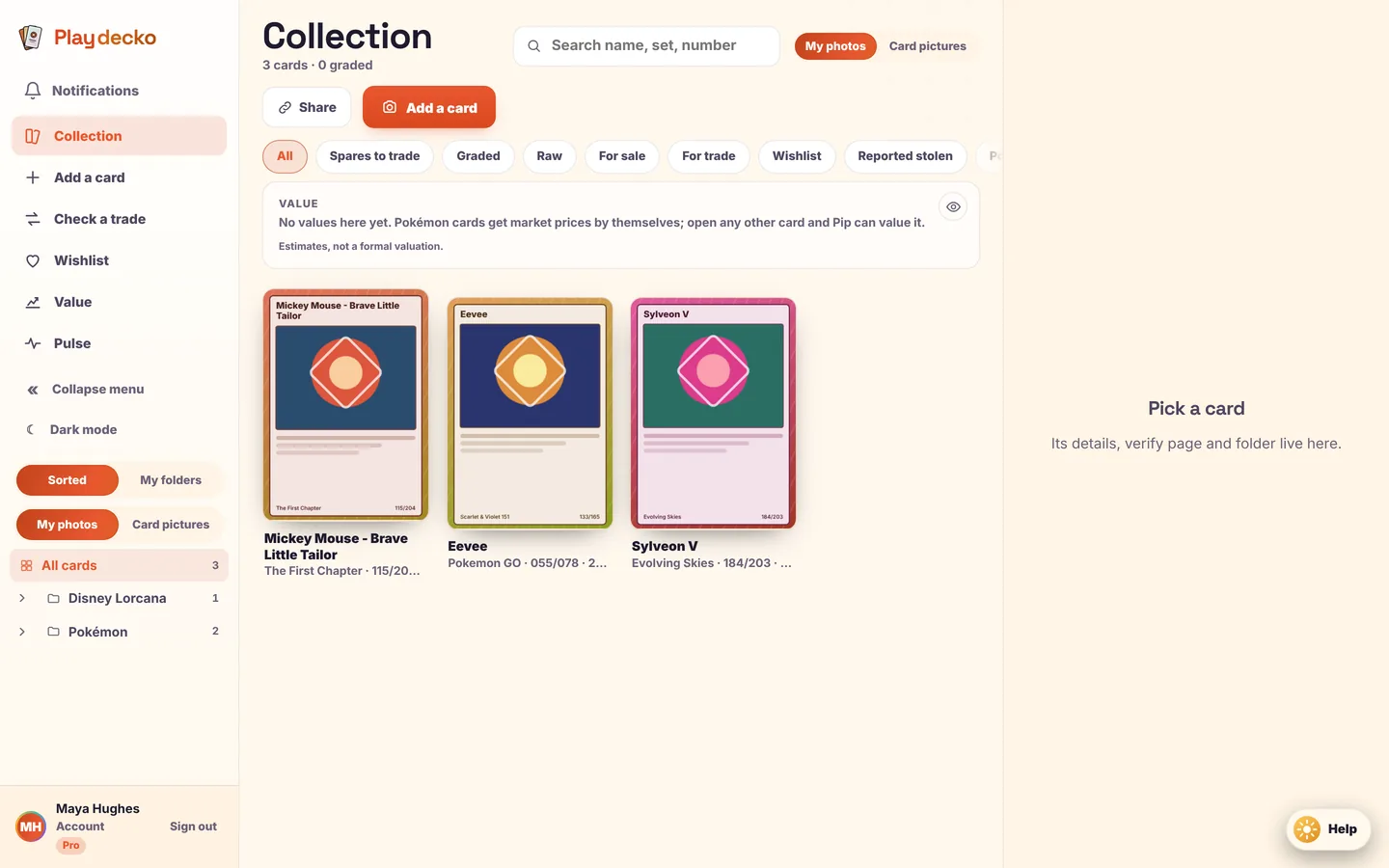
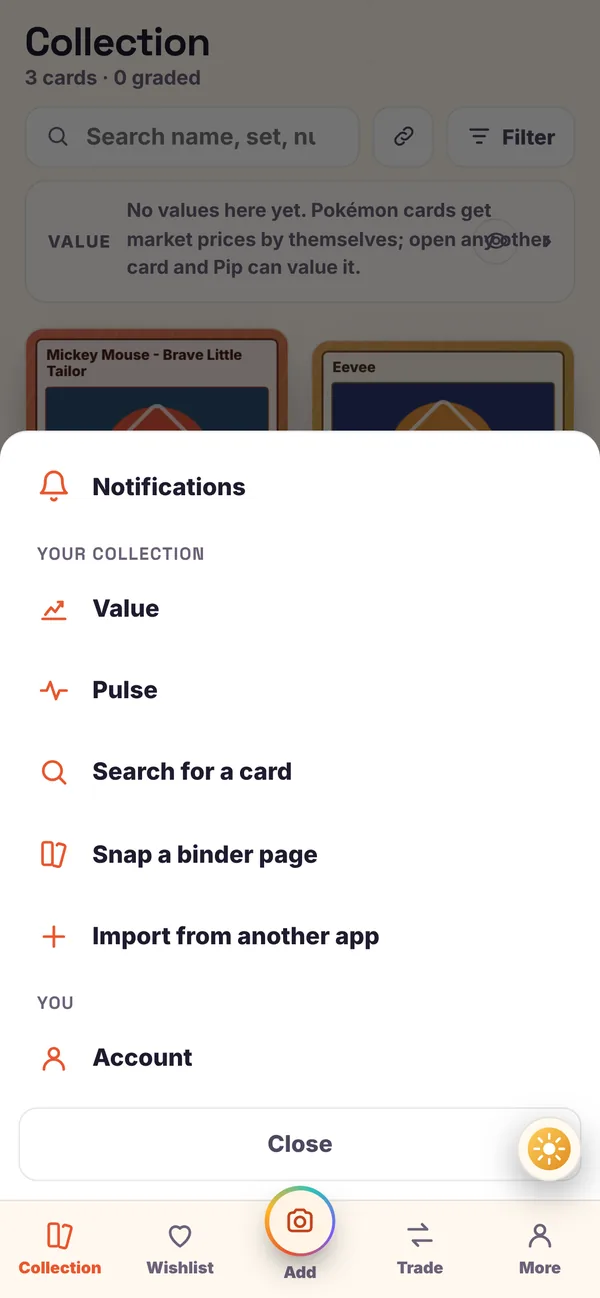
A teenager has their own account. They get all the collecting: every card, values, wishlists, set checklists, sharing, and swaps with friends using the trade checker. Buying, selling and trading with people they don't know open at 18. Market, Selling, Orders and Money aren't in their menu.
A 15 year old's collection and menuThe More menu on a teenager's phone
Link a teenager to a parent or carer
Parents: before you can link, set up payouts on the Selling page so we know who you are.
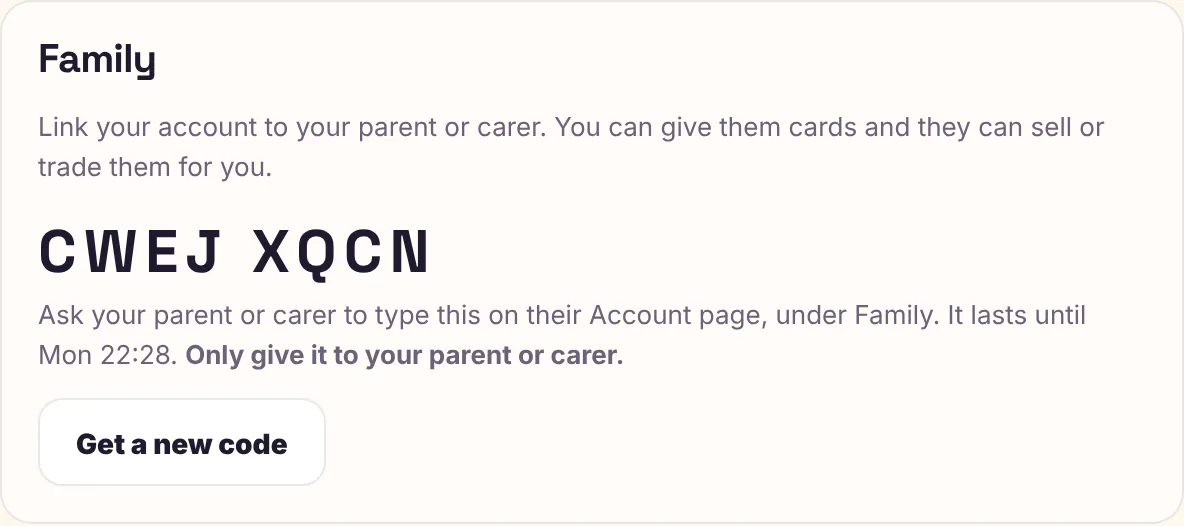
Teenager: open Account, Family, and tap Get a code. The code lasts 24 hours. Only give it to your parent or carer.
The teenager's code
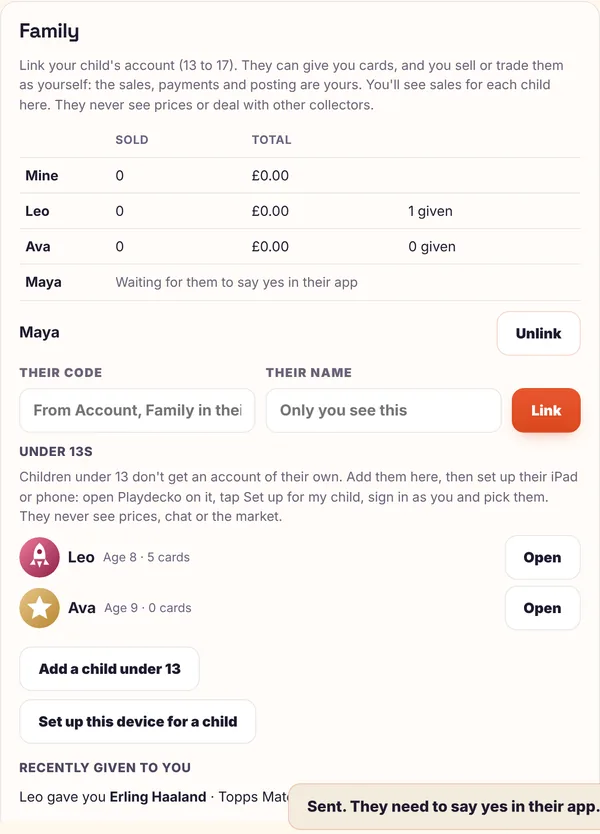
2. Parent: open Account, Family, type the code and a name for them, and tap Link.
Entering the code
Their name shows as waiting until they say yes.
Waiting for them to say yes
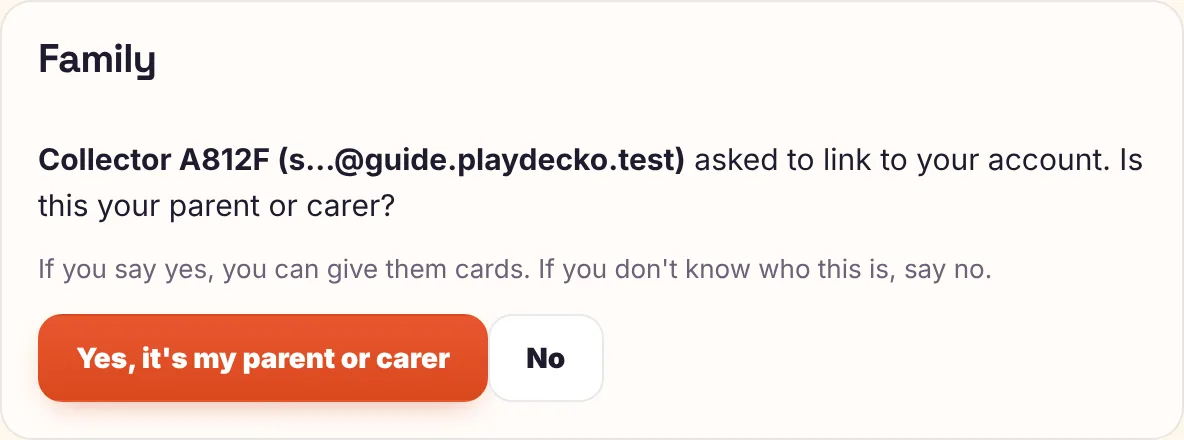
3. Teenager: open Account, Family and tap Yes, it's my parent or carer. If you don't know who it is, tap No.
Confirming the link
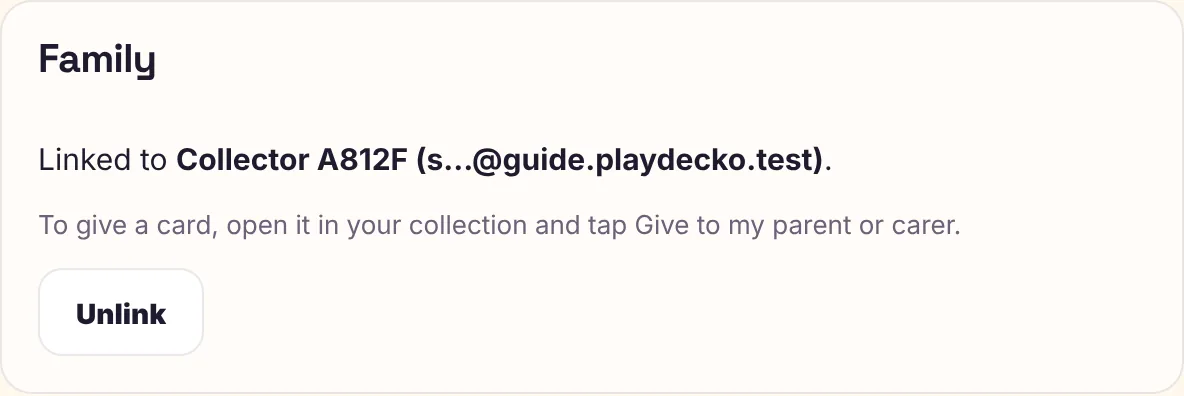
Linked
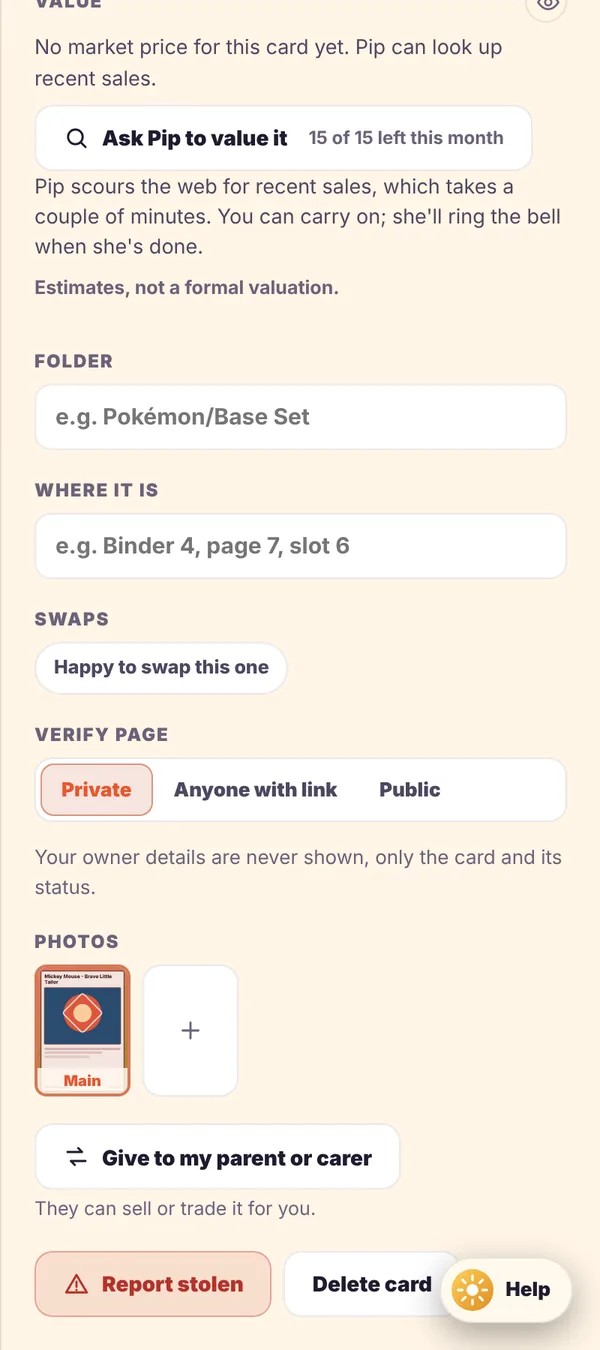
4. Teenager: to have a card sold or traded, open it in your collection and tap Give to my parent or carer. The parent sells or trades it as themselves: the sale, payment and posting are theirs, and they see sales for each child on their Family panel.
Give to my parent or carer
Screenshots show example collections. Values are estimates, not a formal valuation. Questions? Ask Sunny in the app, and a person from Playdecko is always a tap away.