Buying and selling on the Marketplace
The Playdecko Marketplace is where collectors and shops buy and sell cards from each other. Every listing shows a photo of the actual card, every payment is held until the buyer has the card, and names and addresses stay private: buyers and sellers see an alias or a shop name, never each other's details. This guide walks through browsing, buying, making offers, selling, posting orders, sorting out problems, your Money page and running a Dealer shop.
Who can use the Marketplace
Buying and selling are for collectors aged 18 and over.
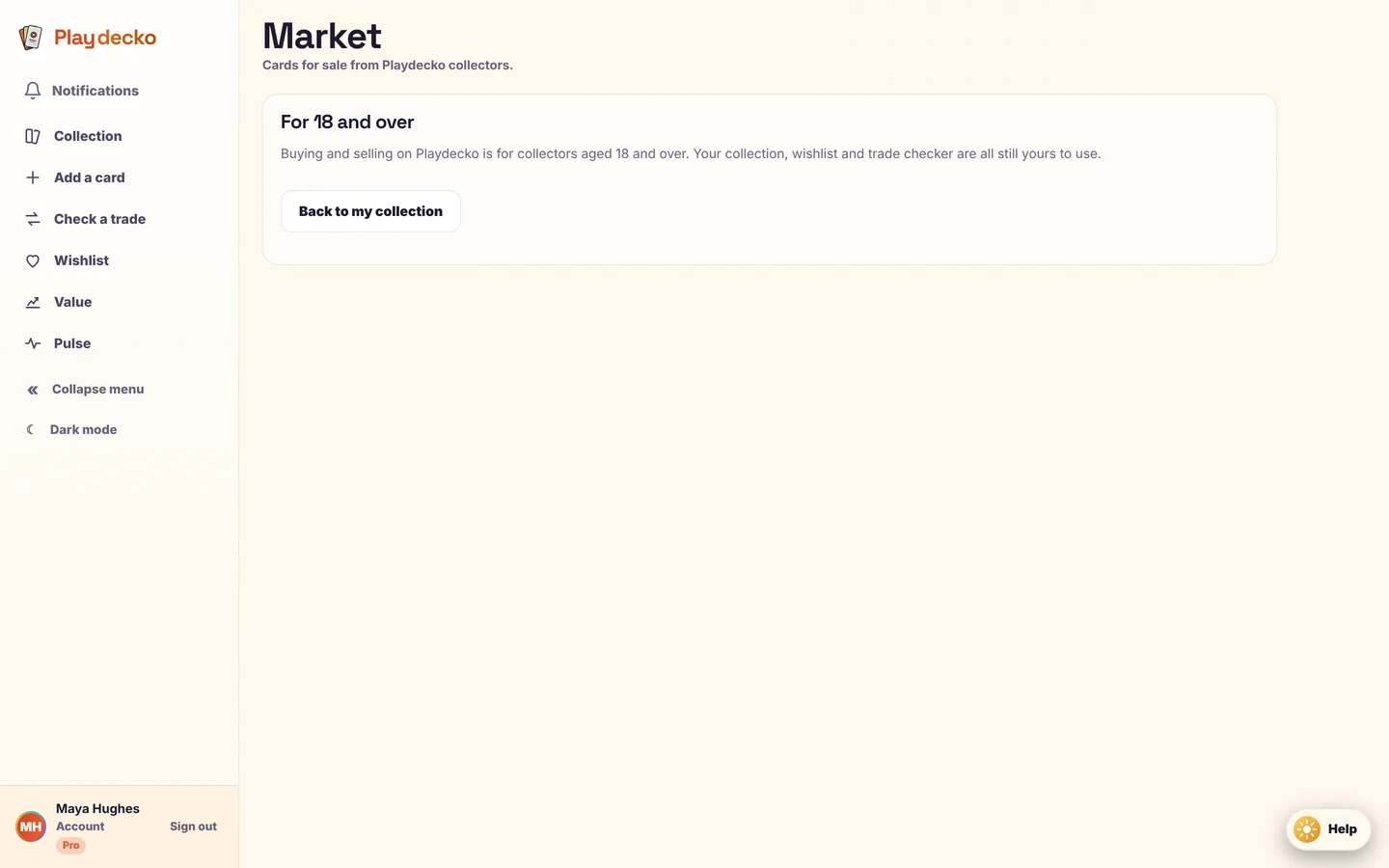
If you are under 18, the Market page tells you so. Your collection, wishlist and trade checker still work as normal. Children on a parent's account never see the Market at all.
Browsing the Market
-
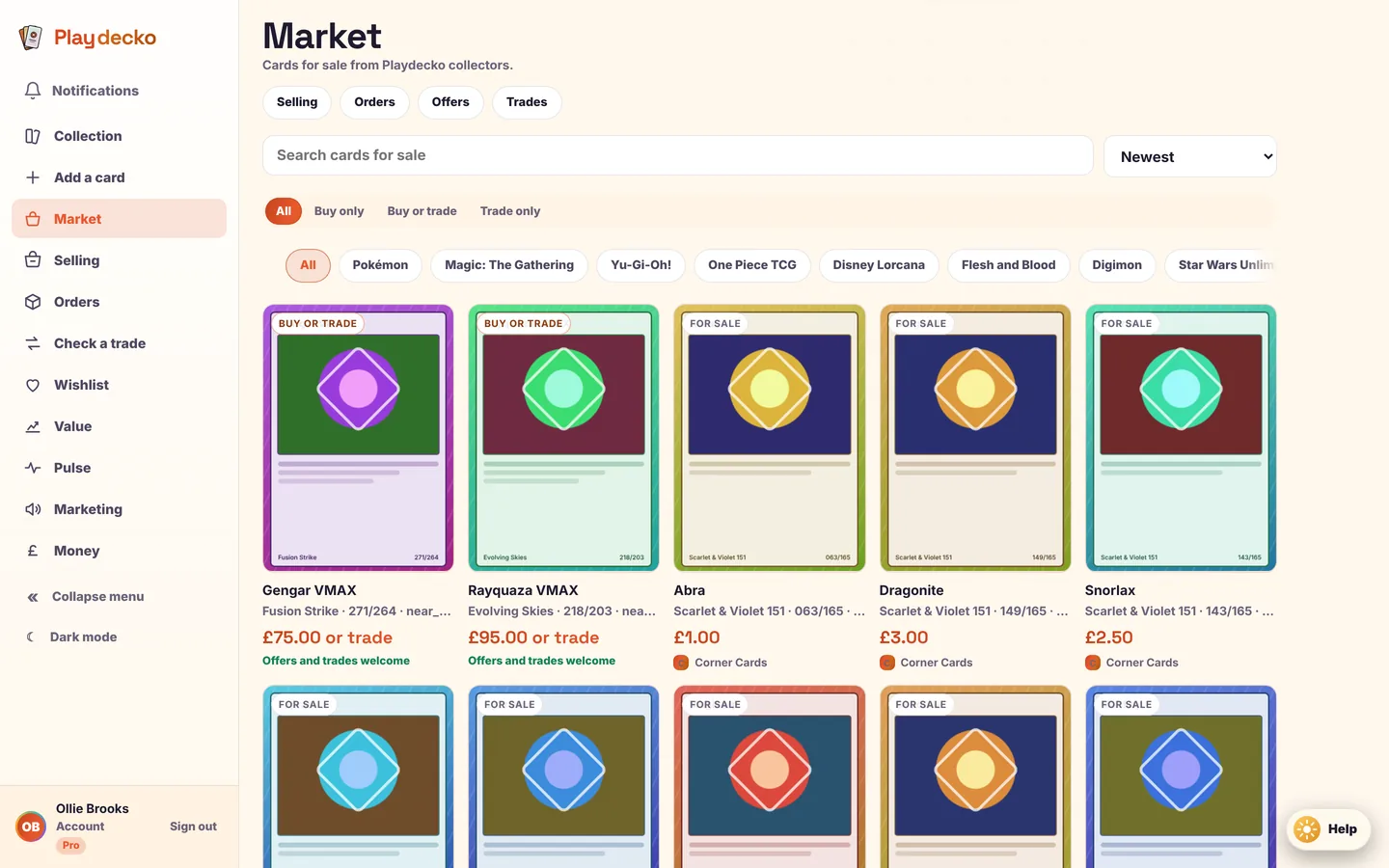
Tap Market in the menu. You see every card for sale, newest first. Each tile says whether the card is For sale, Buy or trade, or Trade only, with the price and who is selling it.
The Market 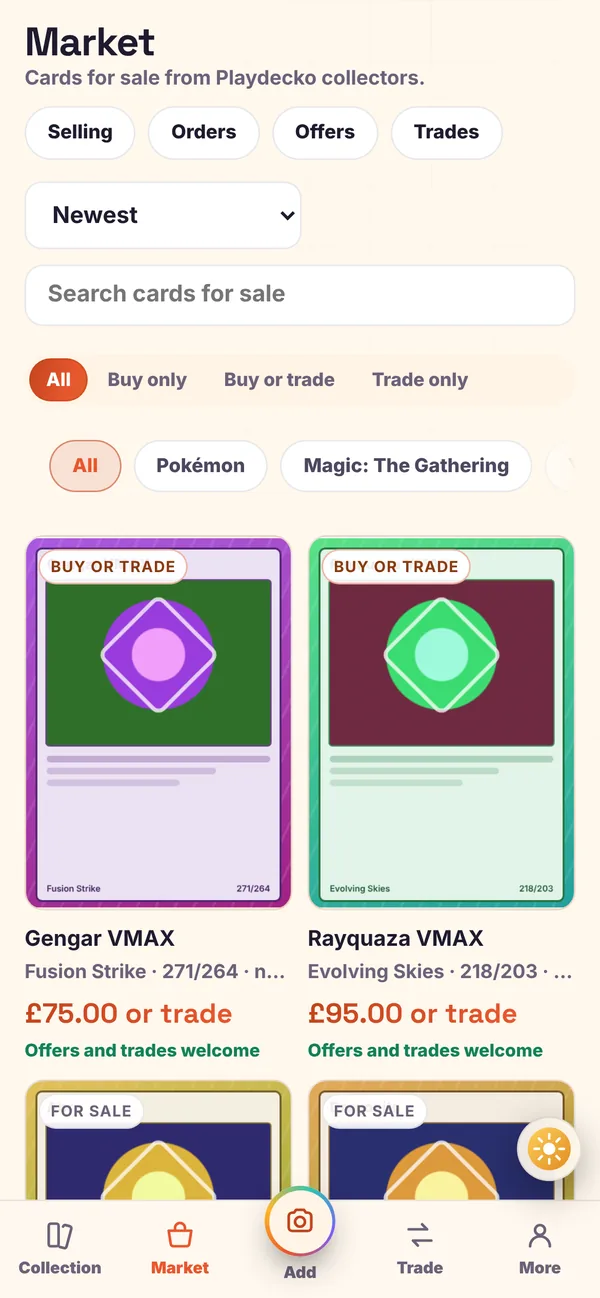
The Market on a phone -
To narrow things down, type in Search cards for sale (a name, set or number), pick a game, or choose Buy only, Buy or trade or Trade only. Change the order with the Newest menu.
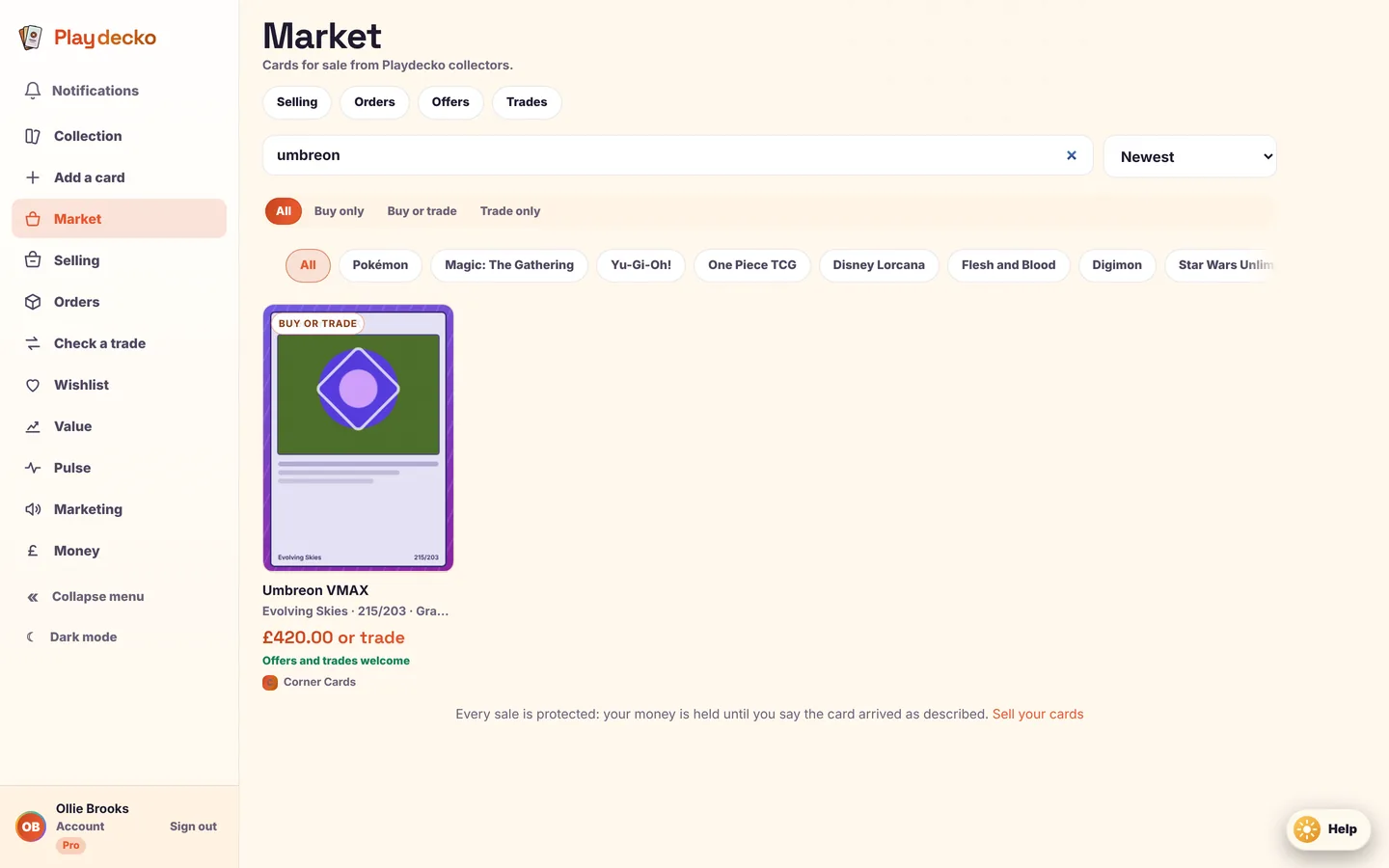
Searching the Market -
You don't need an account to look. Anyone can browse the public Market at playdecko.com/market, but you sign in to buy.
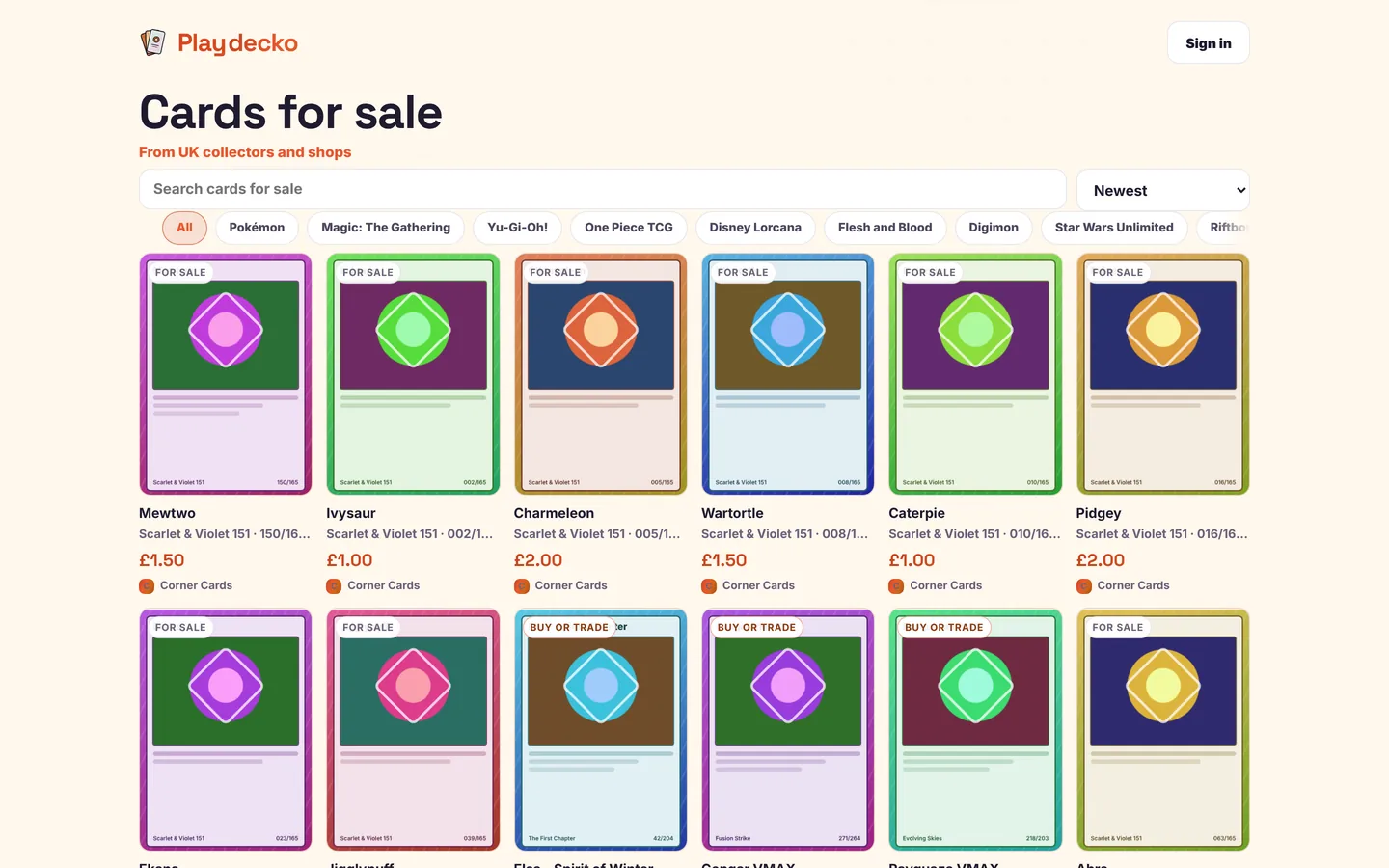
The public Market, signed out
Reading a listing
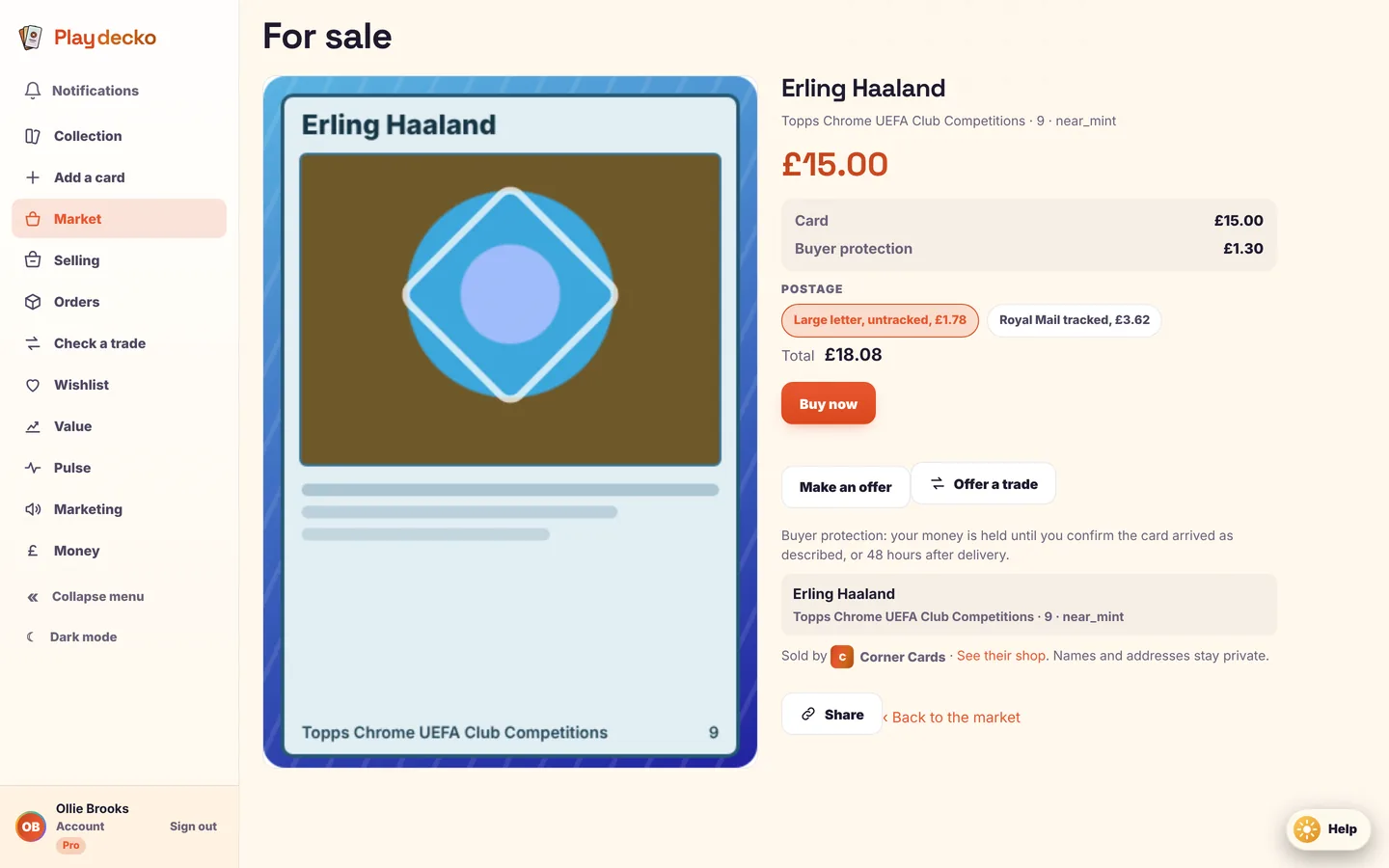
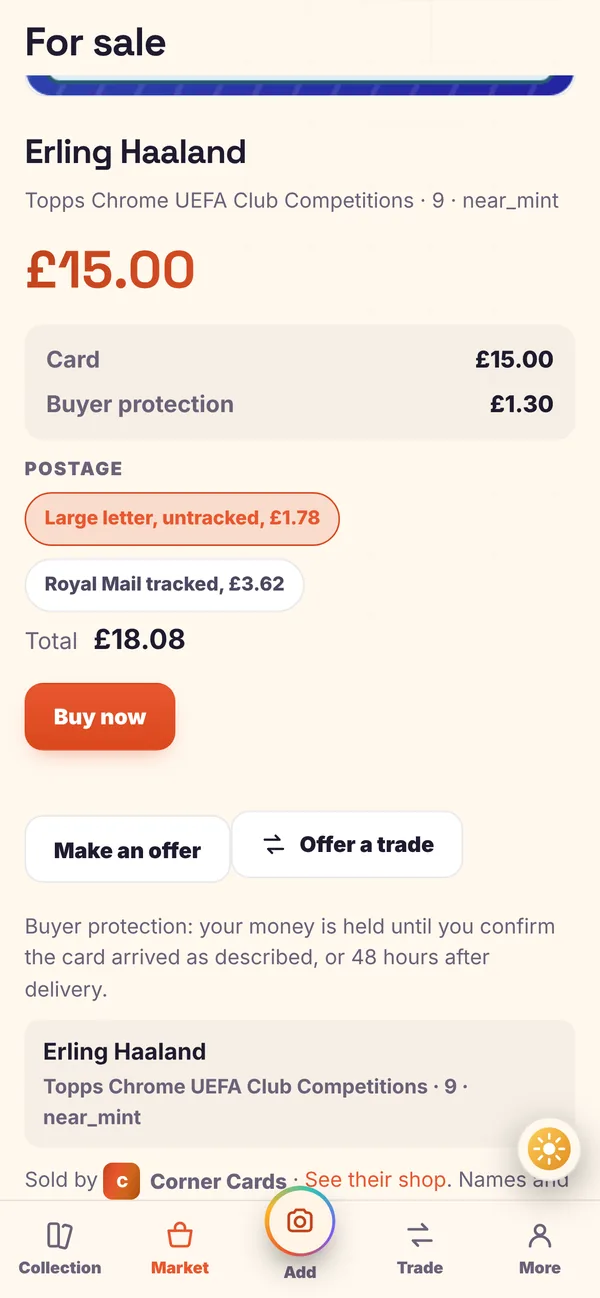
Tap a card to open its listing. You'll see:
- The seller's own photo of the card. Listings always use a photo of the actual card, never a catalogue picture.
- The price breakdown: the card price, plus Buyer protection of 4% of the price plus 70p.
- Postage choices. A large letter (untracked) is £1.78. Tracked Royal Mail is priced when you open the listing. If the seller posts it themselves, you see their price instead.
- The total you'll pay.
- Who is selling it, with a link to their shop if they have one, and a link to their live shows if they've added one.
Buying a card
-
On the listing, pick your postage, then tap Buy now.
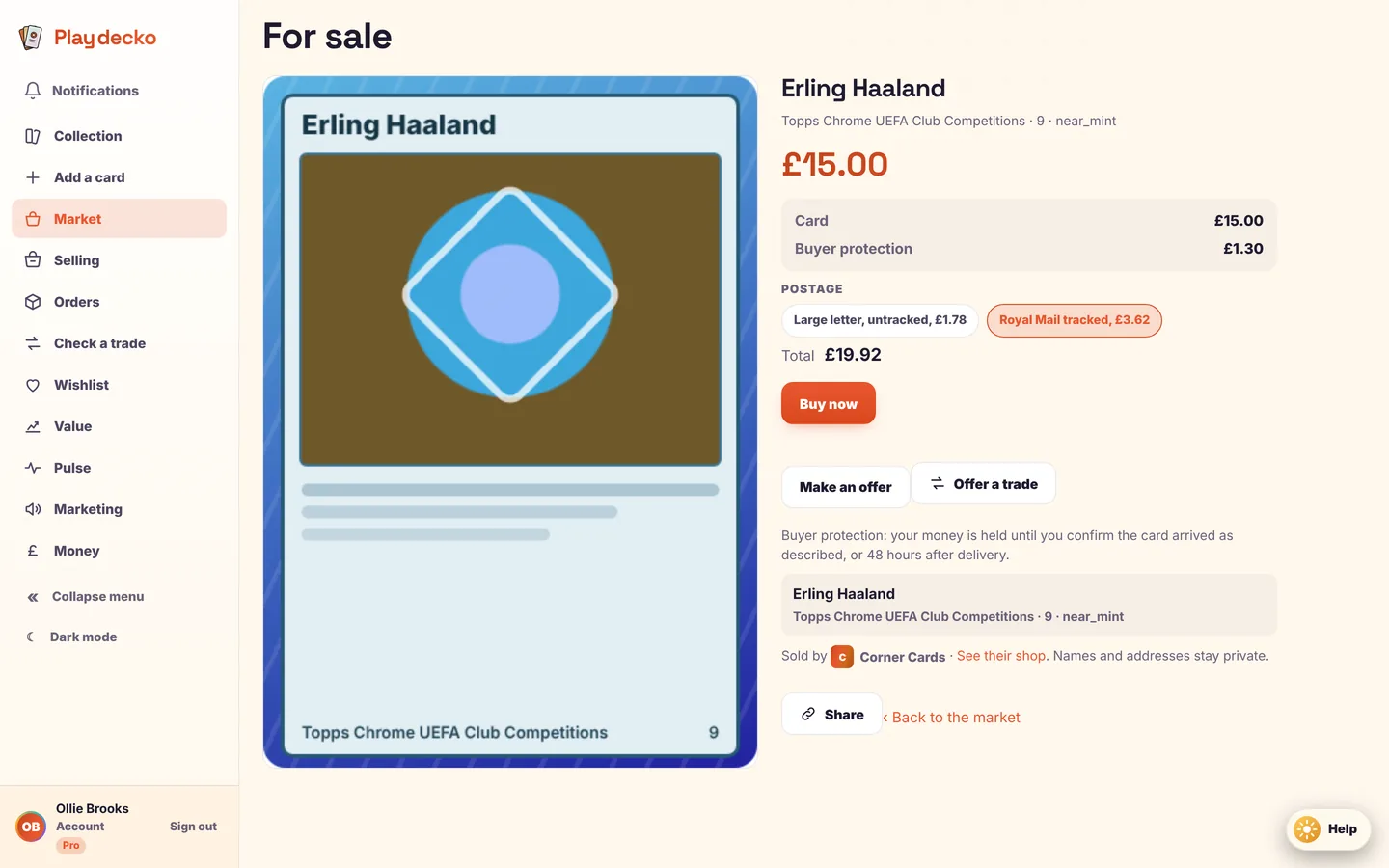
Choosing tracked postage -
You go to Stripe's secure payment page to pay. While you're paying, the card is held for you for 30 minutes so nobody else can buy it.
-
Once you've paid, you come back to Playdecko and see Payment received. Your money is held until the card arrives and you confirm it's as described.
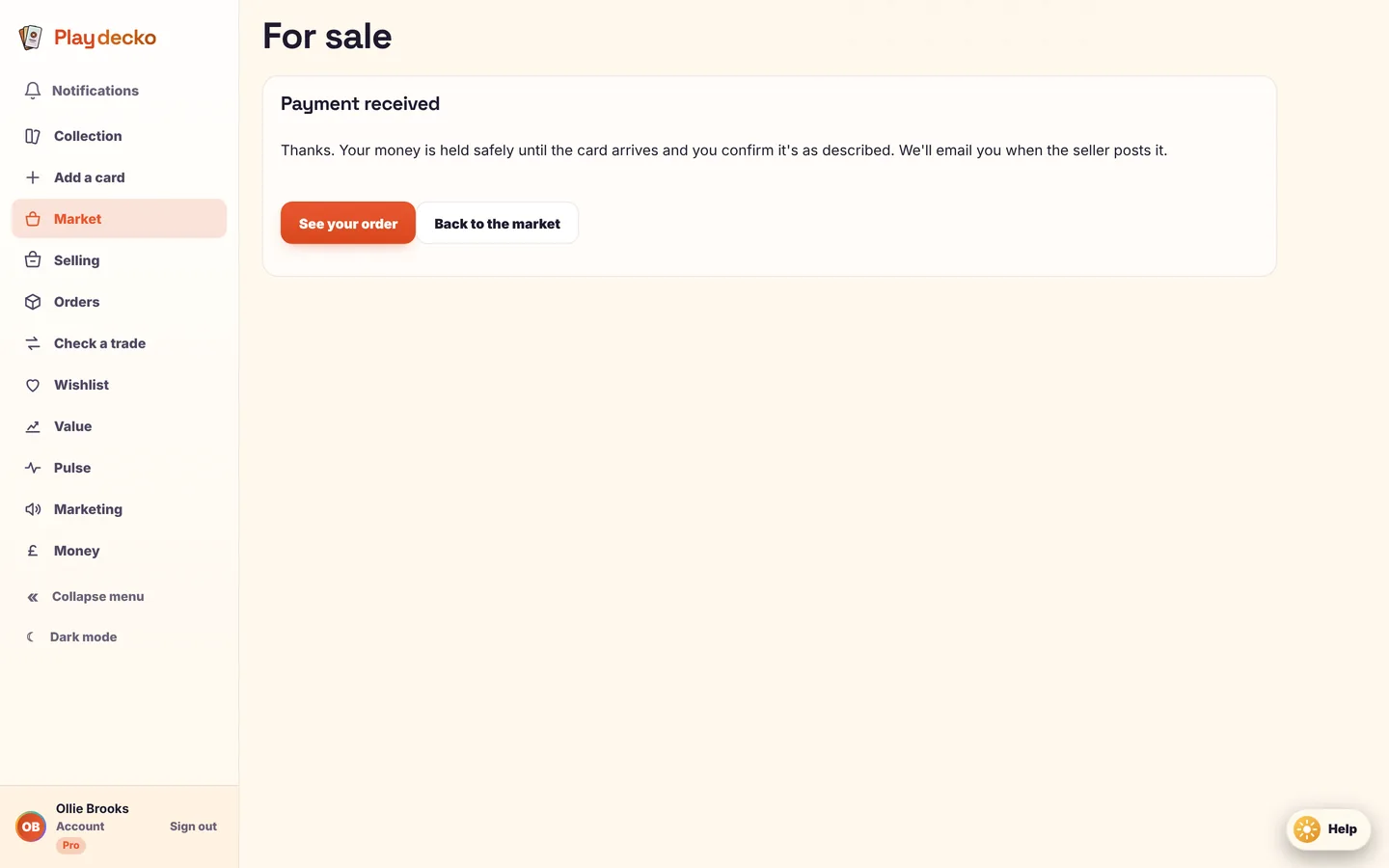
Payment received -
Your order appears under Orders, Buying. The seller has 4 days to post it, or you get a full refund.
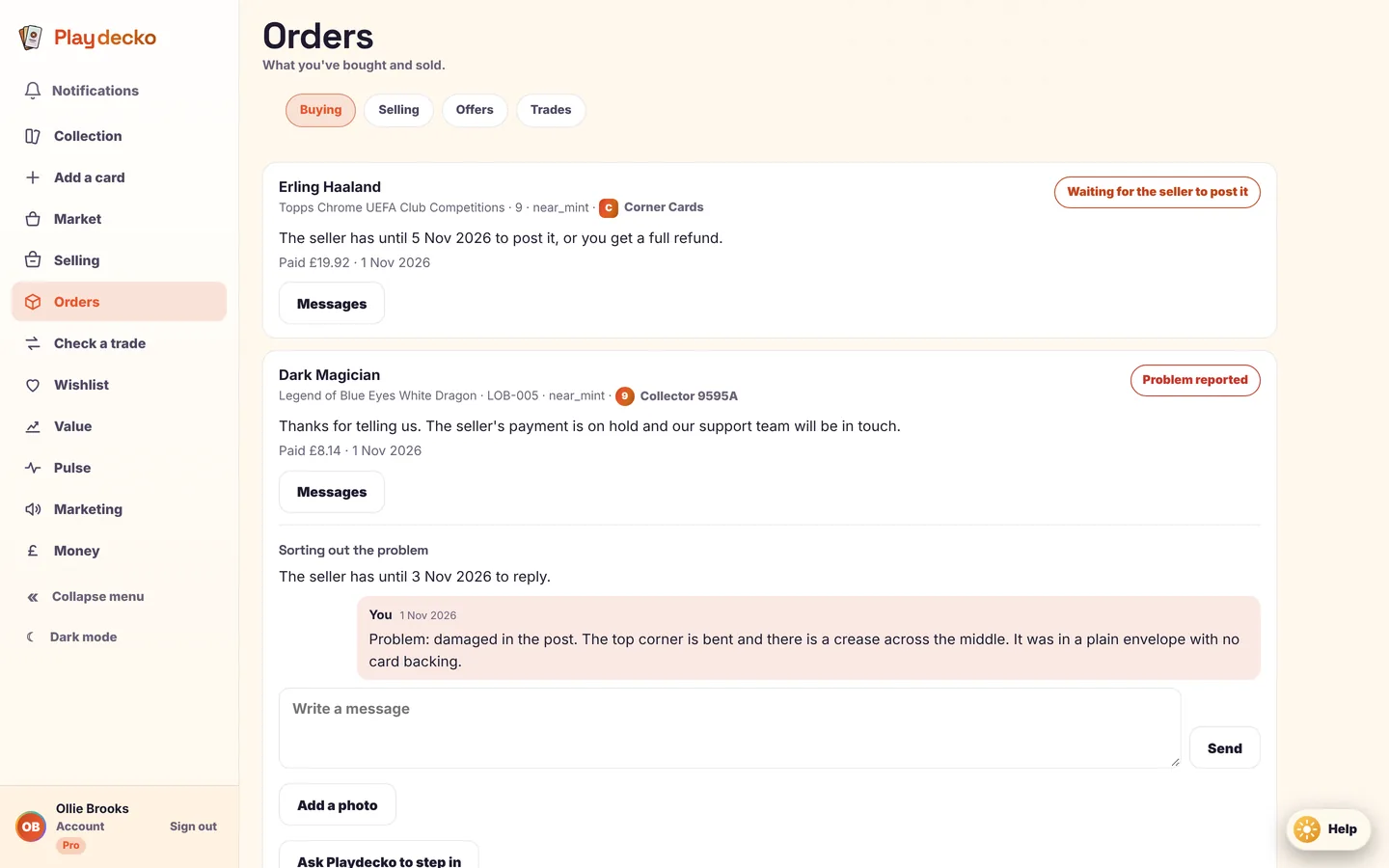
Your orders 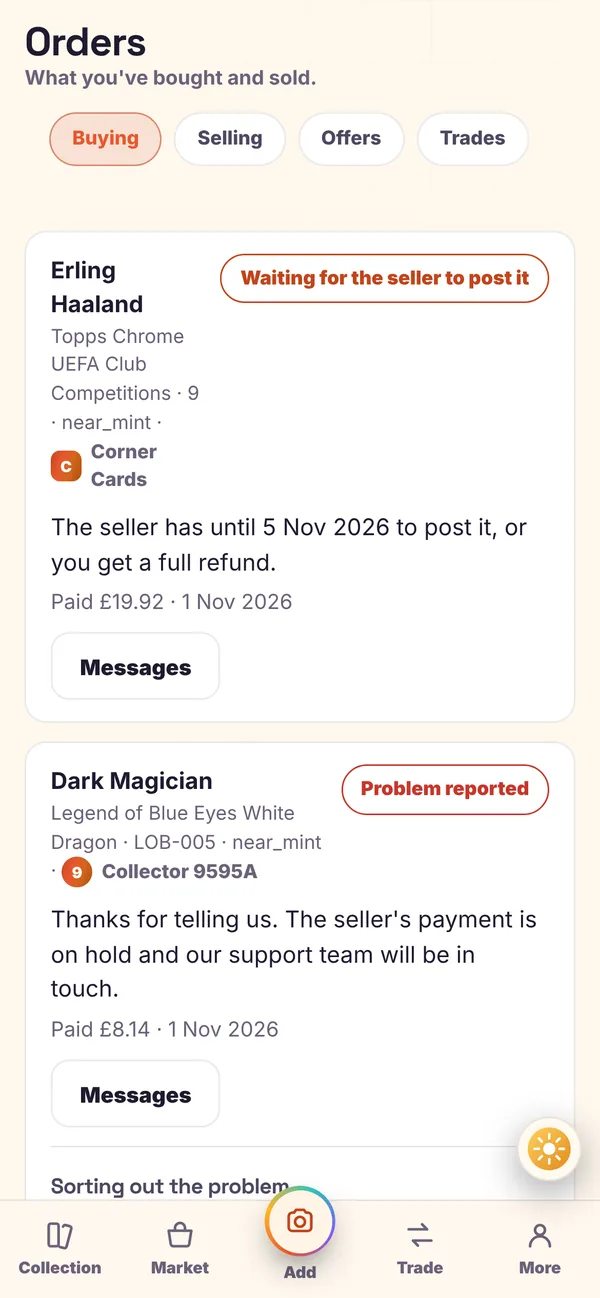
Your orders on a phone
Making an offer
Where the seller accepts offers, you can offer less than the listed price.
-
On the listing, tap Make an offer, type your offer and check what you'd pay if it's accepted. Your offer must be at least £1 and under the listed price.
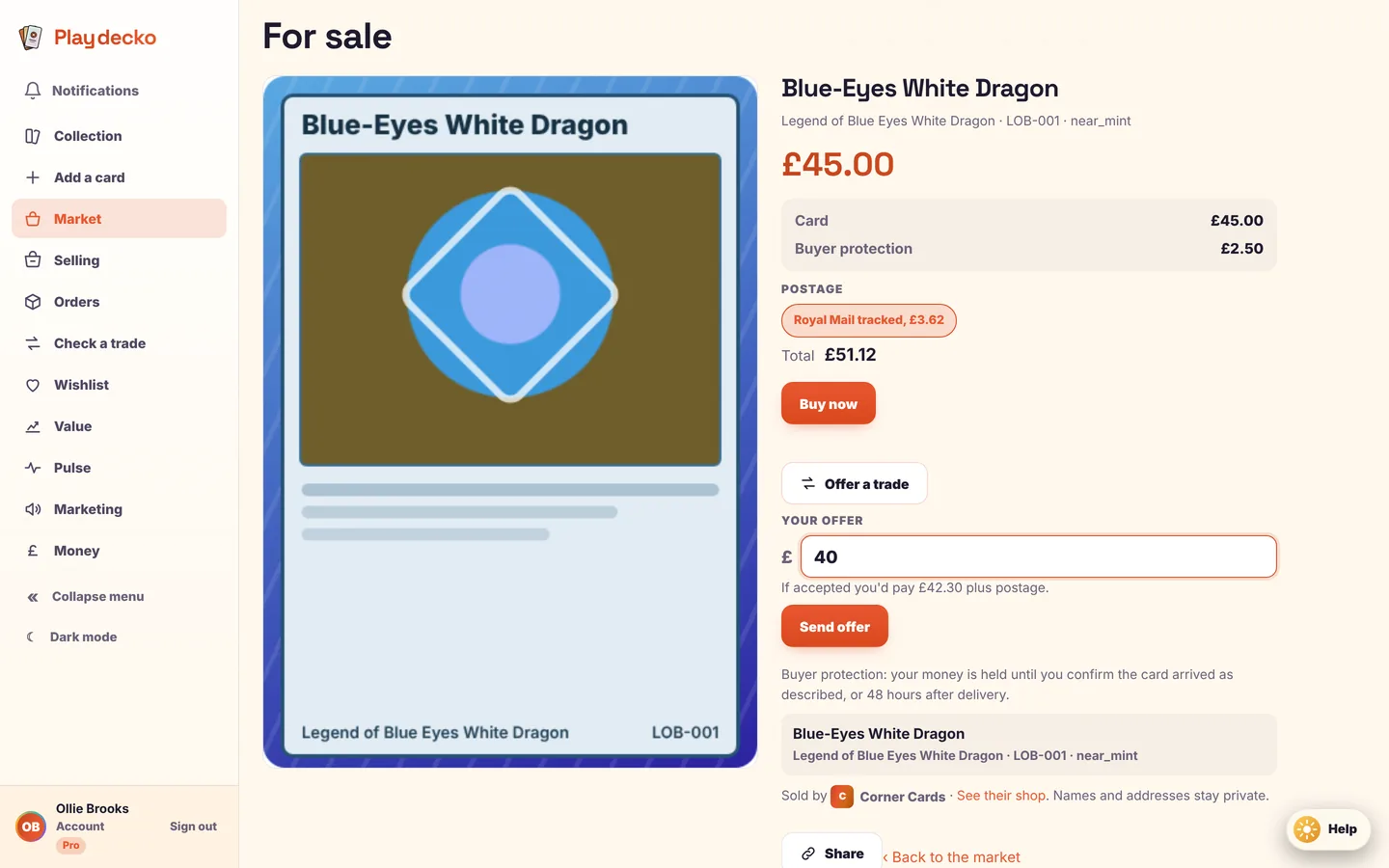
Making an offer -
Tap Send offer. The seller has 48 hours to answer. You can make up to 3 offers on one listing, and withdraw an offer while it's waiting.
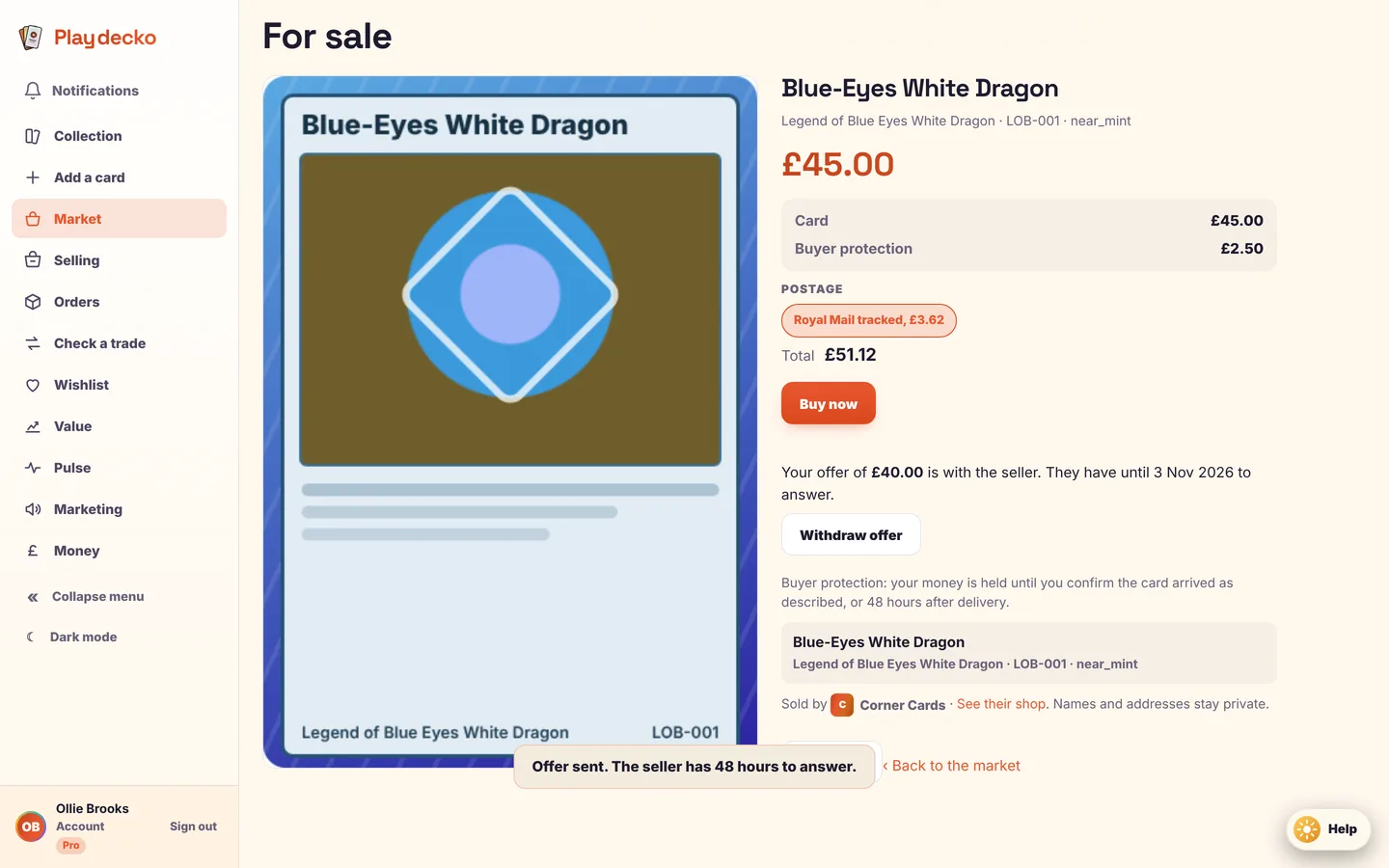
Offer sent -
The seller can accept, decline or counter. If they counter, you'll see their price on the listing with Accept and No thanks.
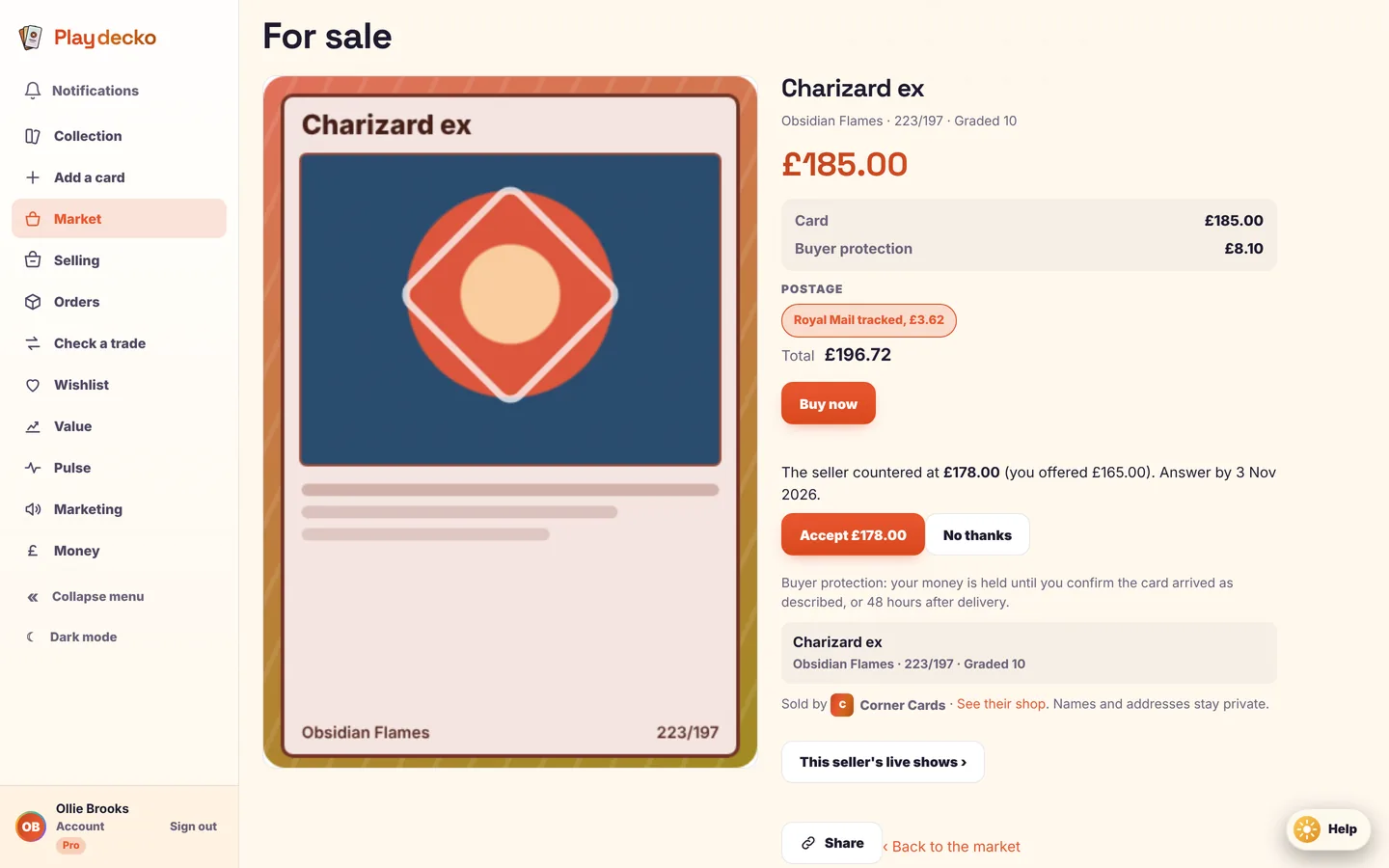
A counter offer -
When an offer is accepted, the card is held for you and you have 24 hours to pay. Tap Pay now on the listing.
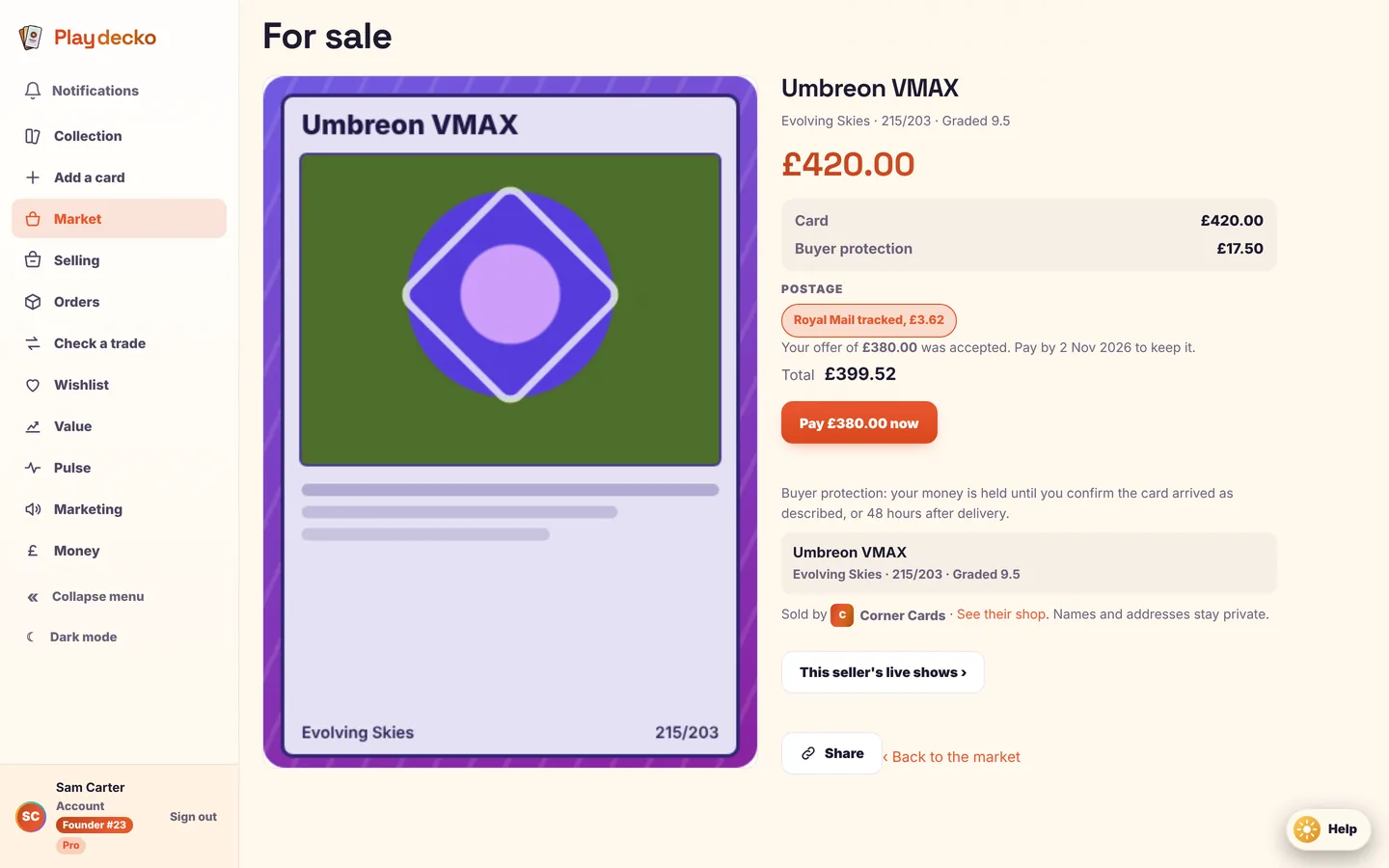
Paying for an accepted offer
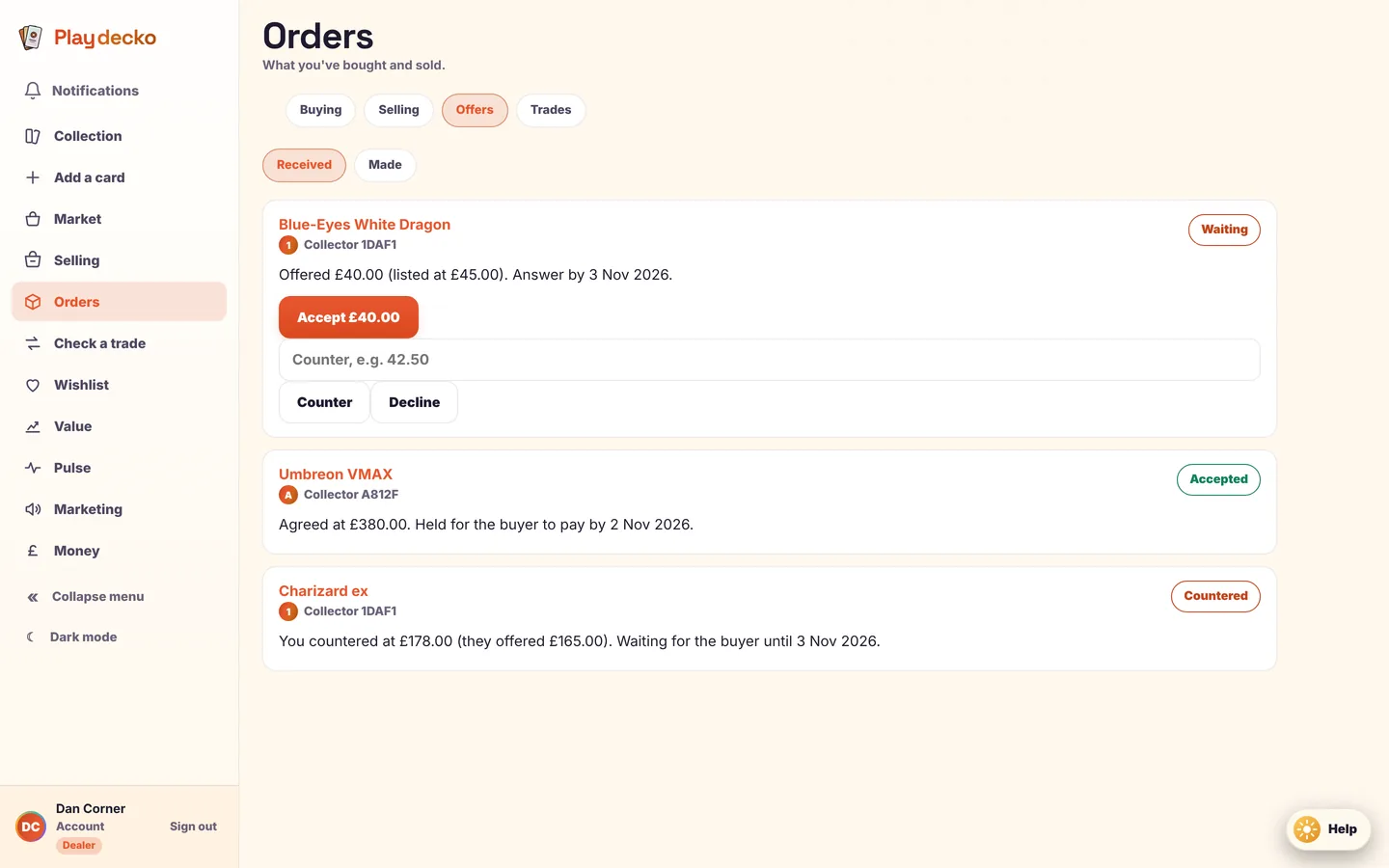
If you're the seller: offers you receive are under Orders, Offers, Received. Accept, decline, or type a counter price and tap Counter.
Selling: setting up payouts
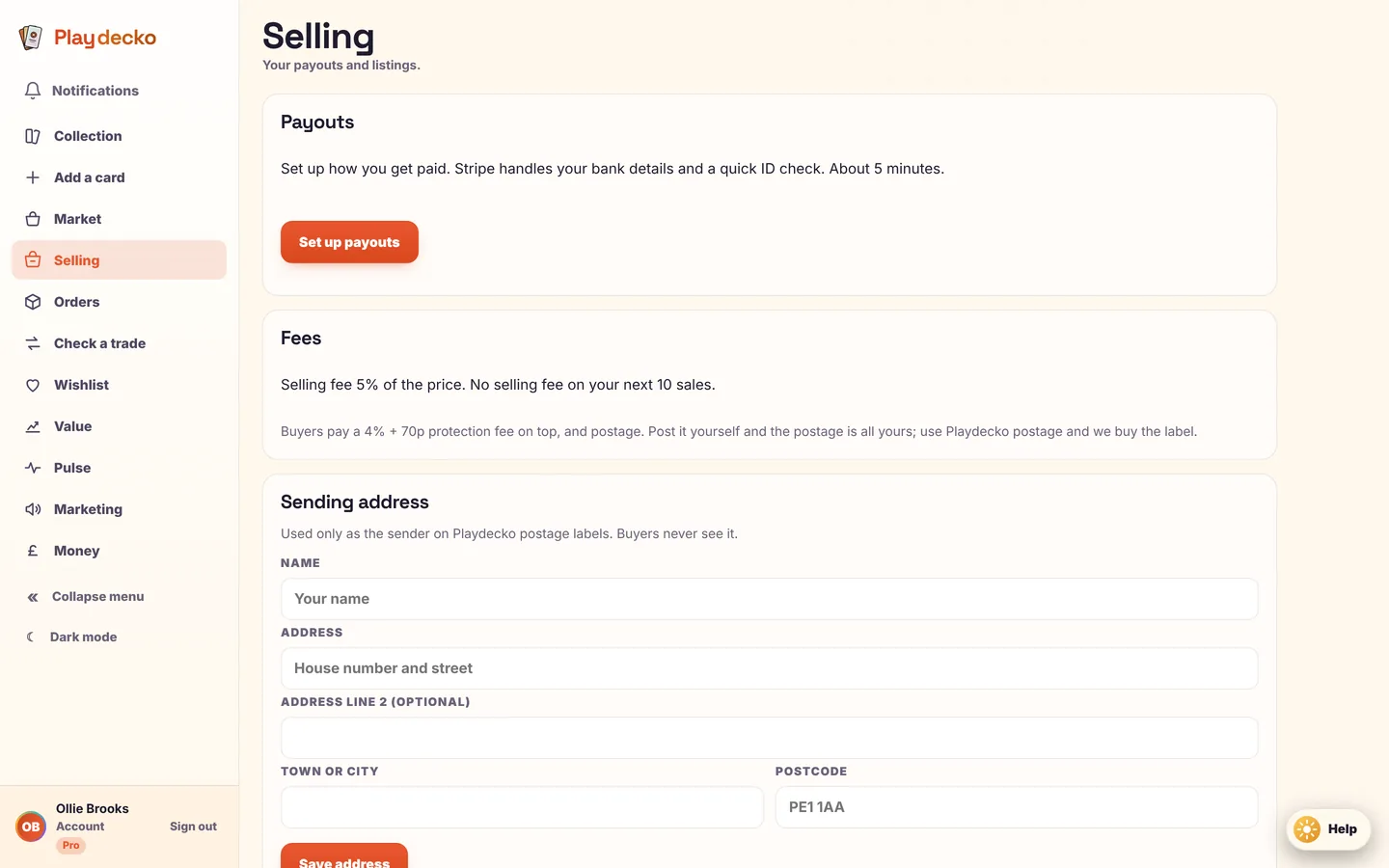
Before your first listing you set up how you get paid. Stripe handles it: your bank details and a quick ID check. It takes about 5 minutes. Selling is open to UK sellers.
-
Go to Start selling in the menu (it becomes Selling once you've started) and follow Get ready to sell: set up payouts, then list your first card. Or tap Sell on any card and you'll be asked to set up payouts first.
Payouts not set up yet 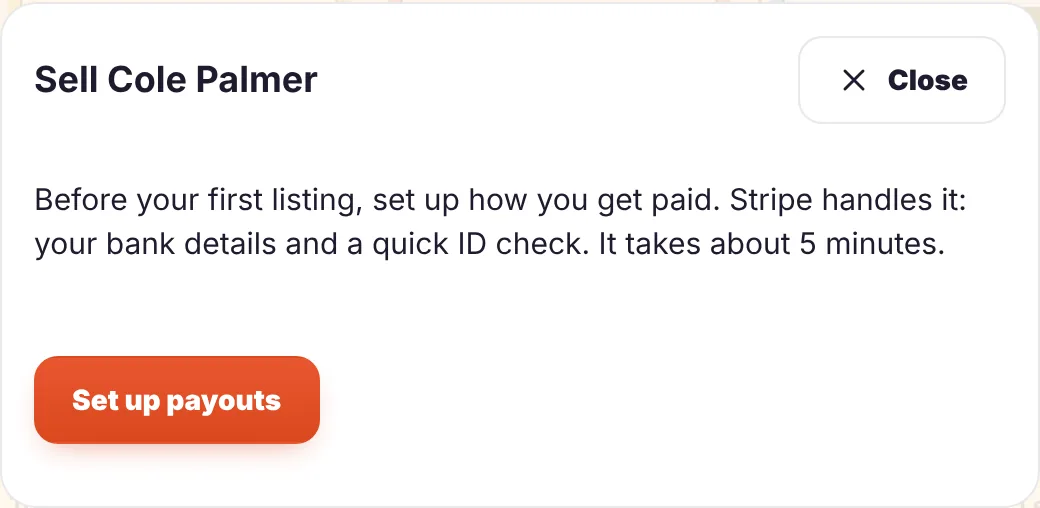
The Sell button asks you to set up payouts first -
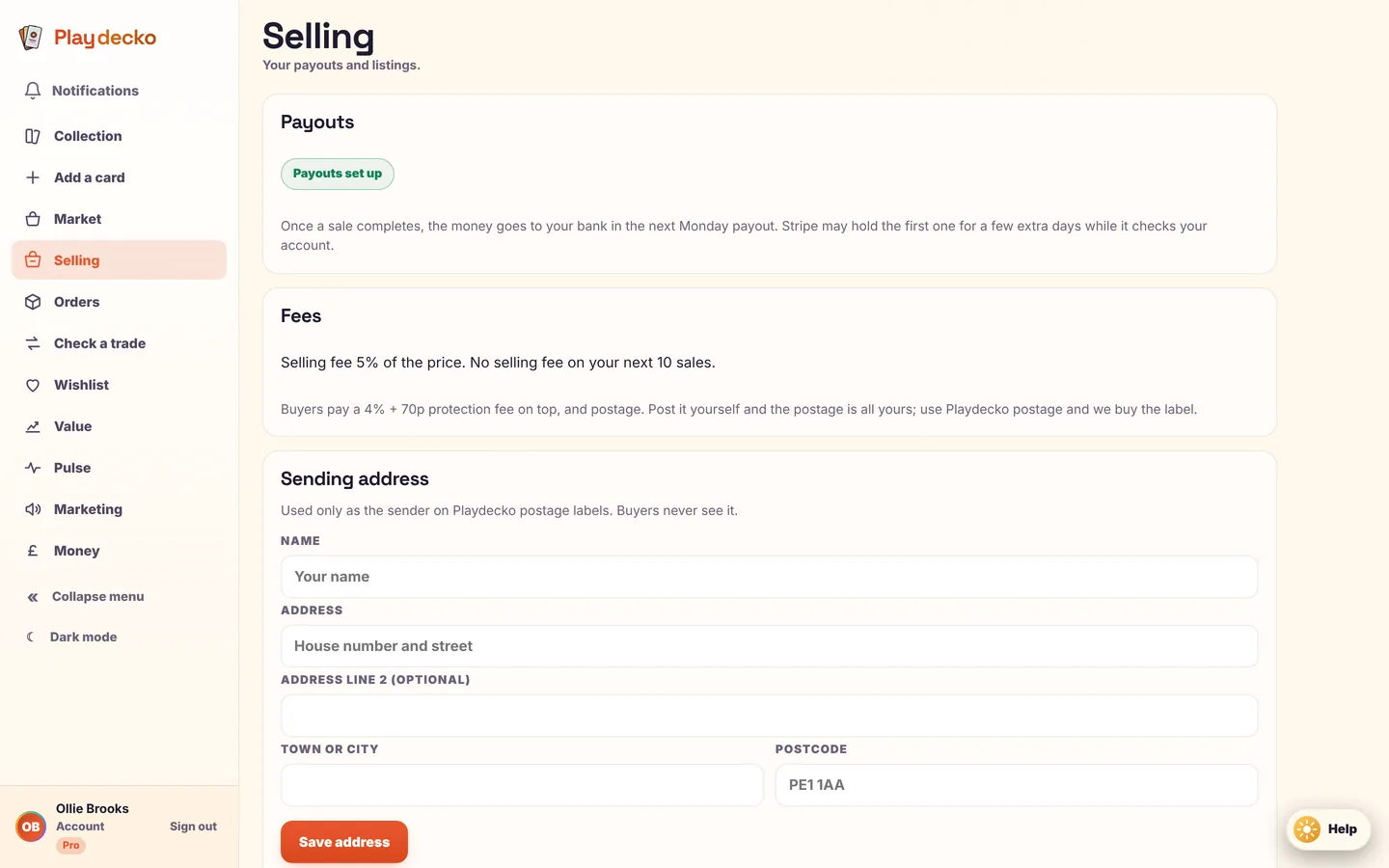
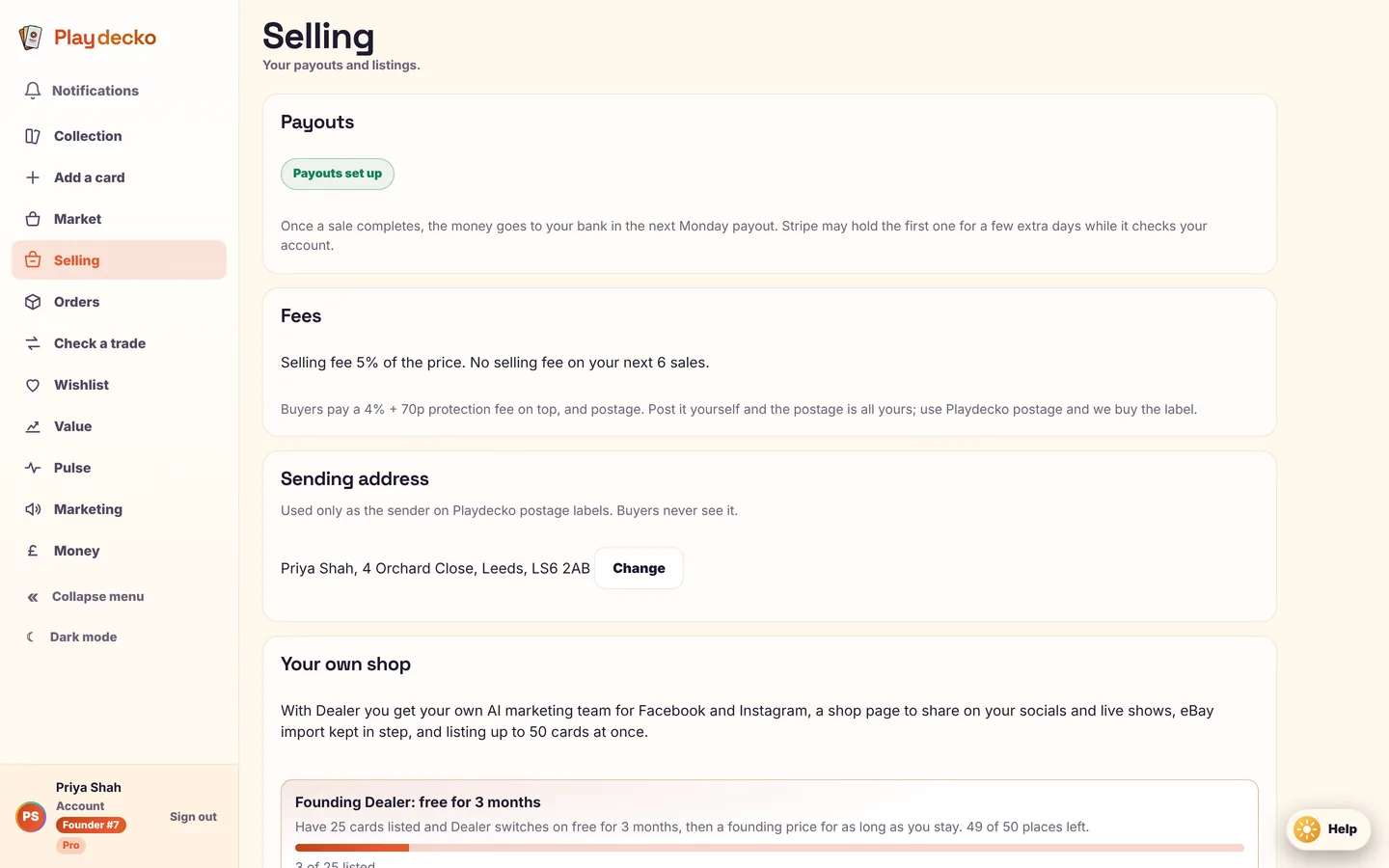
Finish the steps on Stripe's page. When you come back, Selling shows Payouts set up. Money from completed sales goes to your bank in the next Monday payout. Stripe may hold your first payout for a few extra days while it checks your account.
Payouts set up -
If you want Playdecko to buy your postage labels, add your Sending address on the same page. It only appears as the sender on labels. Buyers never see it.
Fees
- Buyers pay a buyer protection fee of 4% of the price plus 70p, on top of the price and postage.
- Sellers pay no selling fee on their first 10 sales. After that the selling fee is 5% of the price.
- While you have fee free sales left, the Selling page shows how many.
Listing a card
-
Open the card in your collection and tap Sell. The card needs a photo of its own first. After your first listing, the postage and offer choices you made are filled in for you next time; change them whenever you like.
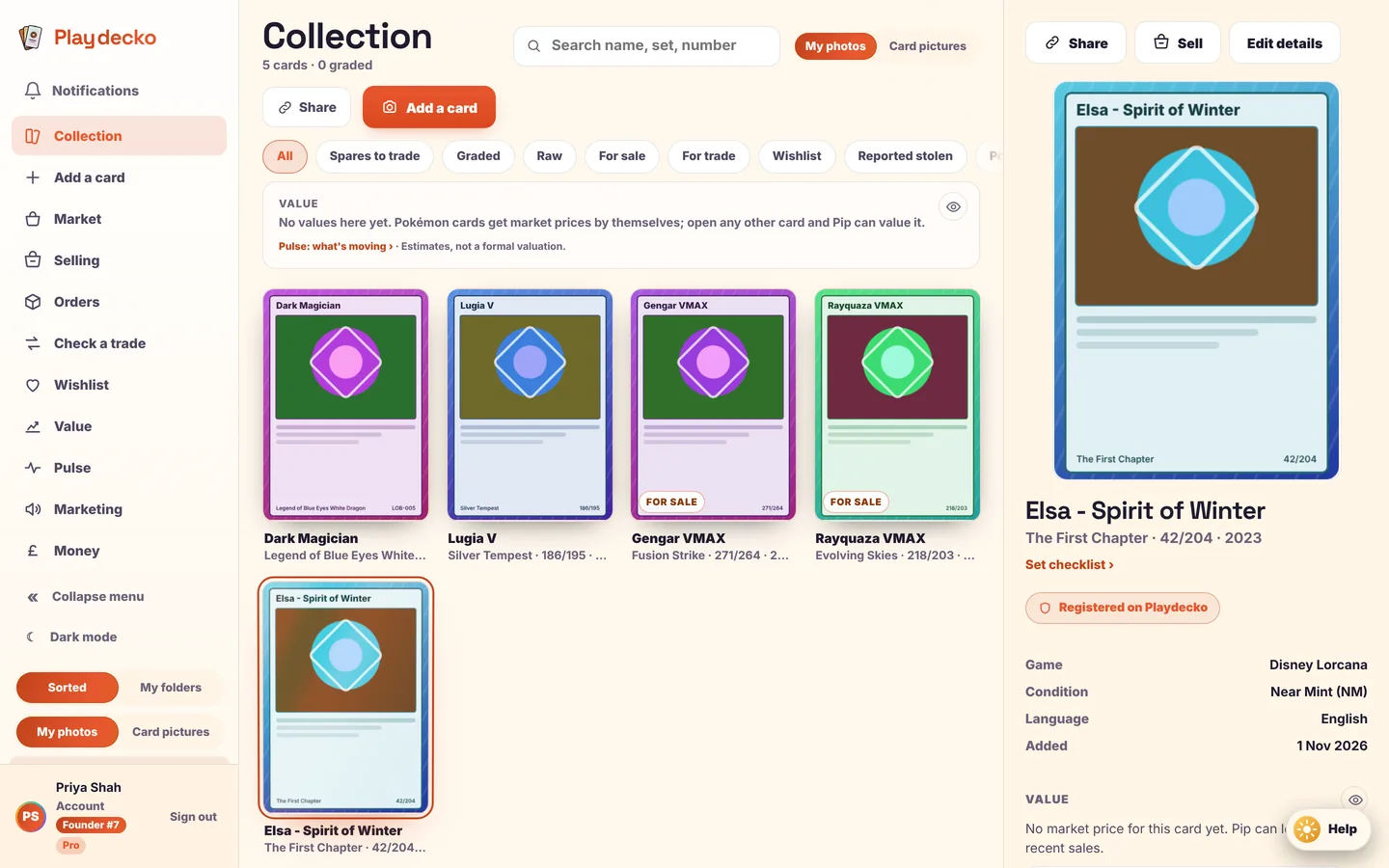
The card panel with the Sell button -
Enter your price. The lowest price is £1. Cheaper cards can be bundled into one listing.
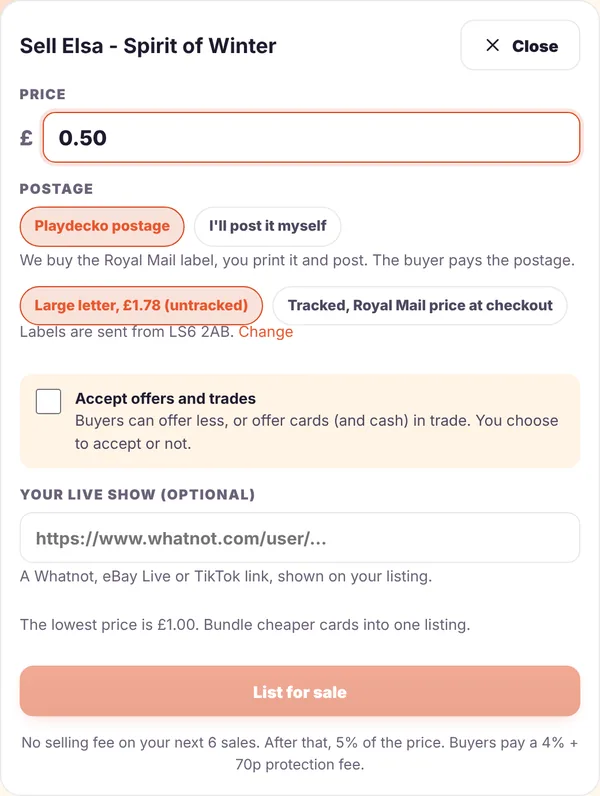
The minimum price -
Choose your postage:
- Playdecko postage: we buy the Royal Mail label, you print it and post. The buyer pays the postage. Tick Large letter (untracked) and, or Tracked. Cards priced at £20 or more must go tracked.
- I'll post it myself: set your own postage price, up to £20, and tick I'll send it tracked if you will. You keep all of the postage.
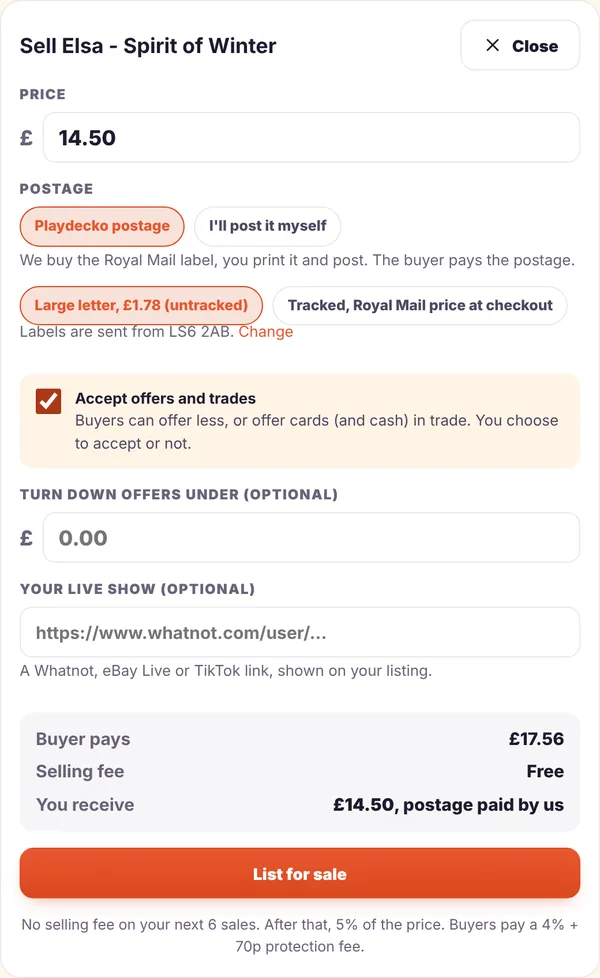
Selling with Playdecko postage 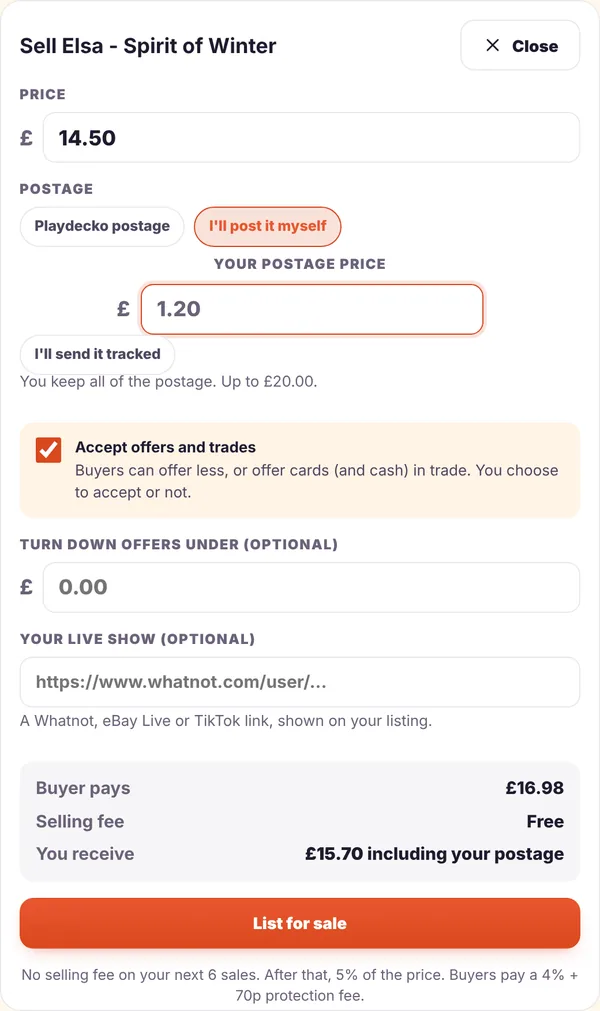
Selling with your own postage -
Tick Accept offers and trades if you're open to offers. You can set a price below which offers are turned down automatically.
- If you sell on Whatnot, eBay Live or TikTok, add your live show link and it appears on the listing.
-
Check the summary (what the buyer pays, your selling fee and what you receive), then tap List for sale. The card is marked For sale in your collection.
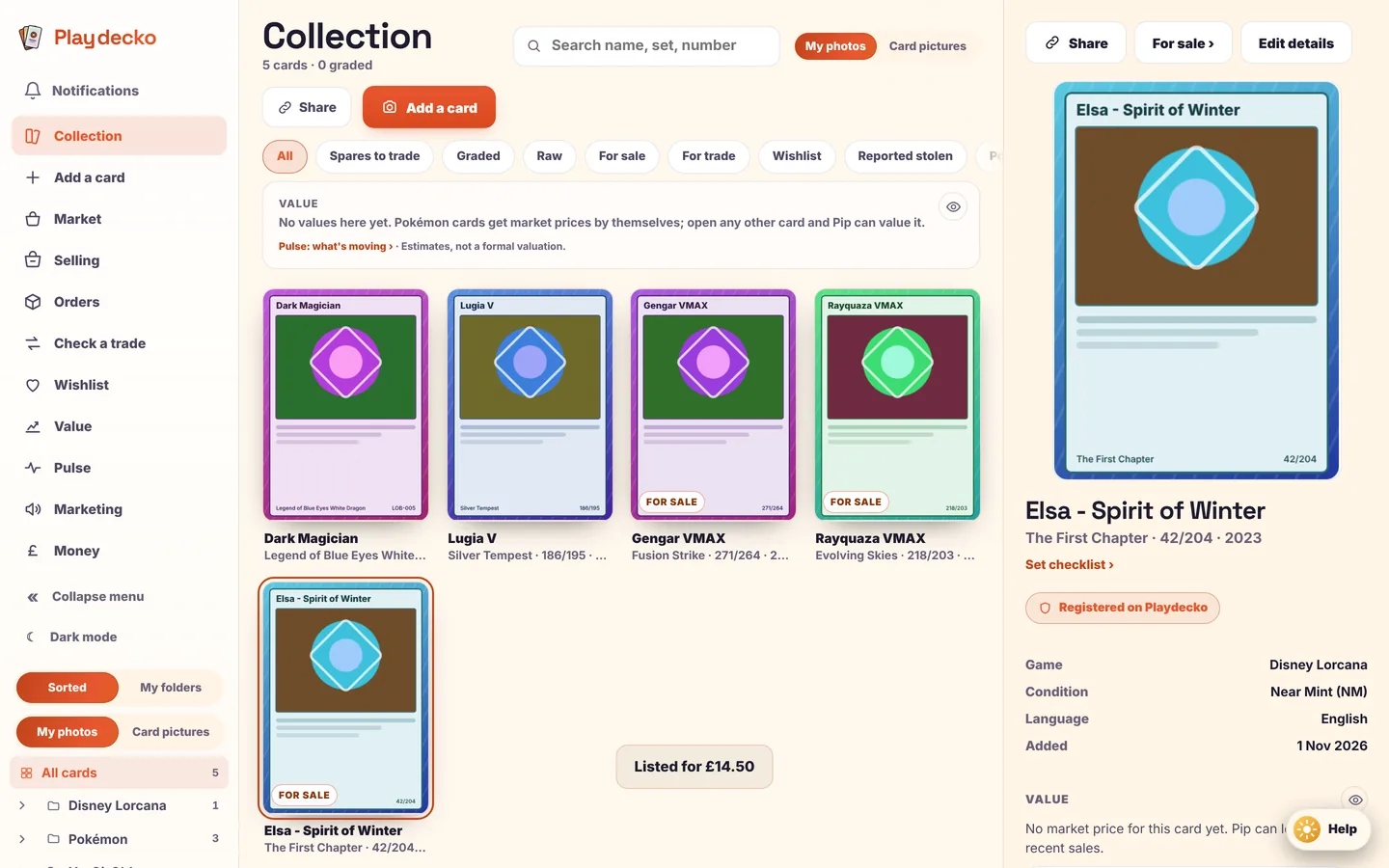
Listed -
Your listings are on the Selling page. Use Price to change the price, End to take it down, or Add video to add a short video of the card (on listings of £20 or more).
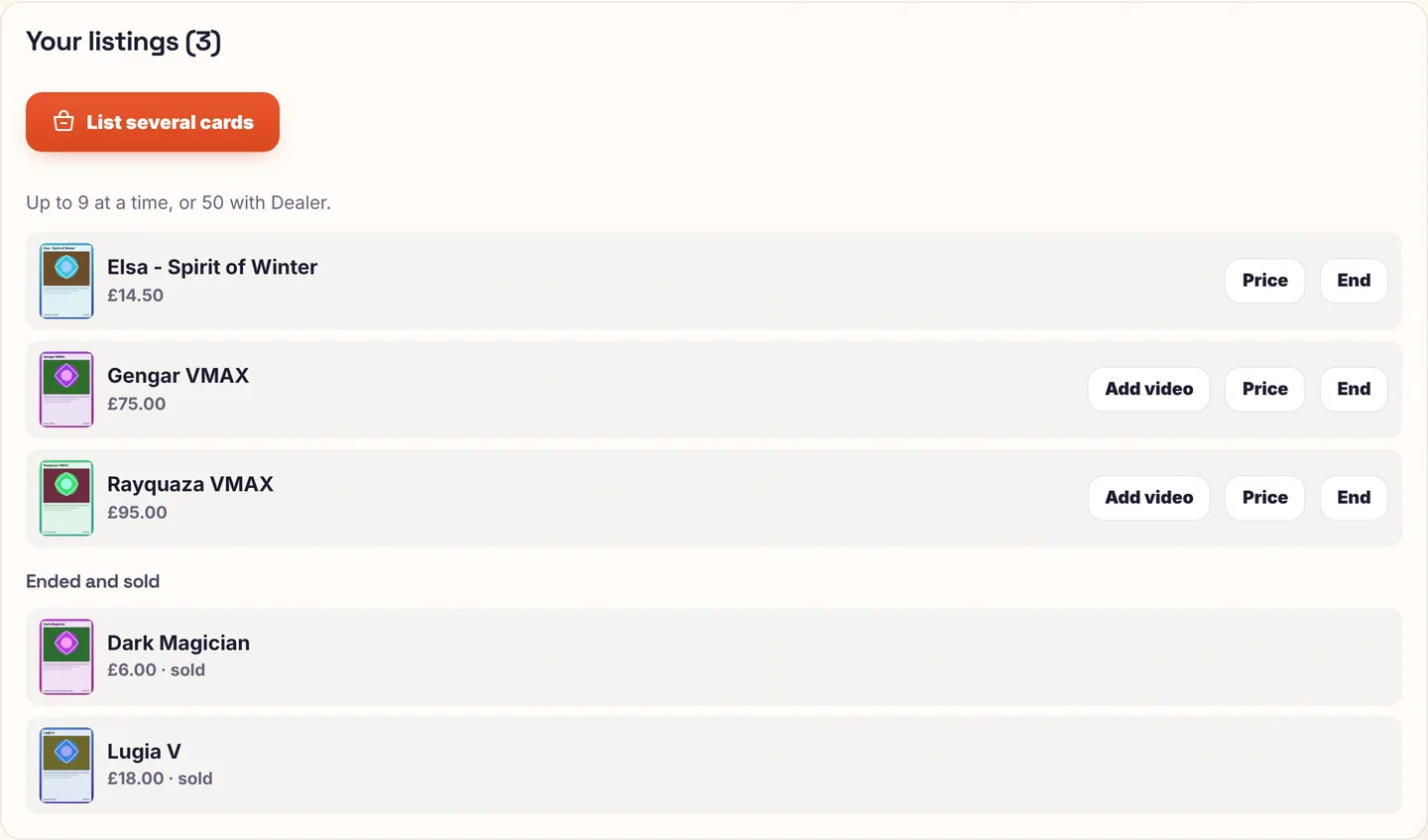
Your listings
Listing several cards at once
- On Selling, tap List several cards.
-
Tick the cards you want to sell and check each price. Prices start at the middle of each card's value range where Playdecko has one. Anyone can list 9 cards at a time; Dealers can list 50.
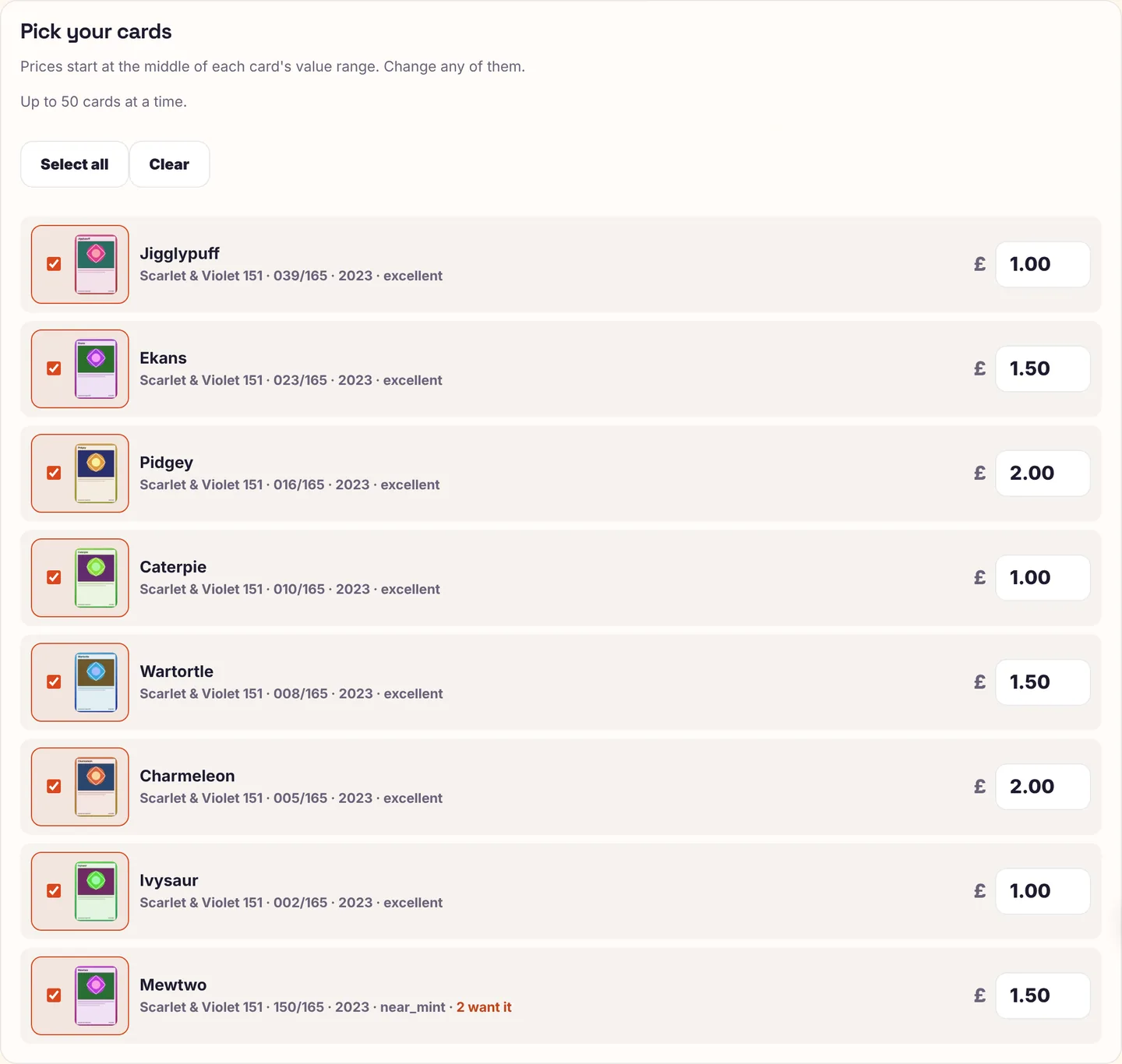
Picking cards to list -
Choose postage and offers for all of them, tick I've checked the photos and condition, then tap List.
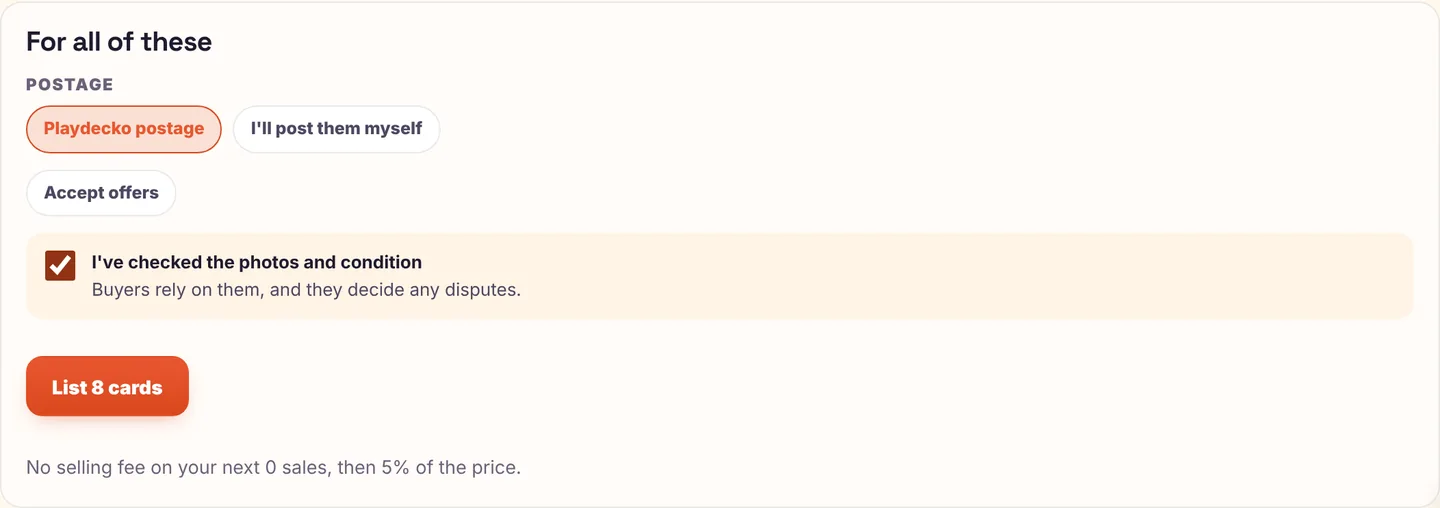
Options for all the cards 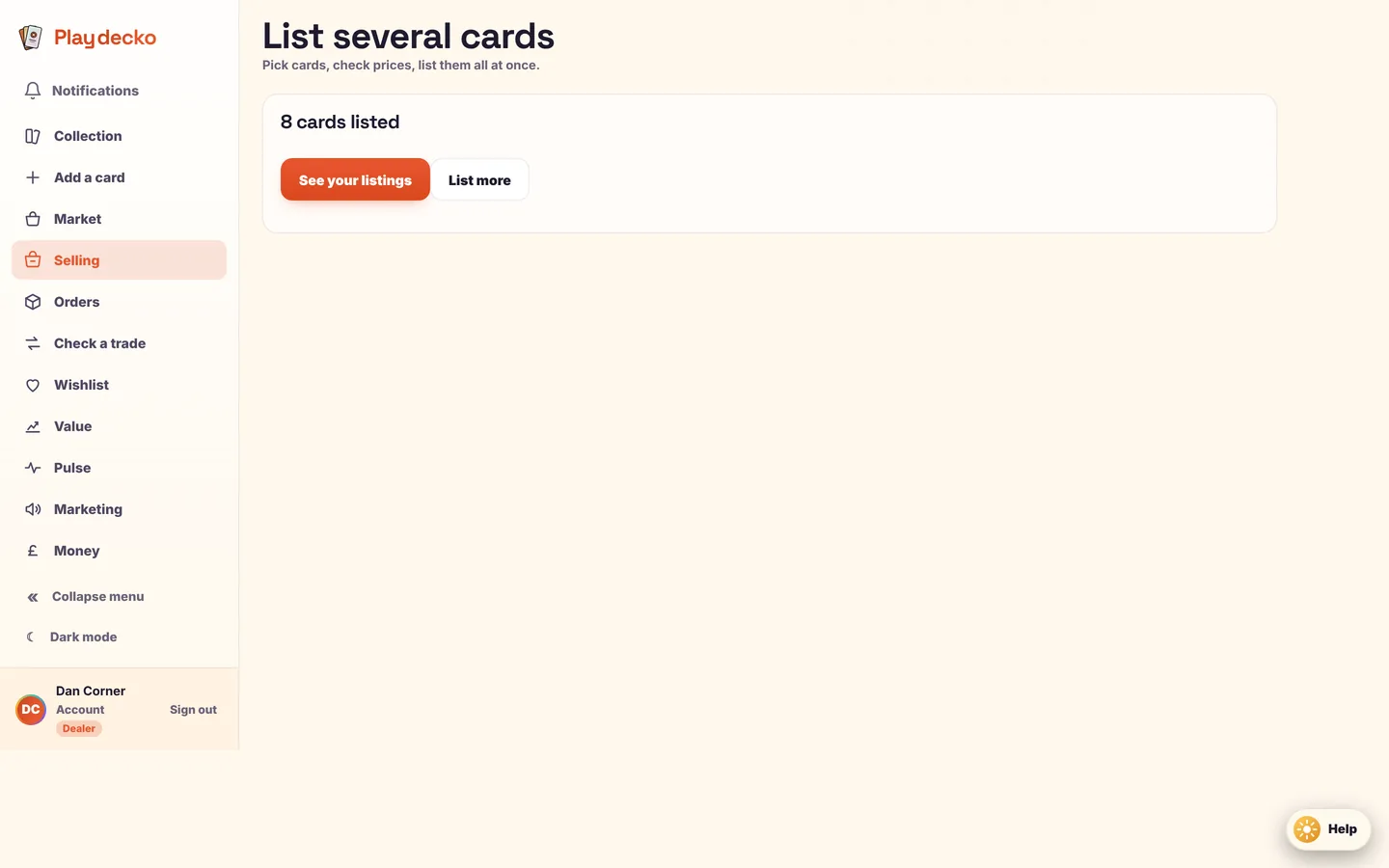
Cards listed
Sending an order
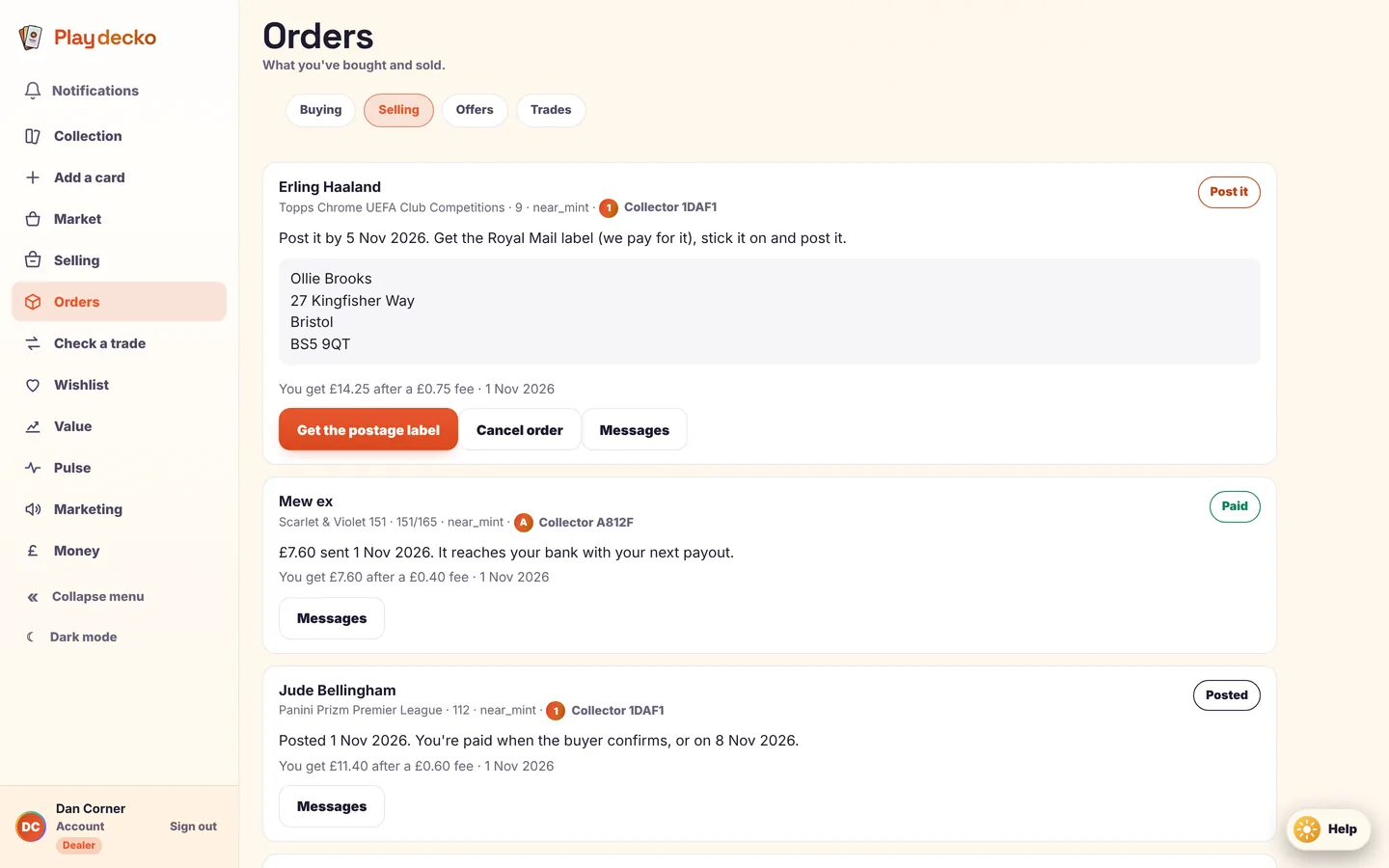
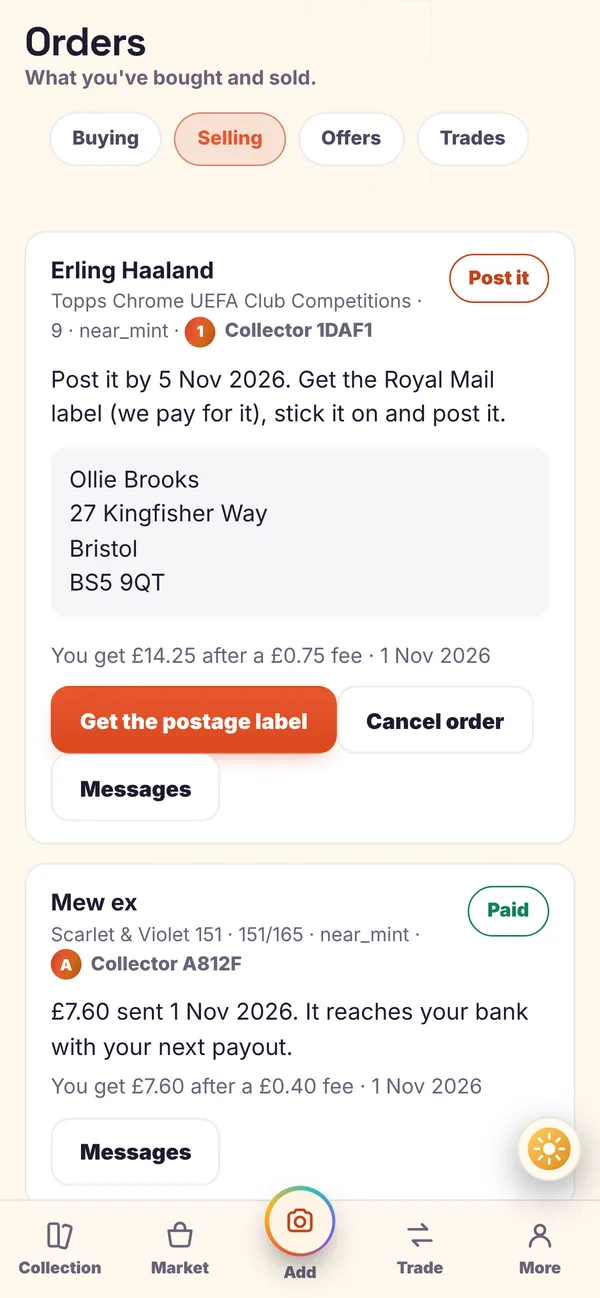
When a card sells, it appears under Orders, Selling with Post it and the buyer's address. You have 4 days to post it.
-
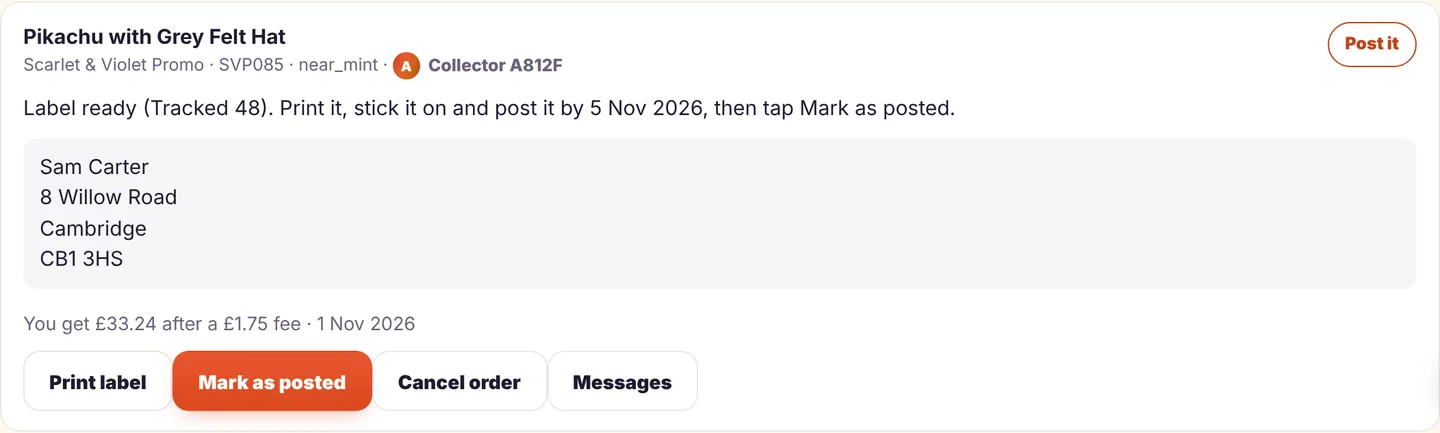
If the buyer chose Playdecko postage, tap Get the postage label. We buy the Royal Mail label. Tap Print label, stick it on and post the card.
Label ready -
Tap Mark as posted. The buyer is told, and tracked labels carry the tracking number automatically.

Marked as posted -
If you're posting it yourself, post it and tap Mark as posted. For tracked postage, add the Royal Mail tracking number.
- If you can't send it, tap Cancel order before posting. The buyer gets a full refund.
When the card arrives
-
The buyer sees the order On its way, with tracking where there is some.

On its way -
When it arrives, the buyer taps It arrived, all good. The order completes, the card moves into the buyer's collection, and the seller is paid in the next Monday payout.

Order complete -
If the buyer doesn't confirm, the seller is still paid automatically:
- 48 hours after Royal Mail shows it delivered (tracked)
- 7 days after posting (large letter, untracked)
- 14 days after posting if a tracked parcel never gets a delivery scan

Delivered, with the release date 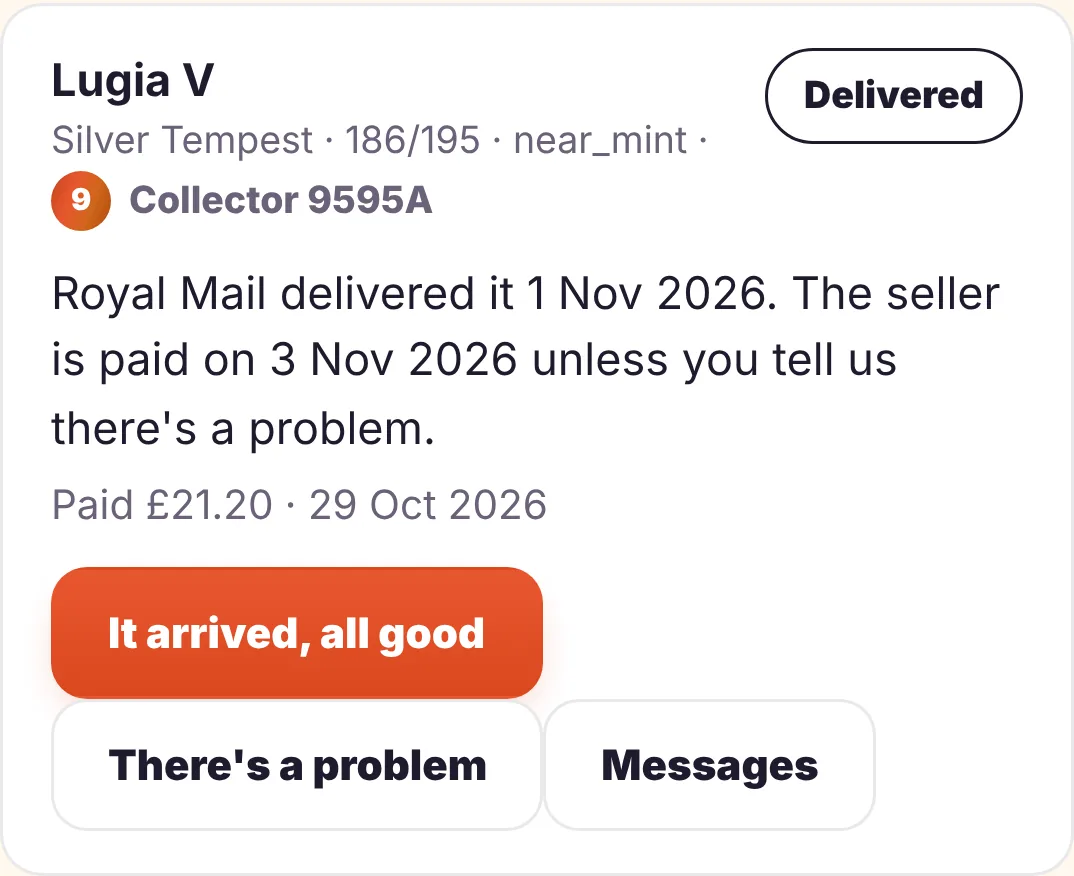
Delivered, on a phone
If something is wrong
-
Before the payment is released, the buyer taps There's a problem, picks what's wrong (not arrived, not as described, damaged, wrong card or other), says more, and taps Send to support. The seller's payment is held straight away.
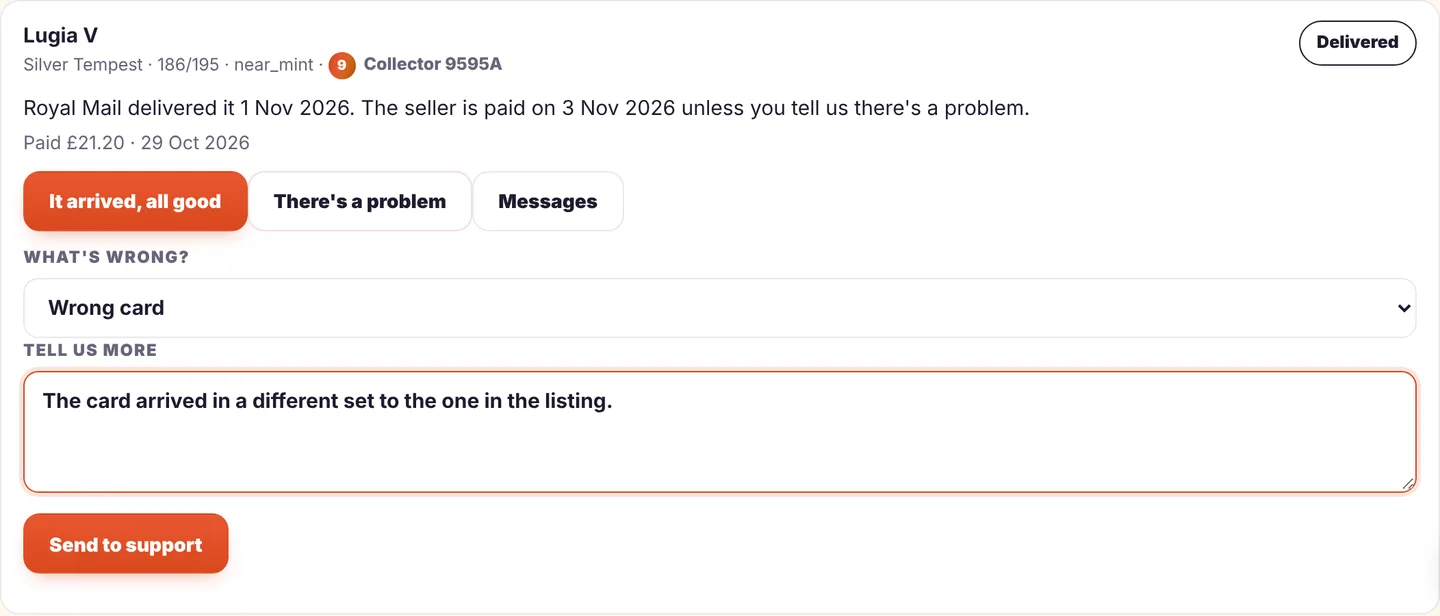
Reporting a problem -
Buyer and seller sort it out together first, in the order's messages. Both can add photos. The seller has 48 hours to reply.
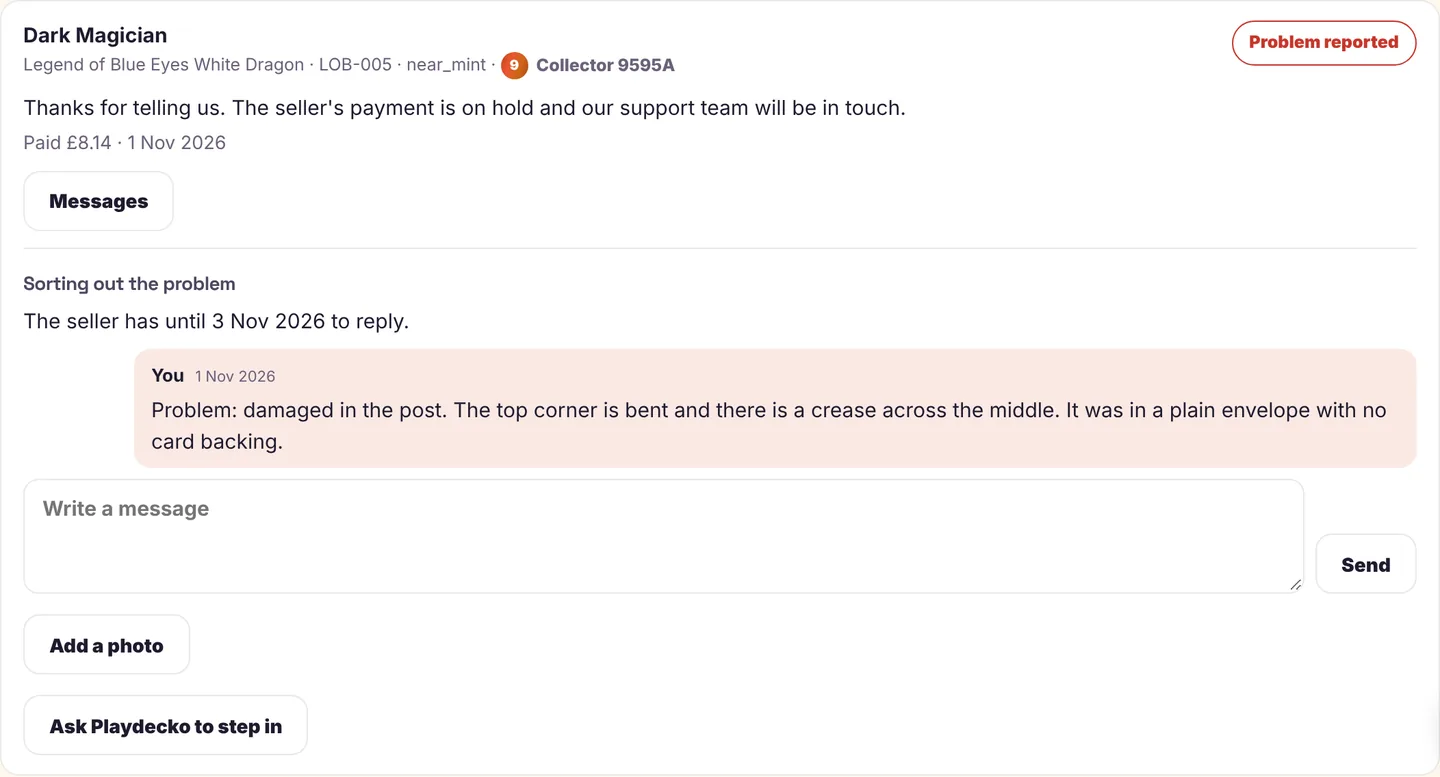
The buyer's view of a problem -
The seller can tap Put it right and offer a full refund with the buyer keeping the card, a full refund once the card is sent back, or a partial refund. The buyer has 72 hours to answer.
-
Either side can tap Ask Playdecko to step in and our support team takes over.
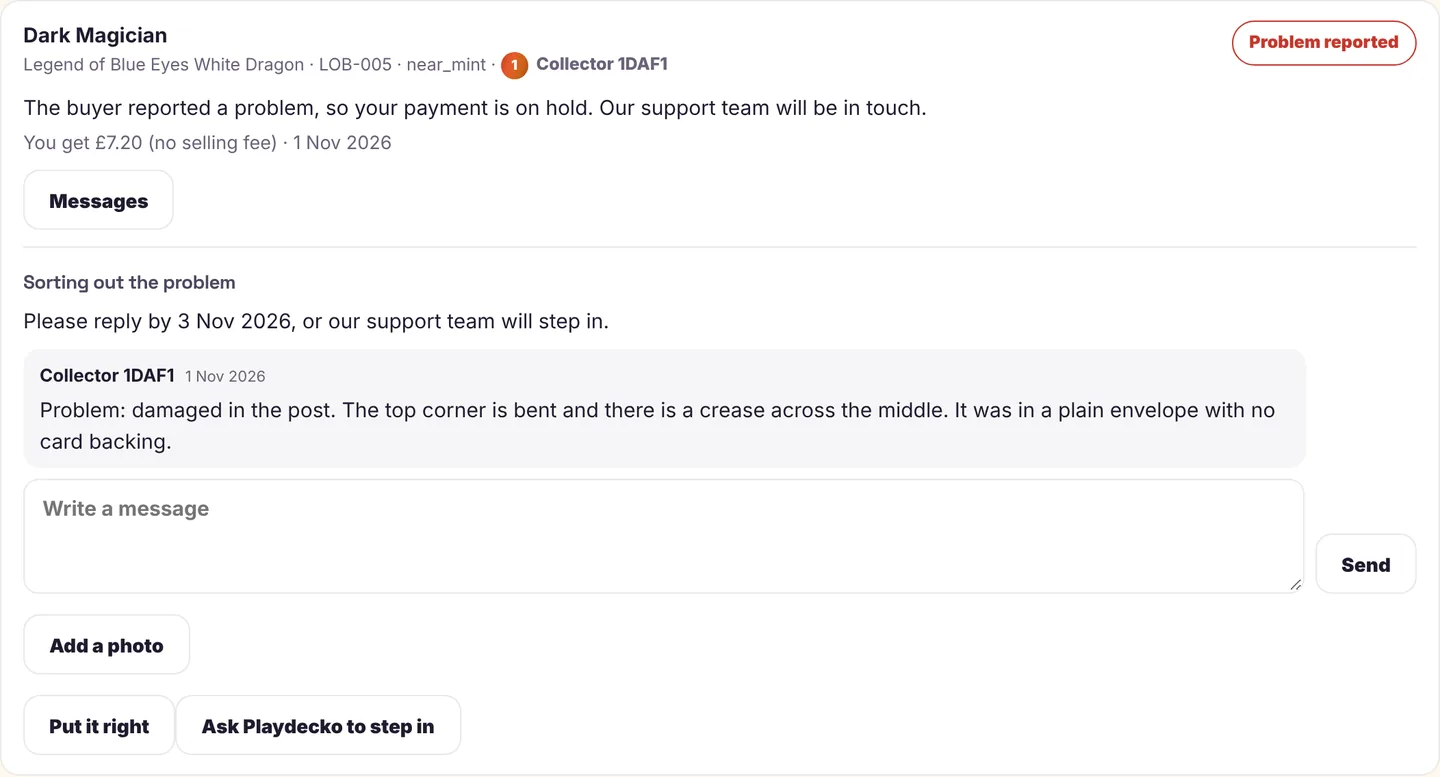
The seller's view of a problem
Your Money page
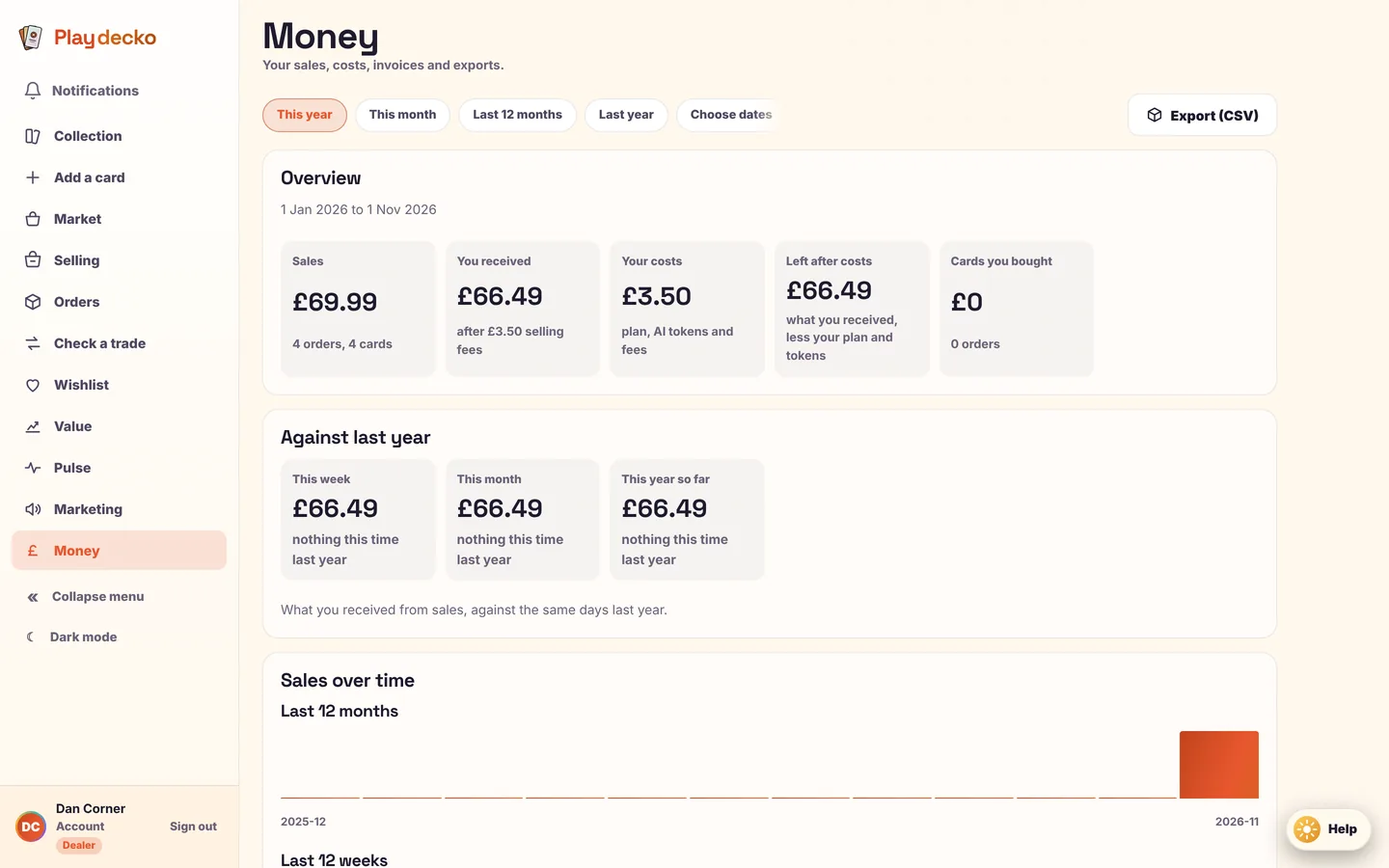
Money shows your sales, what you received after fees, your costs (plan, AI tokens and fees), and what's left, for this year, this month, the last 12 months, last year or dates you choose. It compares with the same time last year and charts your sales over time. Tap Export (CSV) for your records.
Wishlists and wanted cards
Wishlists act as standing buyers. Playdecko only ever shows counts, never who.
-
As a seller: Selling shows Wanted by collectors, the cards in your collection that other collectors have on their wishlist. Tap Sell to list one. When you list several cards at once, wanted cards are marked too.

Wanted by collectors -
As a buyer: your Wishlist shows For sale from with the cheapest live listing for each card you want.
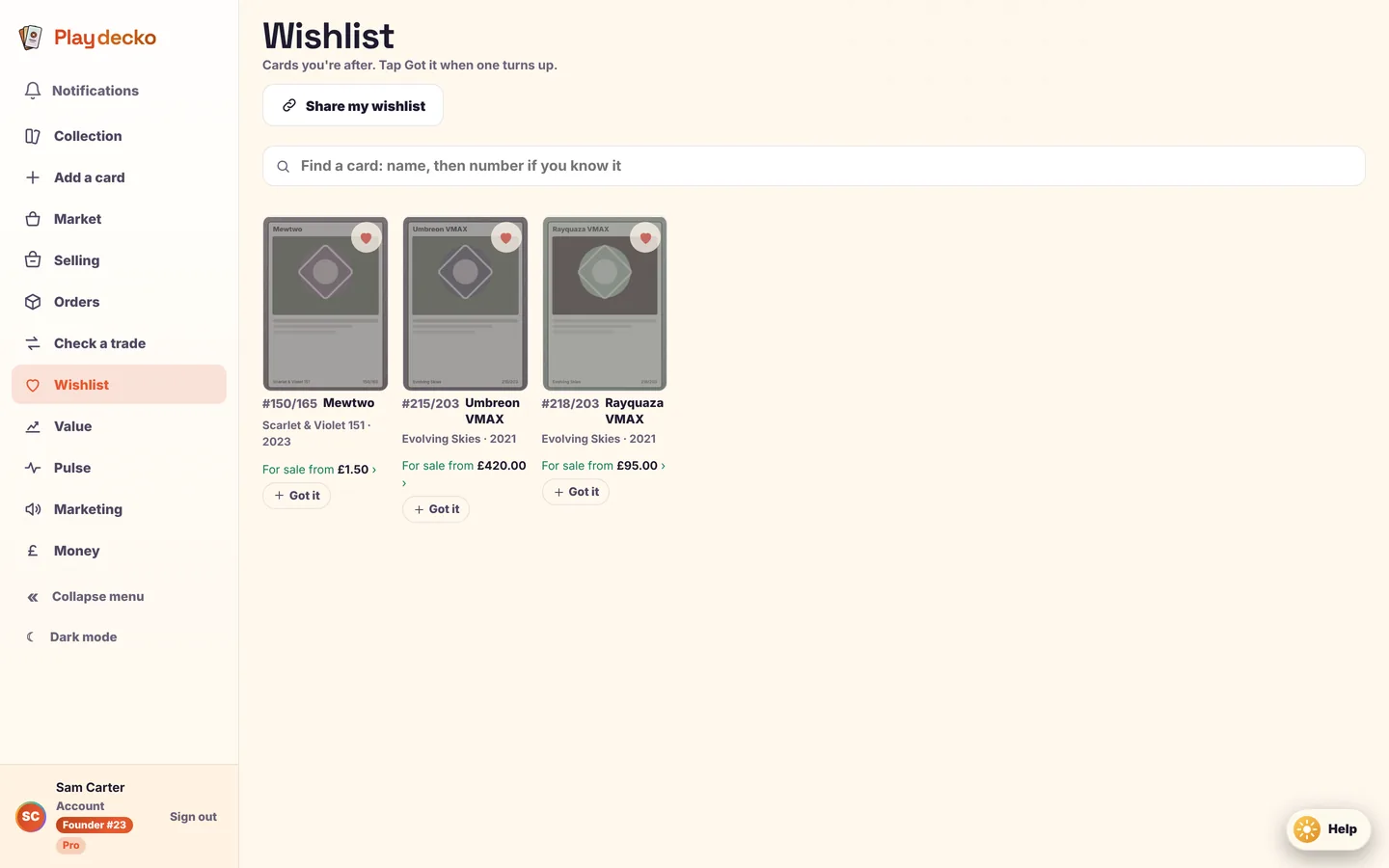
Wishlist cards for sale
Dealer and your own shop
Dealer is the plan for shops and regular sellers. It includes everything in Pro, plus your own shop page, list up to 50 cards at once, eBay import kept in step, and your own AI marketing team for Facebook and Instagram. Dealer is £9.99 a month or £99.99 a year.
Founding Dealers
The first 50 sellers to have 25 live listings in the first 3 months after launch get Dealer free for 3 months, then a founding price of £6.99 a month or £69.99 a year for as long as they stay. Keep 25 cards listed to keep it free: if you drop below 25 for 14 days, the free months end.
Selling shows your progress towards 25 listings and how many places are left.
Setting up your shop
- On Selling, open Your shop.
- Add your logo and banner, pick a brand colour and a backdrop (or use your own backdrop picture), and fill in your shop name, shop address, a short description and up to 3 links to your live shows or other shops.
-
Tick Shop is live and tap Save shop. Your shop link is shown with Copy link to share it.
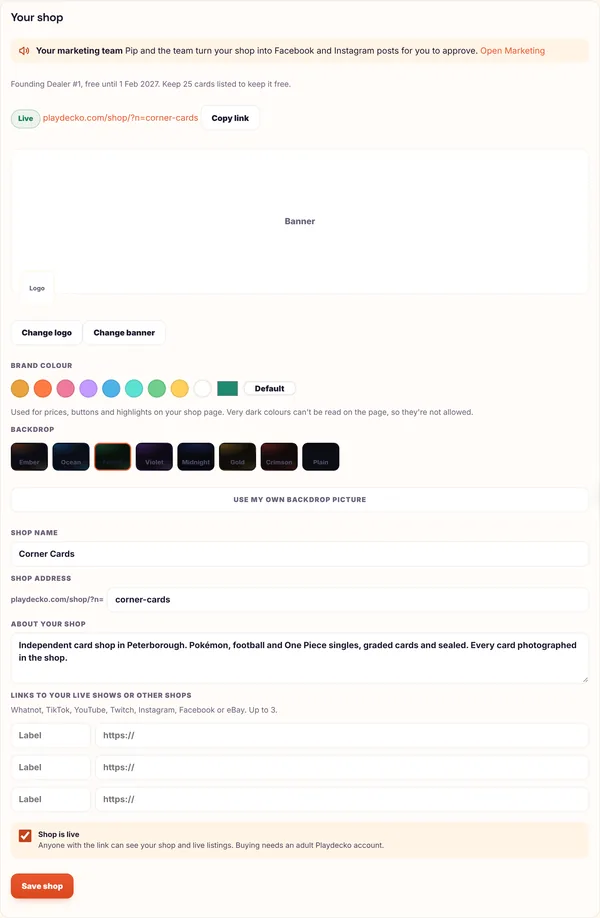
Shop settings -
Anyone with the link sees your shop page with all your live listings, searchable and sorted by game. Buying still needs an adult Playdecko account.
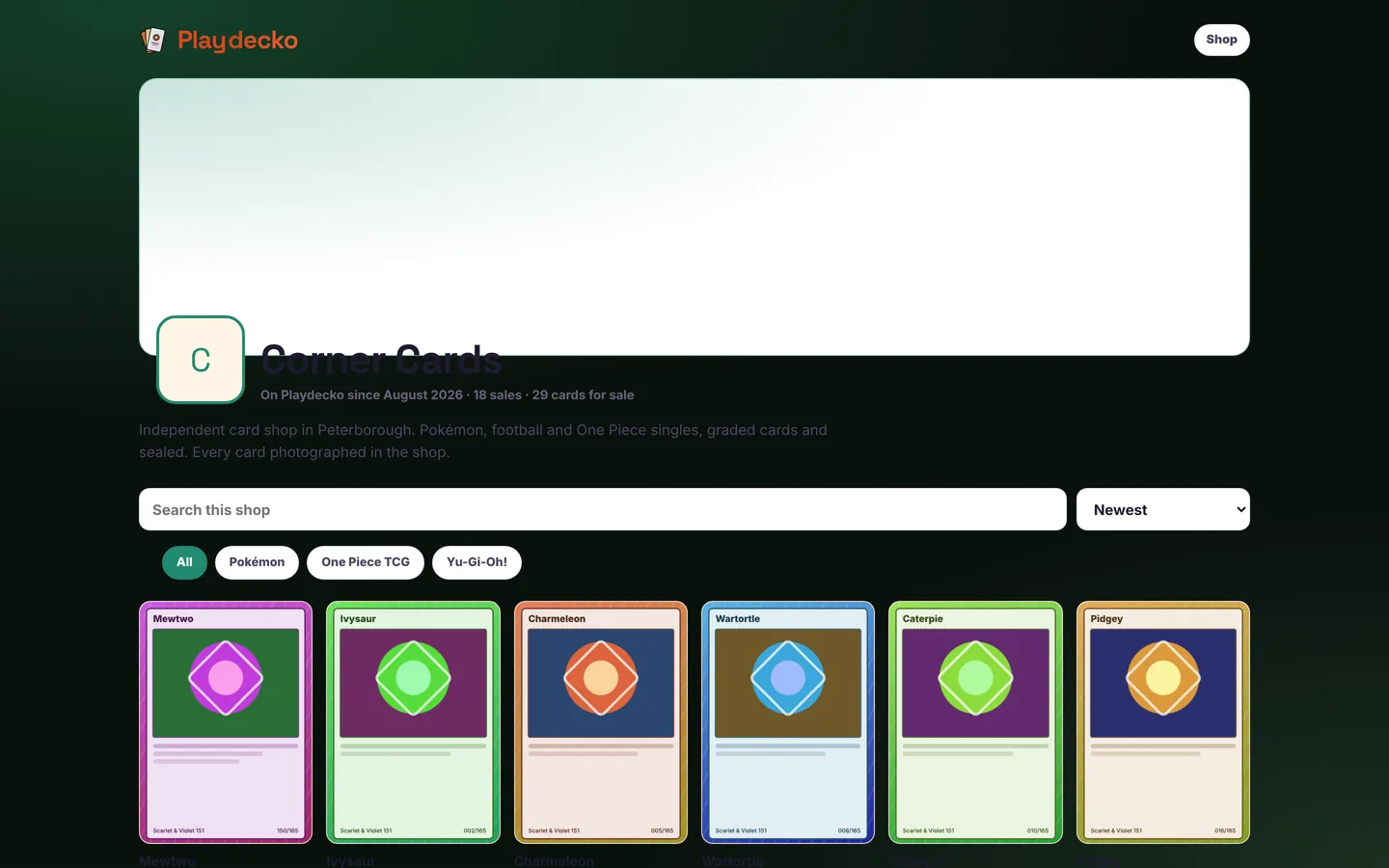
A shop page 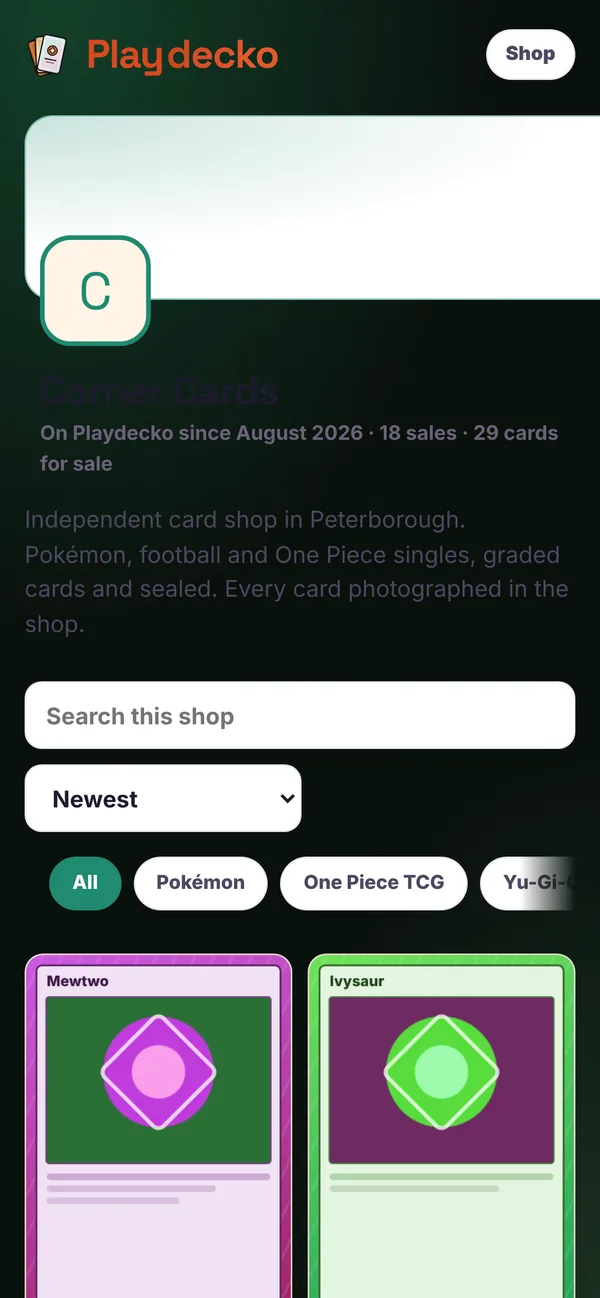
A shop page on a phone
Selling on eBay too
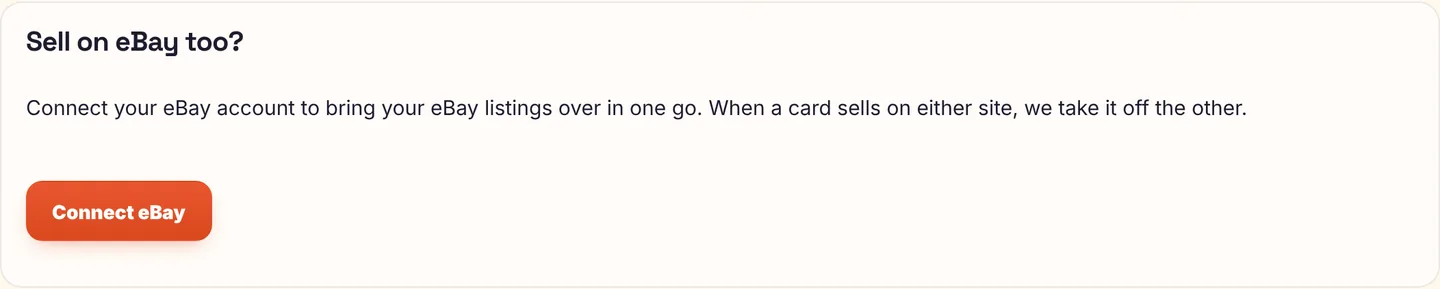
Dealers can connect their eBay account on the Selling page to bring their eBay listings over in one go. When a card sells on either site, it's taken off the other.
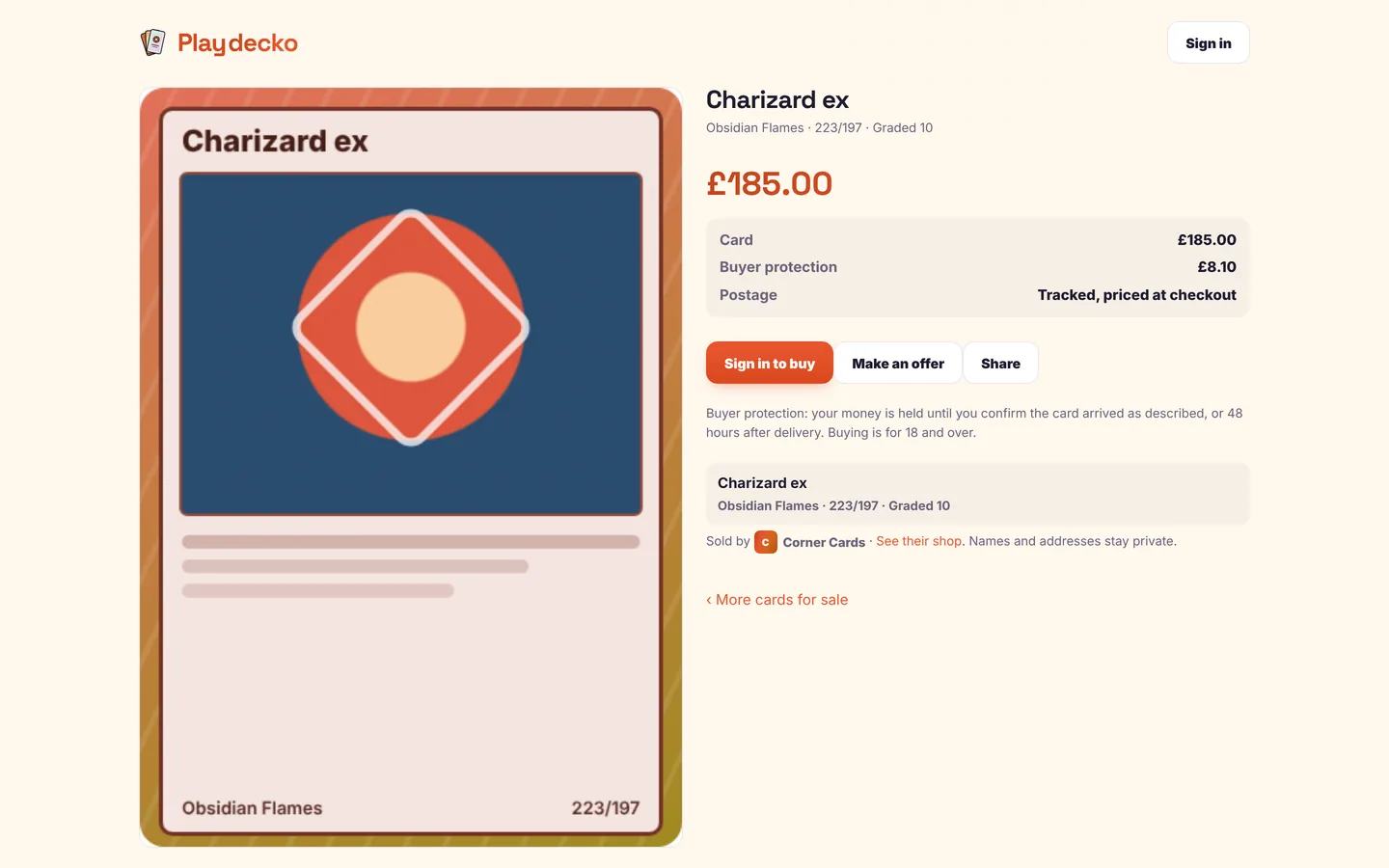
Sharing a listing
Every listing has a public page anyone can see without an account, with Sign in to buy, Make an offer and Share.
Screenshots show example collections. Values are estimates, not a formal valuation. Questions? Ask Sunny in the app, and a person from Playdecko is always a tap away.